Fix macOS Too Many Open Files Error — Resolve with RcloneView
Resolve the "too many open files" error in RcloneView on macOS by raising the system file descriptor limit — a documented fix for mount and large sync operations.
macOS imposes a default limit on the number of file descriptors (open files) a process can use — typically between 256 and 1024 depending on your macOS version. When RcloneView mounts a cloud drive or runs a large sync involving many concurrent file operations, this limit can be exhausted, causing errors like too many open files or unexpected mount failures. This is a documented macOS limitation that requires a system-level configuration change to resolve.
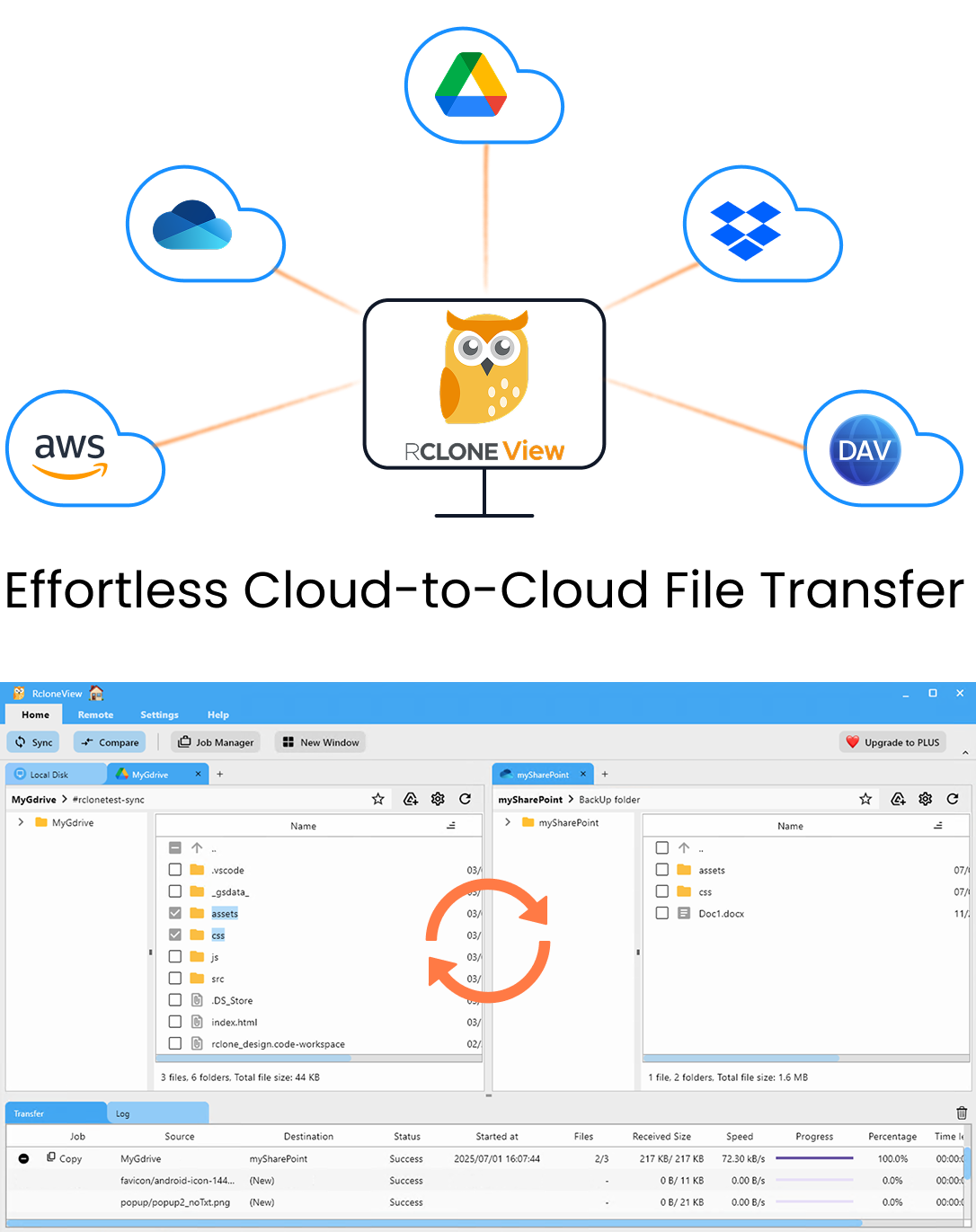
Manage & Sync All Clouds in One Place
RcloneView is a cross-platform GUI for rclone. Compare folders, transfer or sync files, and automate multi-cloud workflows with a clean, visual interface.
- One-click jobs: Copy · Sync · Compare
- Schedulers & history for reliable automation
- Works with Google Drive, OneDrive, Dropbox, S3, WebDAV, SFTP and more
Free core features. Plus automations available.
Why This Happens
When you mount a cloud storage as a virtual drive using RcloneView, the rclone process maintains open file handles for cached files and active directory listings. For remotes with many files — a Google Drive with 50,000 documents, or an S3 bucket with tens of thousands of objects — the number of concurrent handles can exceed macOS's conservative defaults during intensive operations.
The recommended file handle limit for smooth mount operation is 524,288 (soft and hard limits both set to this value). This is the figure documented for RcloneView on macOS.
Creating the LaunchDaemon Configuration
To raise the file descriptor limit permanently on macOS, create a LaunchDaemon plist file that sets the limits at system boot. Open Terminal and run the following steps:
1. Create the plist file:
sudo nano /Library/LaunchDaemons/limit.maxfiles.plist
2. Paste this content:
<?xml version="1.0" encoding="UTF-8"?>
<!DOCTYPE plist PUBLIC "-//Apple//DTD PLIST 1.0//EN"
  "http://www.apple.com/DTDs/PropertyList-1.0.dtd">
<plist version="1.0">
  <dict>
    <key>Label</key>
    <string>limit.maxfiles</string>
    <key>ProgramArguments</key>
    <array>
      <string>launchctl</string>
      <string>limit</string>
      <string>maxfiles</string>
      <string>524288</string>
      <string>524288</string>
    </array>
    <key>RunAtLoad</key>
    <true/>
    <key>ServiceIPC</key>
    <false/>
  </dict>
</plist>
3. Set correct permissions and load:
sudo chown root:wheel /Library/LaunchDaemons/limit.maxfiles.plist
sudo chmod 644 /Library/LaunchDaemons/limit.maxfiles.plist
After creating the file, reboot your Mac for the new limit to take effect. A reboot is required — loading the daemon without rebooting may not apply the limits system-wide.
Verify the Limit Is Applied
After rebooting, open Terminal and verify the new limits are active:
launchctl limit maxfiles
The output should show 524288 for both the soft and hard limits. If it shows lower values, the plist file may have a formatting error — re-check for typos or invisible characters.
Additional macOS Issues: Empty Folders
If your Desktop, Documents, or Downloads folders appear empty in RcloneView on macOS Catalina and later, the cause is different: macOS privacy permissions have not been granted to RcloneView. Go to System Settings > Privacy & Security > Files & Folders, find RcloneView in the list, and enable access. Alternatively, add RcloneView to Full Disk Access for broader permissions. Restart RcloneView after making permission changes.
Getting Started
- Download RcloneView from rcloneview.com.
- Create
/Library/LaunchDaemons/limit.maxfiles.plistwith soft and hard limits set to 524288. - Set correct file ownership and permissions, then reboot your Mac.
- Verify limits with
launchctl limit maxfilesafter rebooting.
Raising the file descriptor limit is a one-time system change that resolves open-files errors for all mount and sync operations in RcloneView going forward.
Related Guides:
- Best Cloud Sync and Mount Tool for macOS — RcloneView
- Mount Cloud Storage as a Local Drive — Guide for RcloneView
- Troubleshoot Rclone Errors with RcloneView
Supported Cloud Providers