Manage Citrix ShareFile Storage — Sync and Backup Files with RcloneView
Connect Citrix ShareFile to RcloneView and manage your enterprise files alongside 90+ other cloud storage services from a single GUI.
Citrix ShareFile is widely used by enterprises and professional services teams for secure file sharing and document management. While ShareFile offers its own client, teams managing files across multiple cloud platforms often need a centralized tool. RcloneView, a GUI client built on rclone, lets you connect ShareFile alongside other services — Google Drive, OneDrive, Amazon S3, and more — from one interface.
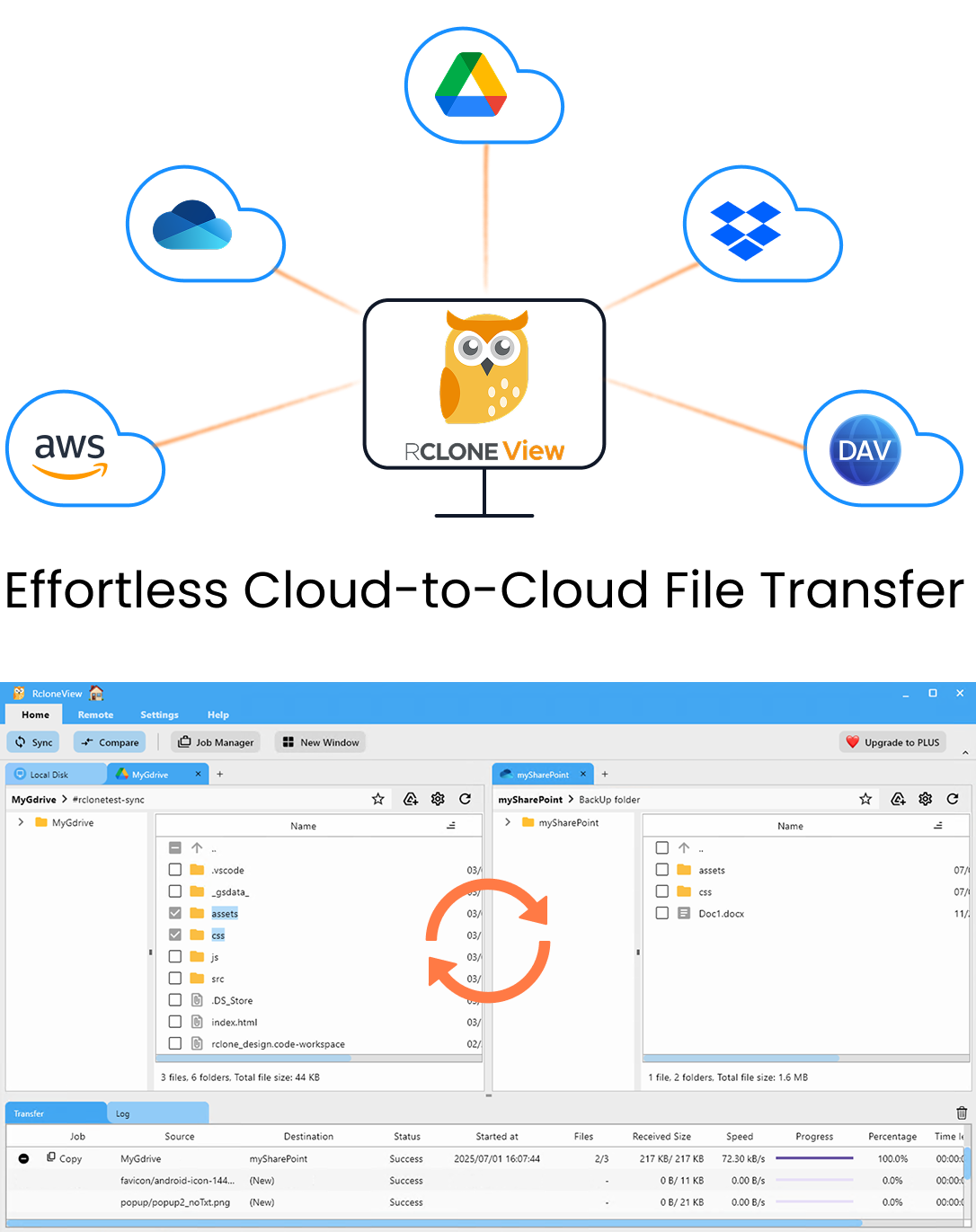
Manage & Sync All Clouds in One Place
RcloneView is a cross-platform GUI for rclone. Compare folders, transfer or sync files, and automate multi-cloud workflows with a clean, visual interface.
- One-click jobs: Copy · Sync · Compare
- Schedulers & history for reliable automation
- Works with Google Drive, OneDrive, Dropbox, S3, WebDAV, SFTP and more
Free core features. Plus automations available.
Connecting Citrix ShareFile to RcloneView
Adding Citrix ShareFile to RcloneView requires your ShareFile account credentials and your Root Folder ID. The Root Folder ID identifies which folder in your ShareFile account rclone will use as the root of the connection — this is typically found in your ShareFile web interface under folder properties.
To set up the remote, open RcloneView and navigate to the Remote tab, then click New Remote. Select Citrix ShareFile from the provider list and enter the required configuration, including your Root Folder ID. RcloneView ships with an embedded rclone binary, so no separate rclone installation is needed.
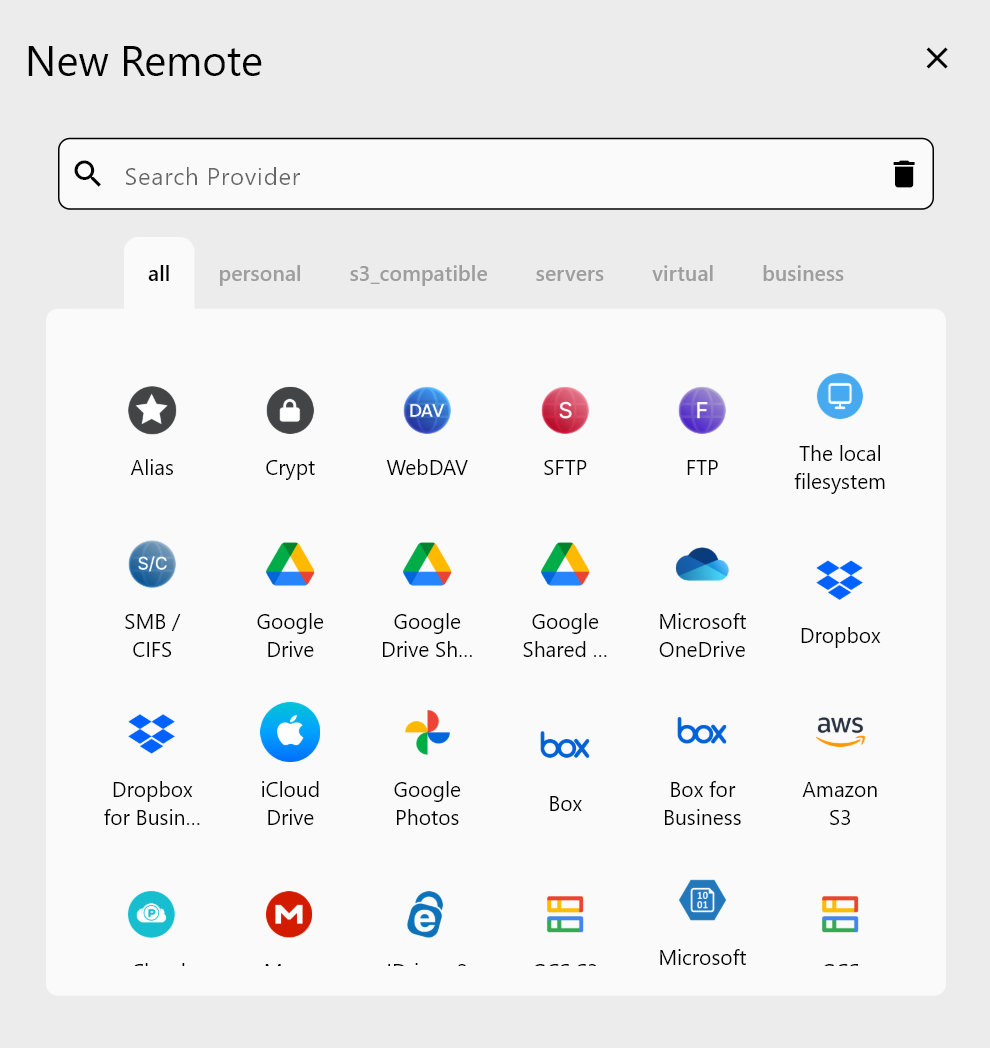
Once connected, ShareFile appears as a remote in the File Explorer. You can browse folders, view file metadata (name, size, modification date), and perform operations like copy, cut, paste, rename, and delete — all without leaving the RcloneView interface.
Syncing ShareFile with Other Cloud Services
One of the practical benefits of managing ShareFile through RcloneView is the ability to sync it directly with other cloud storage. For example, a legal firm can sync ShareFile client folders to Amazon S3 for long-term archiving, or mirror ShareFile contents to OneDrive for Microsoft 365 integration.
To create a sync job, click the Sync button in the Home tab and follow the 4-step wizard: select your ShareFile folder as source (or destination), choose the target remote and folder, configure transfer options, and optionally add filtering rules. The Dry Run feature lets you preview exactly which files will be copied or deleted before committing to the sync.
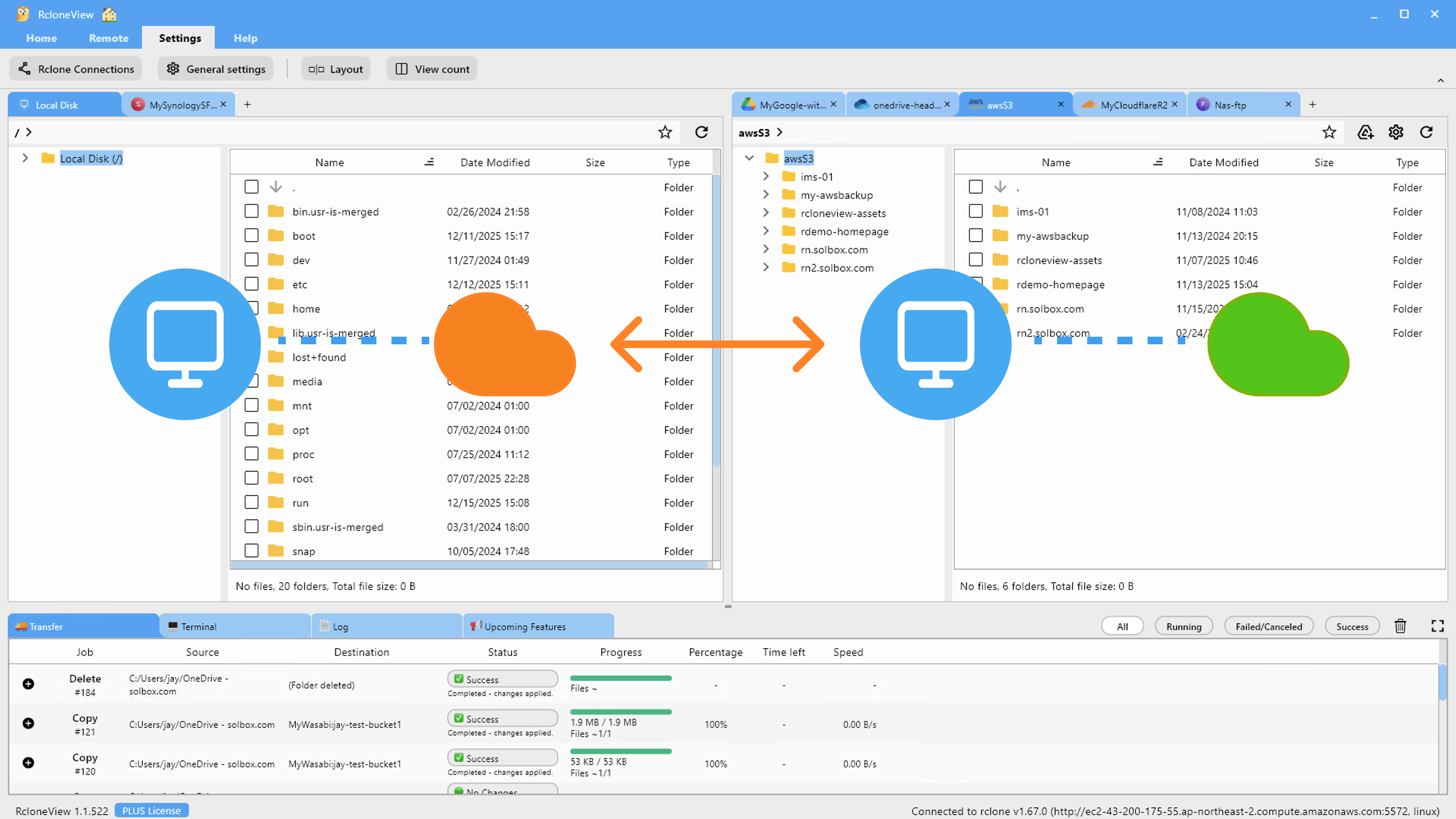
For ongoing data protection, schedule-based sync (available with PLUS license) lets you run ShareFile backups on a crontab-style schedule — daily, weekly, or at custom intervals. Job History tracks every execution with start time, duration, file count, and status.
Organizing and Comparing ShareFile Contents
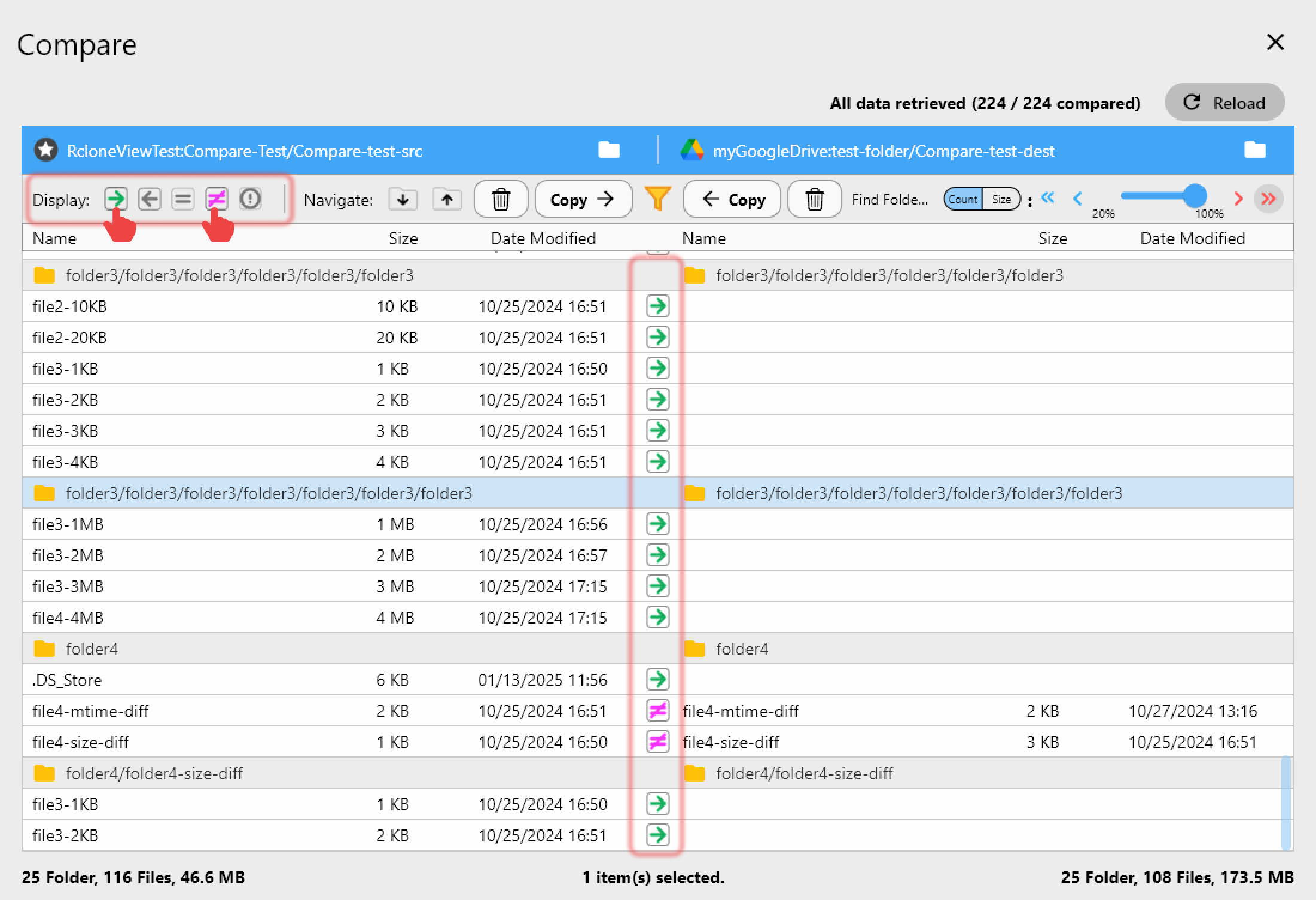
RcloneView's Folder Compare feature is valuable for auditing ShareFile contents against a backup destination. Launch it via the Compare button in the Home tab, select ShareFile as one side and your target storage as the other, and the view highlights files that exist only on one side, are different in size, or are identical.
This compare-first workflow is practical for migrations: run a comparison before syncing to understand exactly what will change. For more targeted audits, Folder Compare with Filter (PLUS license) lets you restrict comparisons by file type or folder name, useful when dealing with large ShareFile repositories.
Getting Started
- Download RcloneView from rcloneview.com.
- Open the Remote tab and click New Remote, then select Citrix ShareFile.
- Enter your ShareFile credentials and Root Folder ID to complete setup.
- Use the Sync wizard to create a job backing up ShareFile to your preferred destination cloud.
Managing ShareFile alongside your other cloud services from a single interface reduces context-switching and gives you a consistent workflow for backup, migration, and file organization.
Related Guides:
- Manage SharePoint Cloud Sync and Backup with RcloneView
- Migrate Citrix ShareFile to OneDrive and SharePoint with RcloneView
- Cloud-to-Cloud Migration with RcloneView
Supported Cloud Providers