Migrate iCloud Drive to Google Drive — Transfer Files with RcloneView

Move your entire iCloud Drive library to Google Drive without downloading everything first — RcloneView handles the transfer directly between both services.
Switching from an Apple-centric workflow to Google Workspace — or simply wanting files accessible on all platforms — often means migrating iCloud Drive to Google Drive. Manually downloading and re-uploading gigabytes of data wastes time and risks incomplete transfers. RcloneView connects directly to both services and moves files across the cloud, keeping your originals intact throughout the process.
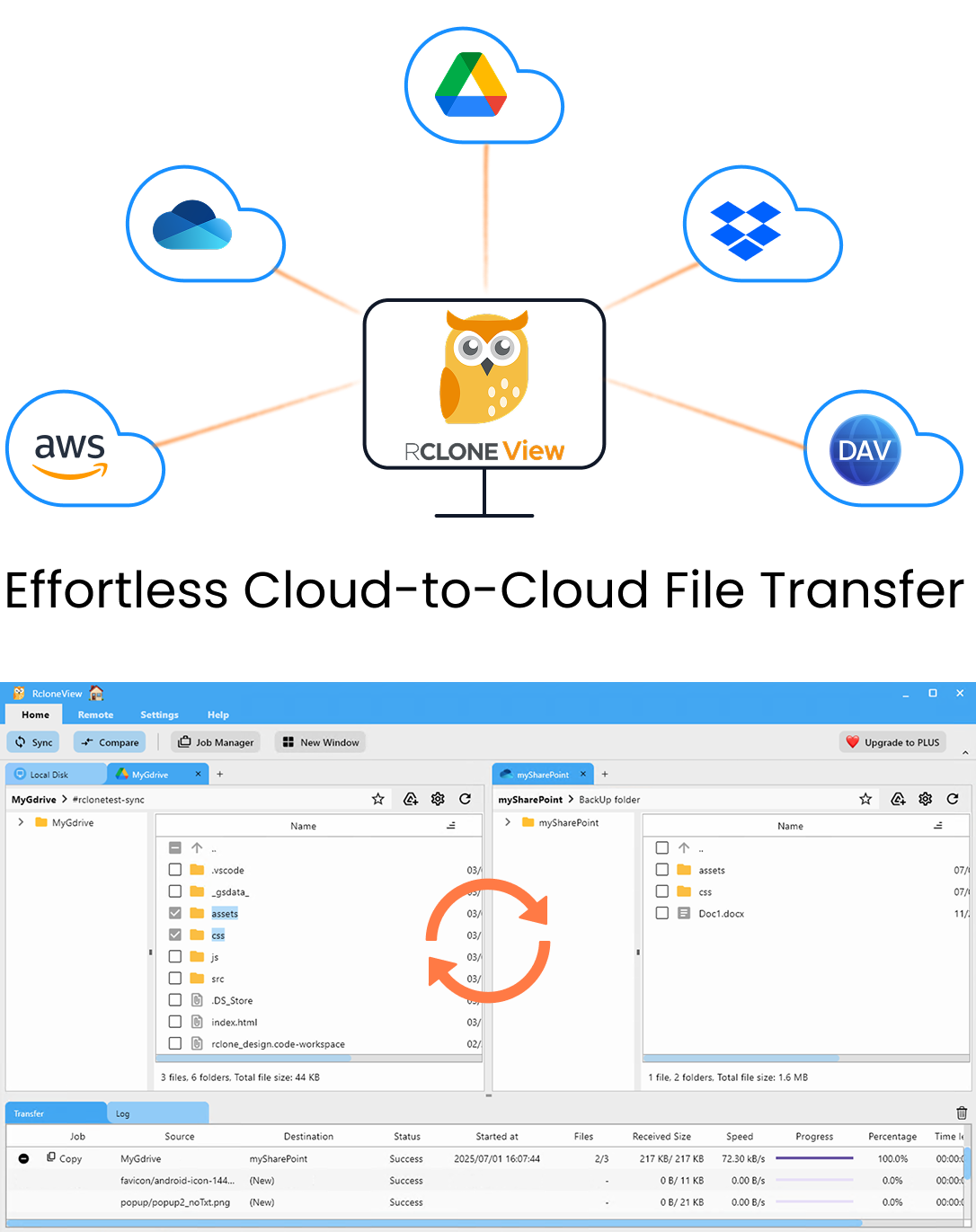
Manage & Sync All Clouds in One Place
RcloneView is a cross-platform GUI for rclone. Compare folders, transfer or sync files, and automate multi-cloud workflows with a clean, visual interface.
- One-click jobs: Copy · Sync · Compare
- Schedulers & history for reliable automation
- Works with Google Drive, OneDrive, Dropbox, S3, WebDAV, SFTP and more
Free core features. Plus automations available.
Why Move from iCloud Drive to Google Drive
iCloud Drive integrates tightly with Apple's ecosystem, but outside of macOS and iOS the experience becomes fragmented. Google Drive works natively on every major platform and connects to Google Workspace tools that cross-platform teams depend on daily. A design studio with 300GB of project files, for example, may need everything in Google Drive when onboarding clients who work exclusively in Google Docs and Slides.
iCloud Drive silently syncs Desktop, Documents, and other folders to Apple's servers — which means years of accumulated files often live there without a clear inventory. Migrating to Google Drive gives you centralized visibility, granular sharing controls, and access from any device without an Apple account.
Setting Up iCloud Drive in RcloneView
RcloneView's embedded rclone binary (v1.69.1+) meets the rclone v1.69 minimum required for iCloud Drive support. No separate installation is needed.
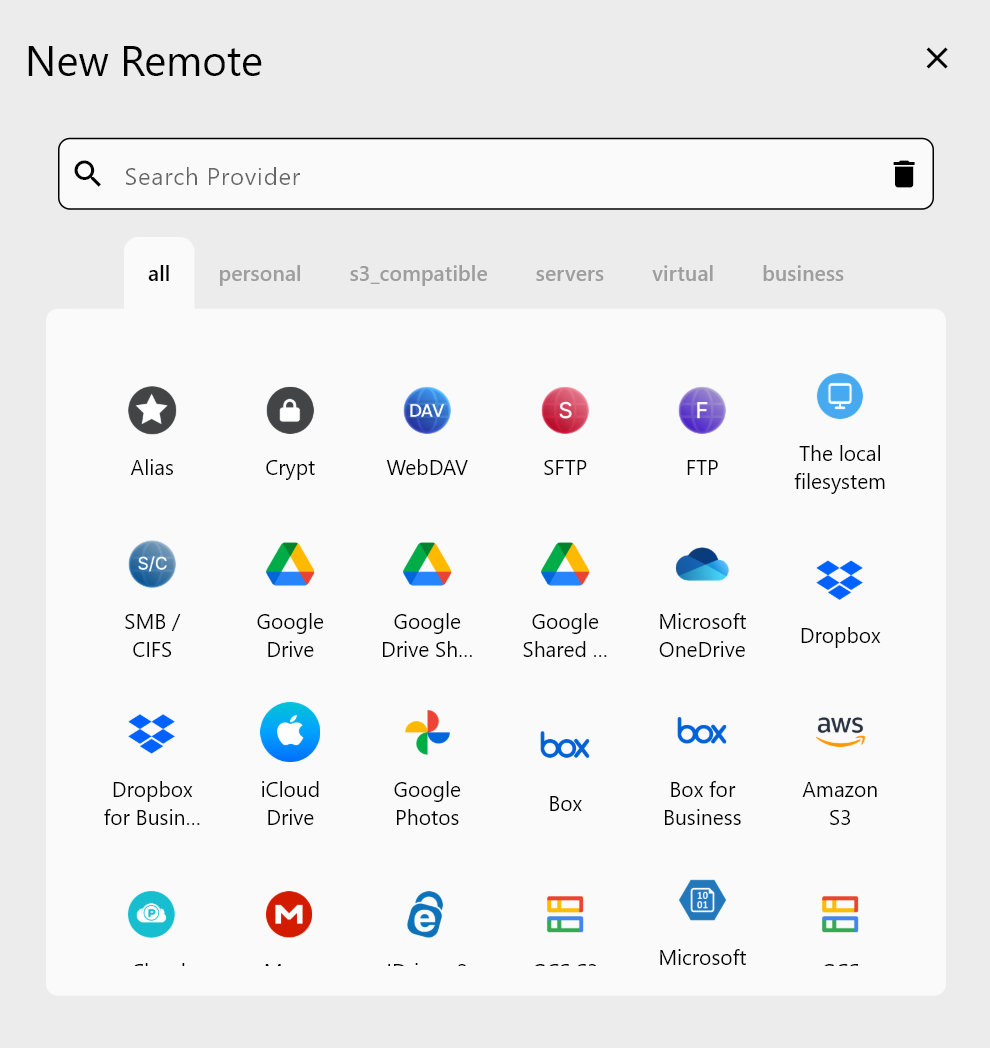
To add iCloud Drive, open the Remote tab and click New Remote. Select iCloud Drive from the provider list, then enter your Apple ID email address and password. If your Apple account uses two-factor authentication, generate an app-specific password from your Apple ID security settings and use that in place of your regular password. Once saved, your iCloud Drive folders appear immediately in the file explorer panel — Desktop, Documents, and any other synced directories are all browsable.
Connecting Google Drive
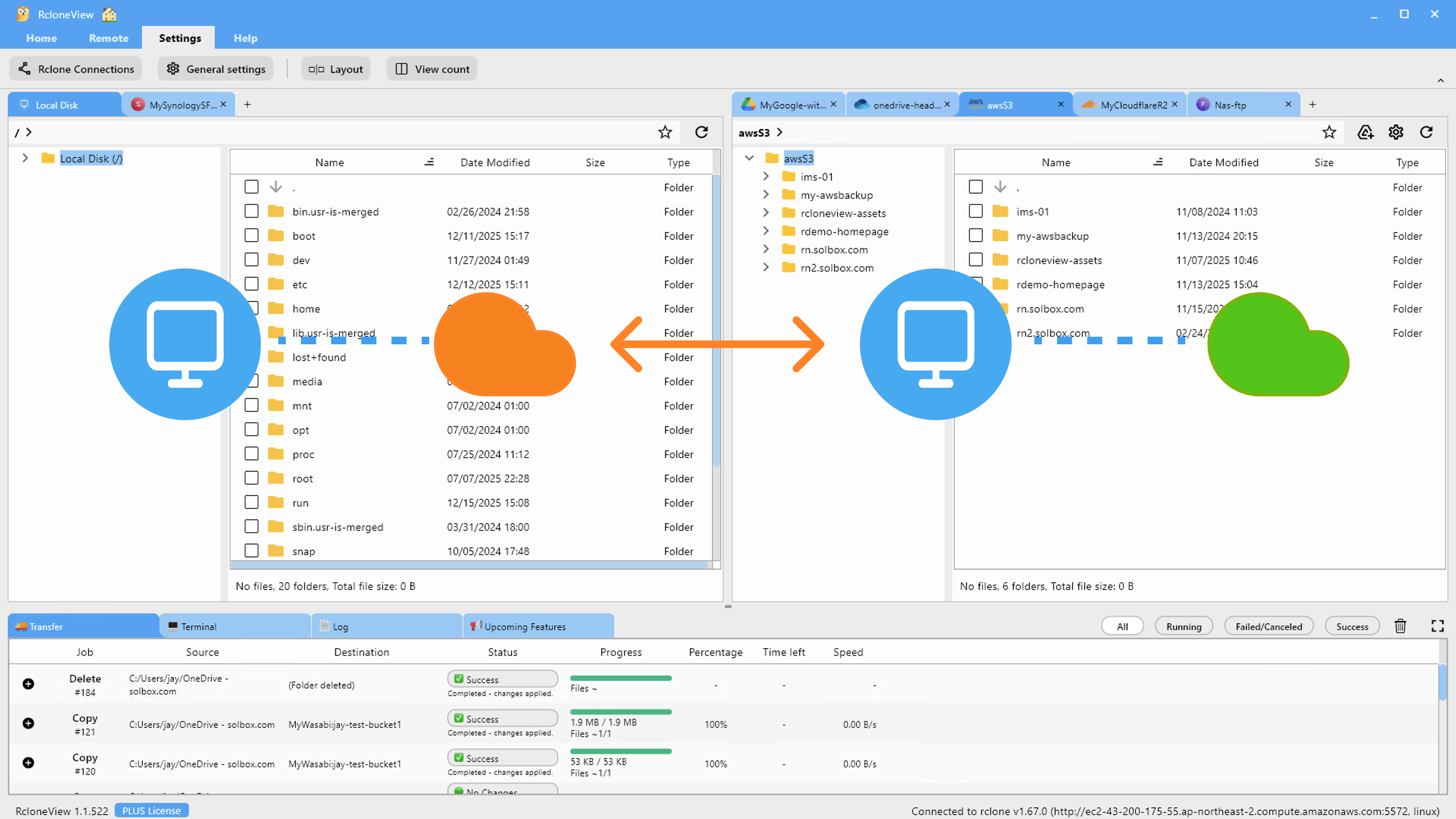
Google Drive uses OAuth authentication. In RcloneView, add a new remote and select Google Drive — a browser window opens automatically for you to sign in to your Google account and grant access. No API keys or developer credentials are required. The connection completes within seconds, and your Drive folders appear in a second panel alongside iCloud Drive.
Running the Migration
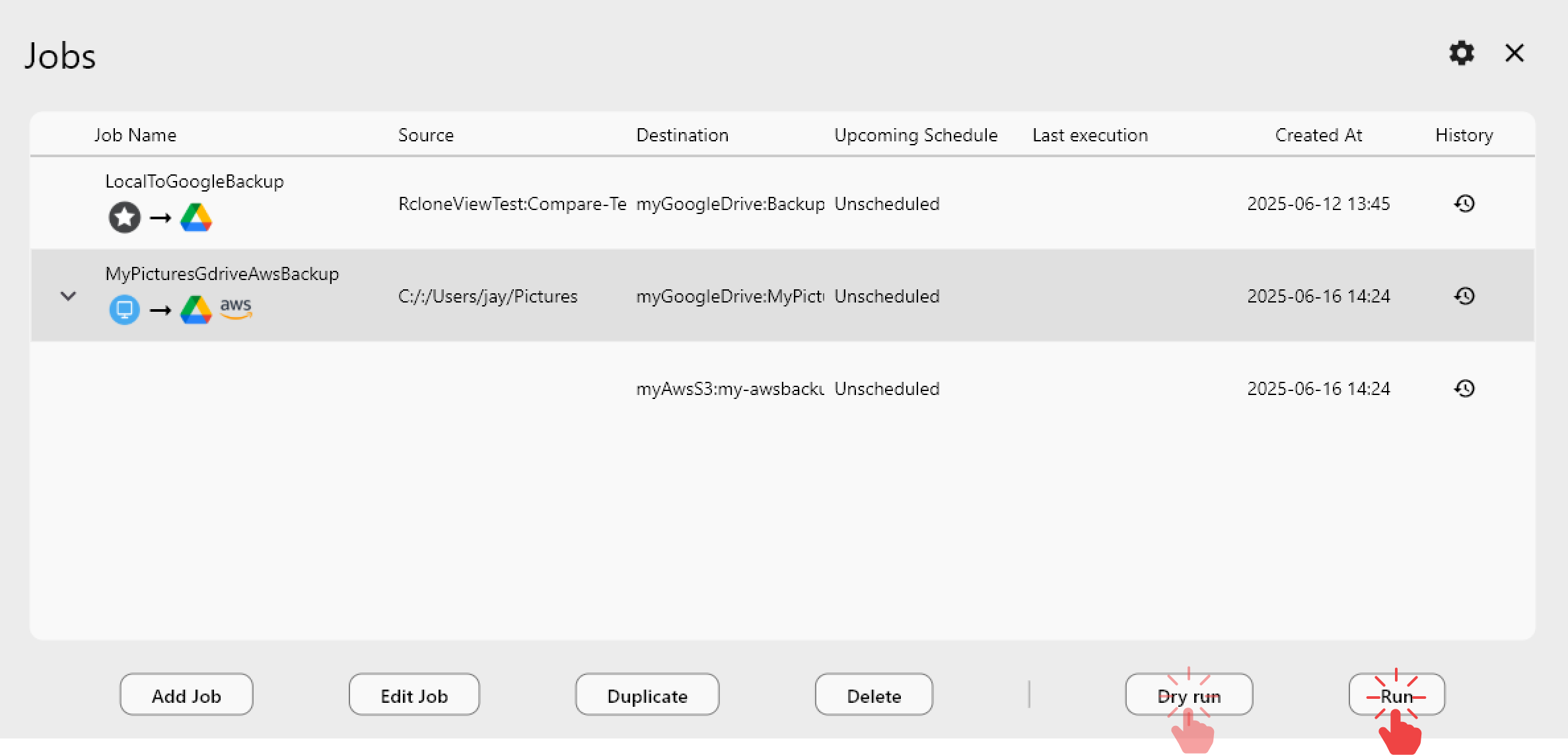
With both remotes configured, open the Job Manager and create a Copy job. Set your iCloud Drive source folder, select your target Google Drive folder as the destination, and name the job. Copy mode transfers files that don't yet exist on the destination without touching the originals — your iCloud Drive contents remain untouched.
Before committing to the full transfer, run Dry Run from the job options. RcloneView shows every file that would be copied — names, paths, sizes — without moving a single byte. This preview is especially useful when the iCloud Drive contains years of mixed content and you want to confirm the scope before starting.
Once satisfied, execute the job and watch progress in the Transferring tab at the bottom of the interface. Speed, file count, and percentage complete update live. For large libraries, enable checksum verification in the job's Advanced Settings to confirm every file arrived without corruption.
Getting Started
- Download RcloneView from rcloneview.com.
- Open the Remote tab, click New Remote, and add iCloud Drive with your Apple ID credentials.
- Add Google Drive as a second remote via OAuth browser login.
- Create a Copy job with your iCloud Drive folder as source and a Google Drive folder as destination.
- Run Dry Run to preview the transfer, then execute the job and monitor progress in the Transferring tab.
With both services connected side by side, migrating your entire iCloud Drive to Google Drive is a matter of configuring one job and letting it run.
Related Guides:
- Manage iCloud Drive — Cloud Sync with RcloneView
- Migrate Dropbox to Google Drive with RcloneView
- Migrate Google Drive to pCloud with RcloneView
Supported Cloud Providers