Cloud Storage for Wedding Photographers — Backup and Deliver with RcloneView

Wedding photographers deal with some of the most irreplaceable files in existence — RcloneView ensures every RAW image reaches multiple clouds before you leave the parking lot.
A full wedding weekend can produce 150–250GB of RAW images captured in a single day with no possibility of a reshoot. That volume demands a reliable, fast backup workflow — not a manual upload into a browser tab at midnight. RcloneView connects directly to cloud storage providers and lets photographers back up, organize, and deliver client galleries from one desktop interface without juggling multiple tools.
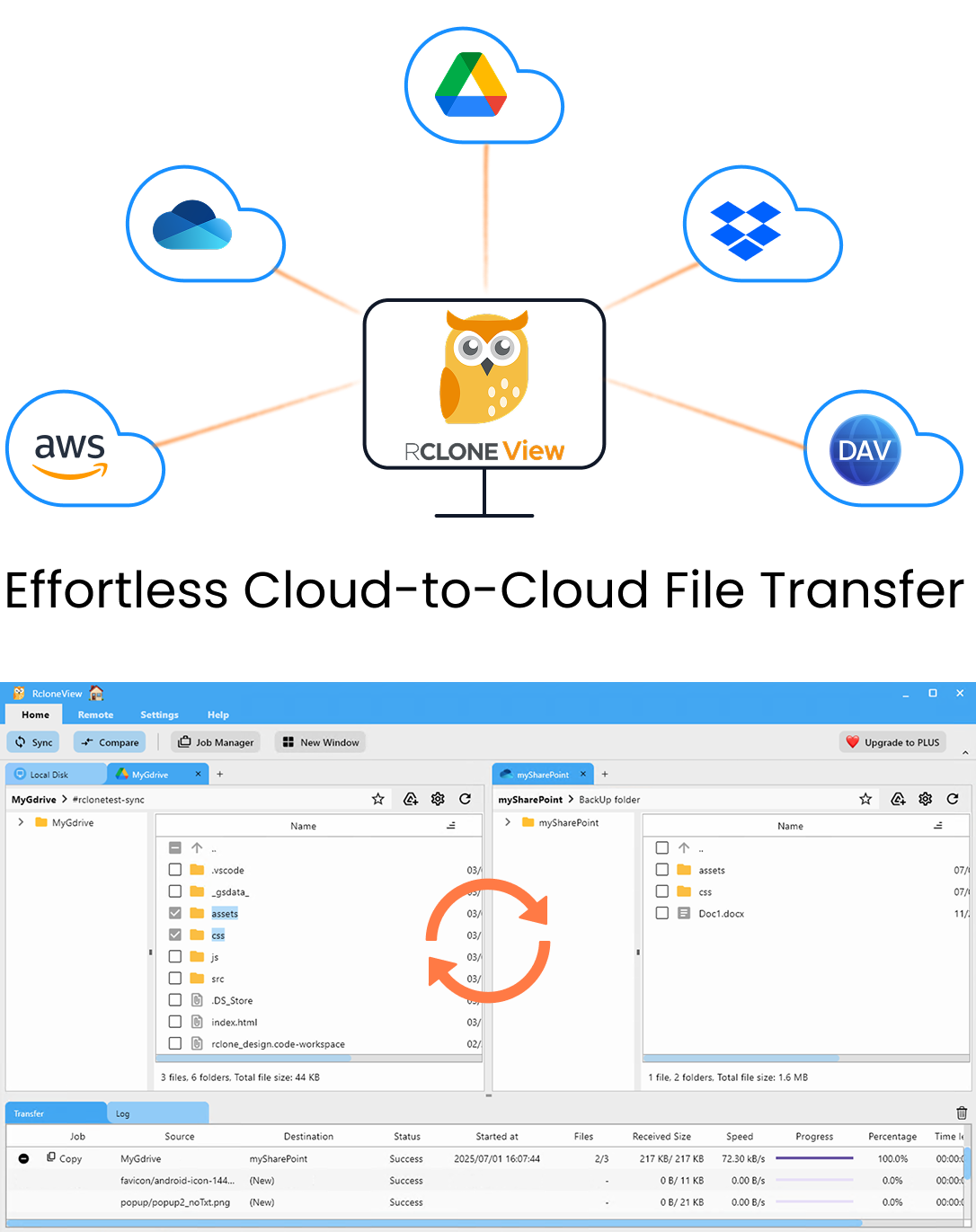
Manage & Sync All Clouds in One Place
RcloneView is a cross-platform GUI for rclone. Compare folders, transfer or sync files, and automate multi-cloud workflows with a clean, visual interface.
- One-click jobs: Copy · Sync · Compare
- Schedulers & history for reliable automation
- Works with Google Drive, OneDrive, Dropbox, S3, WebDAV, SFTP and more
Free core features. Plus automations available.
The Wedding Photographer Storage Problem
Wedding images hold permanent sentimental value, and losing them to a hard drive failure is one of the worst outcomes in the profession. The standard 3-2-1 backup rule — three copies, two different media types, one offsite — is easy to state but hard to execute consistently after a long event day. Uploading to each cloud provider one at a time doubles both time and the chance of skipping a step when exhaustion sets in.
RcloneView's 1:N synchronization addresses this directly. Configure one sync job with your downloaded SD card folder as the source, then add Google Drive and Backblaze B2 as two separate destinations. A single run backs up the entire gallery to both clouds simultaneously. This feature is available on the FREE license, so no subscription is required to get redundant offsite coverage.
Building Your Multi-Cloud Backup Workflow
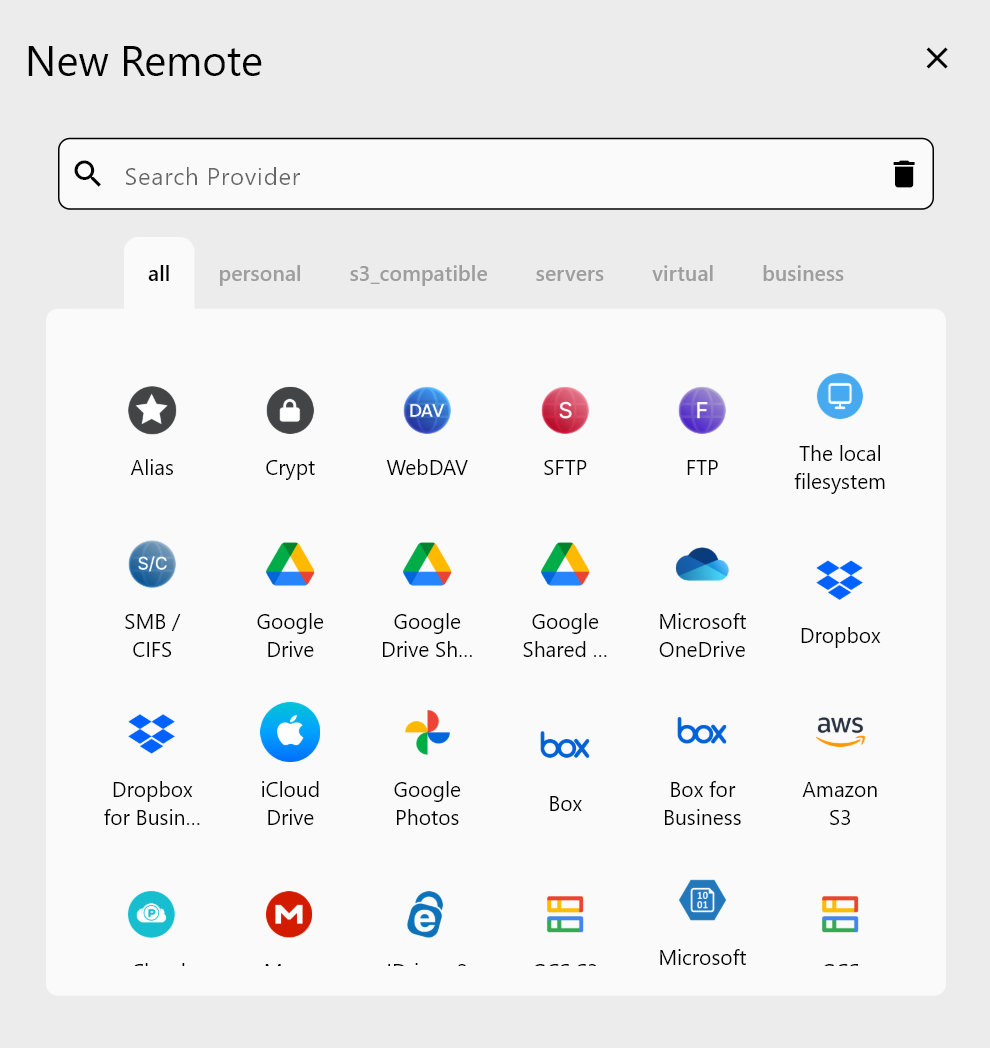
Add both cloud providers as remotes in RcloneView — Google Drive authenticates via OAuth browser login, while Backblaze B2 requires your Application Key ID and Application Key from the Backblaze console. Once both remotes appear in the file explorer panels, create a sync job in the Job Manager: set the source to your local import folder and add two destination entries, one pointing to your Google Drive backup folder and one to a Backblaze B2 bucket.
In the job's Advanced Settings, enable checksum verification to confirm every file arrived without corruption. For large RAW batches, four concurrent transfers balances upload speed against API rate limits without overwhelming either provider.
Delivering Finished Galleries to Clients
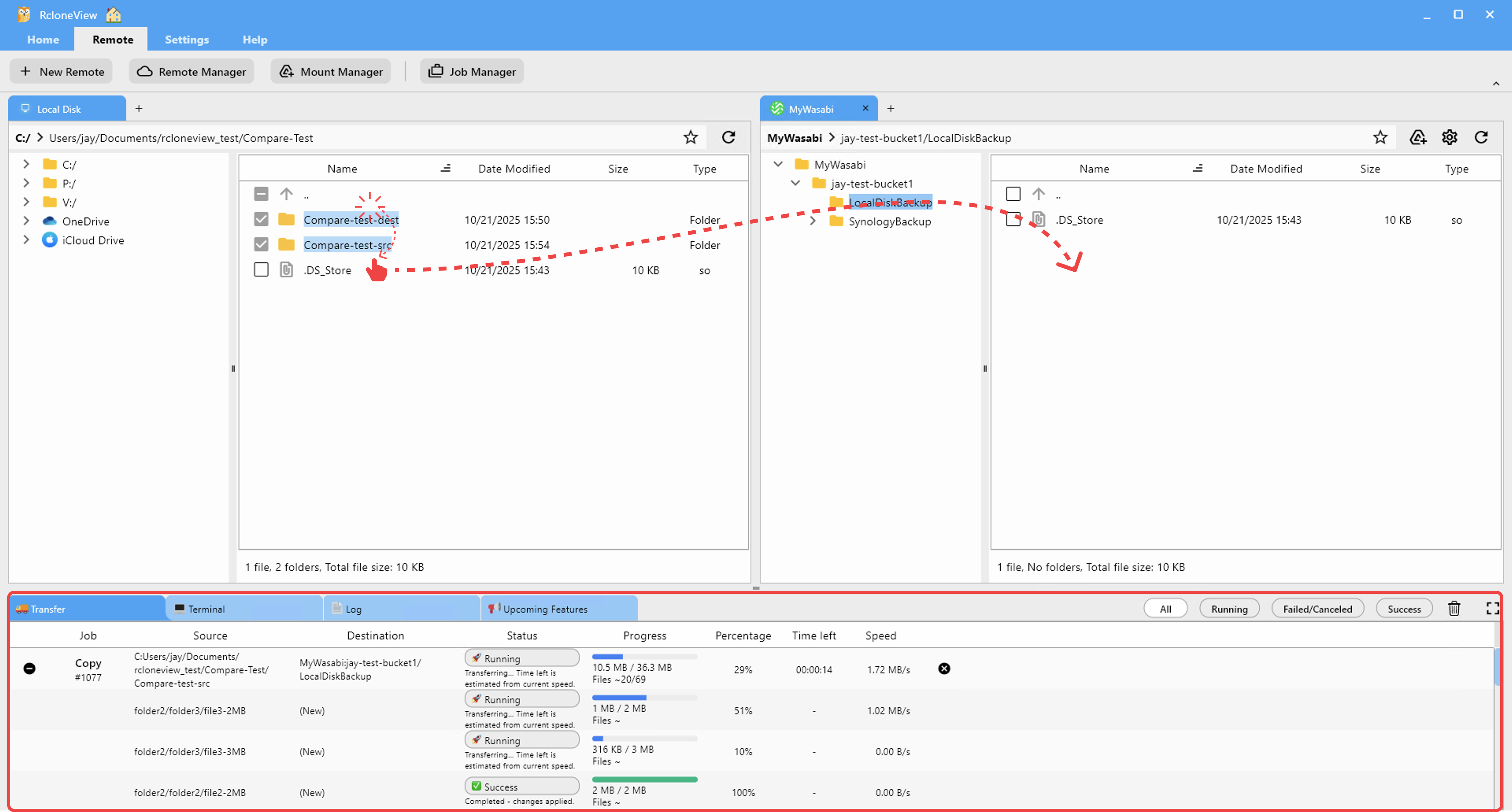
Once images are edited and ready for delivery, RcloneView's drag-and-drop interface makes uploading gallery folders fast. Drag a folder of exported JPEGs from Windows Explorer or Finder directly onto a Google Drive panel in RcloneView — the upload begins immediately, with live transfer progress visible in the Transferring tab.
When the upload completes, use Get Public Link from the right-click context menu to generate a shareable link directly from within RcloneView, if your cloud provider supports public link generation. The link copies to your clipboard and is ready to paste into a client email — no browser, no separate download portal, no extra steps between you and delivery.
Scheduling Archive Runs with PLUS
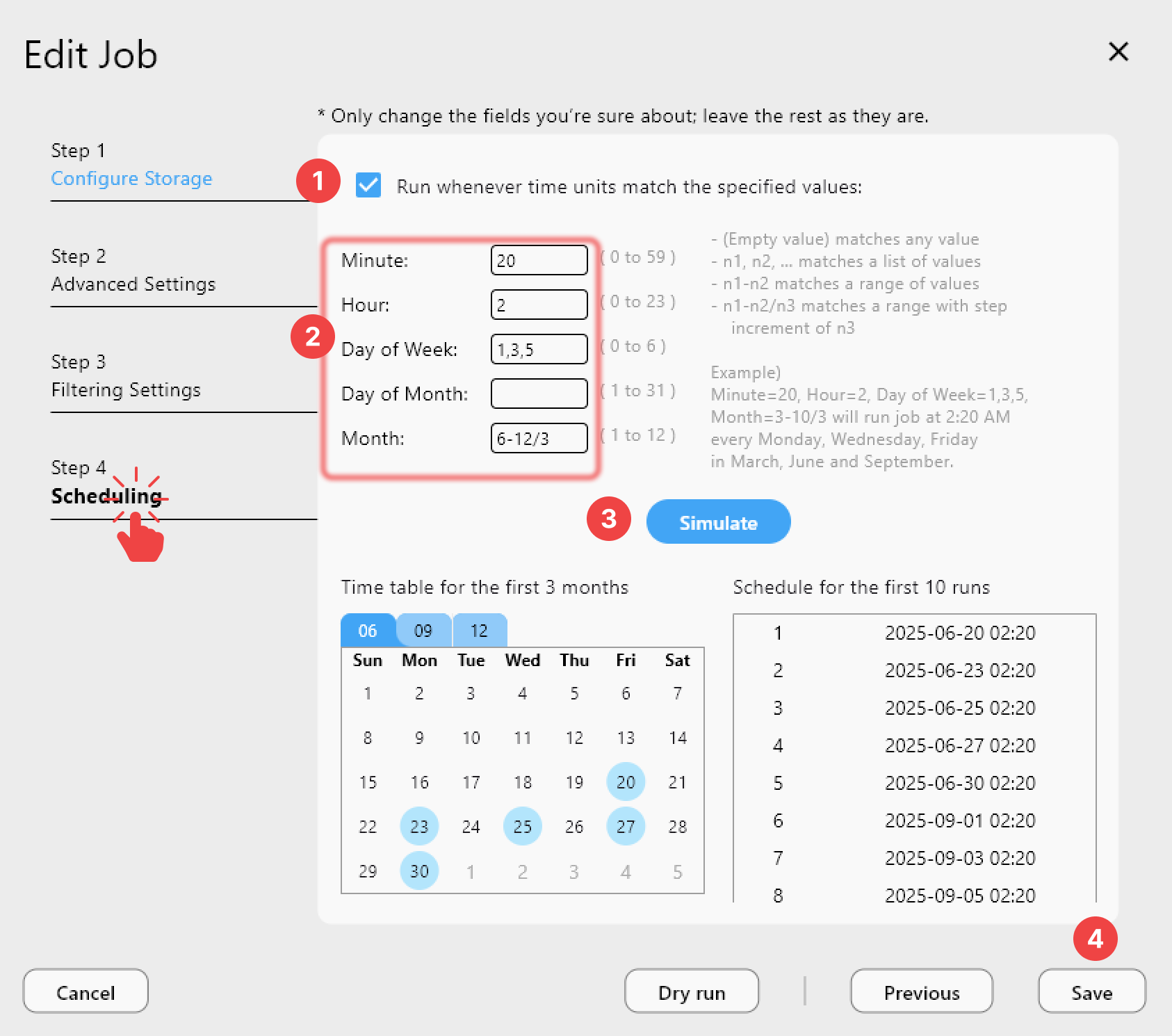
PLUS license users can automate recurring backup jobs using crontab-style scheduling. After delivering each wedding gallery, configure a weekly job to move completed folders from Google Drive into Backblaze B2 for long-term cold storage. Set the schedule to run every Sunday at 2:00 AM — the job completes overnight and logs the result in Job History, so you can verify it ran correctly the next morning.
This pattern — active delivery on Google Drive, deep archive on Backblaze B2, triggered automatically — mirrors what a professional post-production facility would implement, at no infrastructure cost.
Getting Started
- Download RcloneView from rcloneview.com.
- Add Google Drive (OAuth) and Backblaze B2 (Application Key) as remotes.
- Create a 1:N sync job from your SD card import folder to both cloud destinations.
- Enable checksum verification in Advanced Settings for file integrity confirmation.
- Use Get Public Link to share finished galleries directly from RcloneView when ready.
With RcloneView coordinating both the backup and delivery sides of your workflow, wedding photographers can spend more time on editing and less on storage logistics.
Related Guides:
- Cloud Storage for Photographers — RAW File Backup with RcloneView
- Sync One Source to Multiple Cloud Destinations with RcloneView
- Back Up Google Photos to External Drive or NAS with RcloneView
Supported Cloud Providers