Migrate Jottacloud to Backblaze B2 — Transfer Files with RcloneView
Move your Jottacloud files to Backblaze B2 object storage with RcloneView — direct cloud-to-cloud migration with no local intermediary download required.
Jottacloud is a Norwegian cloud storage service with a strong privacy focus, used by individuals and businesses across Scandinavia and Europe. As storage needs grow, some users migrate to Backblaze B2 for its S3-compatible API, programmatic access, and tiered storage options better suited to large archives or developer workflows. RcloneView connects both services and handles the transfer directly — no local hard drive required as an intermediary.
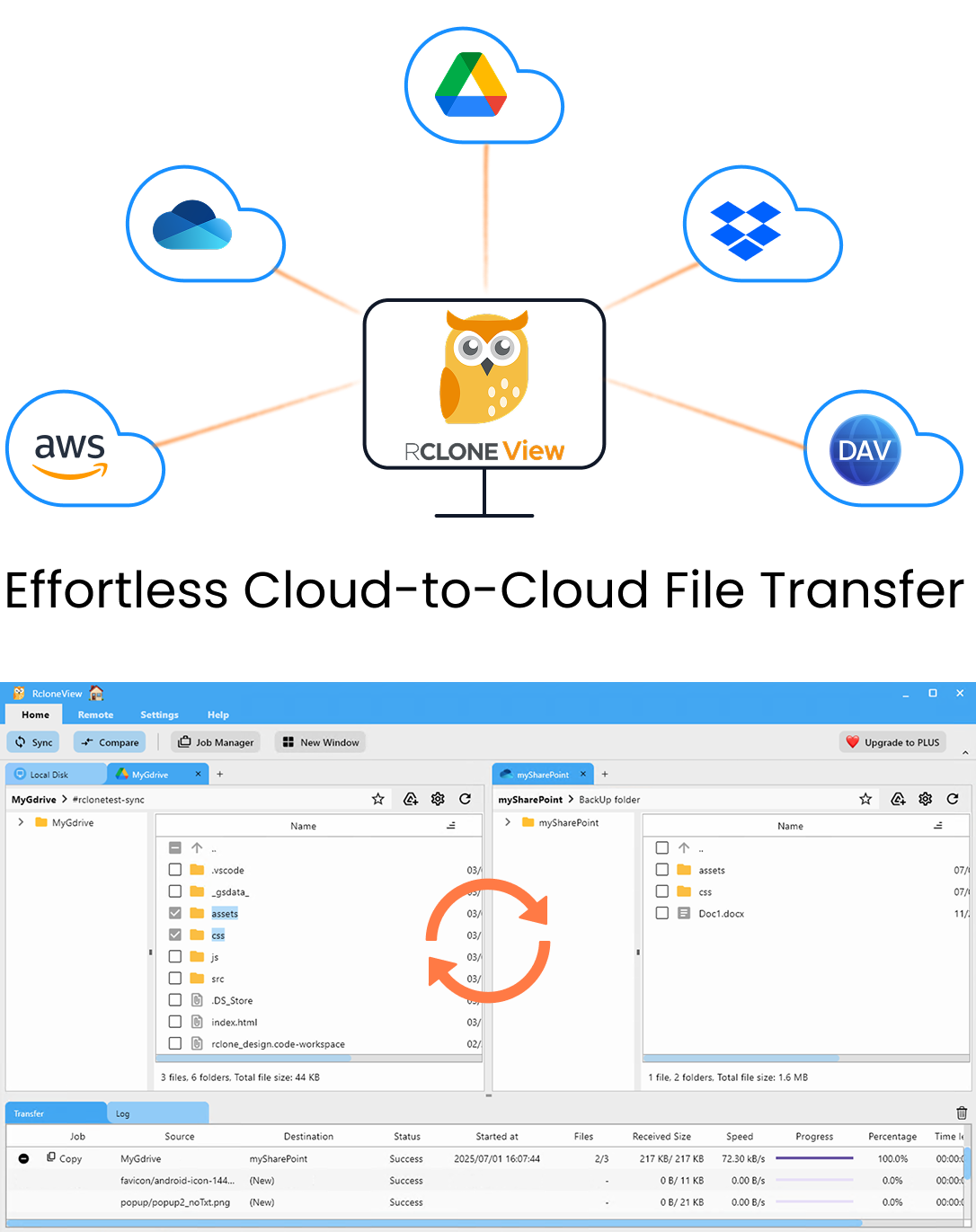
Manage & Sync All Clouds in One Place
RcloneView is a cross-platform GUI for rclone. Compare folders, transfer or sync files, and automate multi-cloud workflows with a clean, visual interface.
- One-click jobs: Copy · Sync · Compare
- Schedulers & history for reliable automation
- Works with Google Drive, OneDrive, Dropbox, S3, WebDAV, SFTP and more
Free core features. Plus automations available.
Setting Up Jottacloud and Backblaze B2
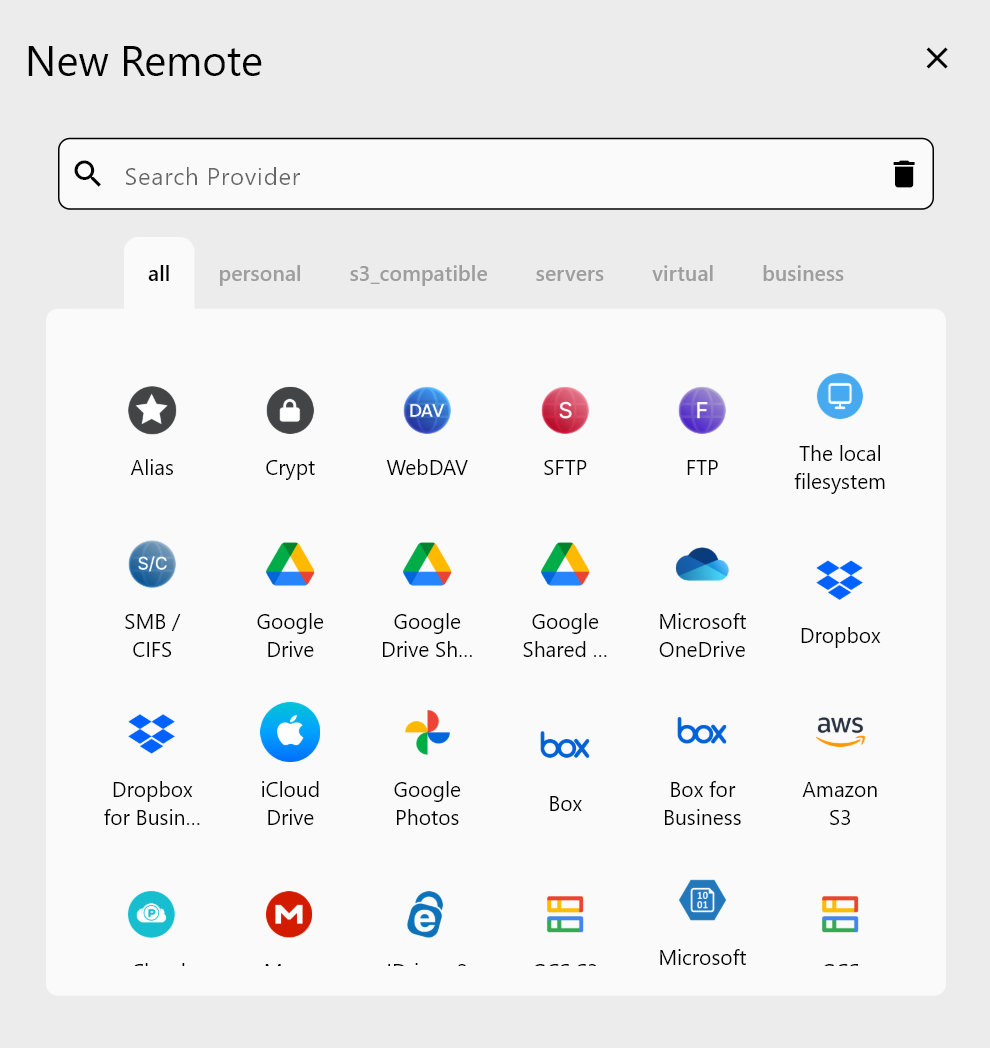
Adding both remotes to RcloneView takes just a few minutes. For Jottacloud, open the Remote tab, click New Remote, and select Jottacloud from the provider list. The setup uses your Jottacloud account credentials. For Backblaze B2, select Backblaze B2 and enter your Application Key ID and Application Key — generated from your Backblaze account under App Keys. Both remotes then appear as accessible file trees in the Explorer panels.
Browse your Jottacloud folders to map out the content you want to move. Jottacloud organizes files into devices and folders — understand the structure before building your migration job so you select the right source path.
Running the Migration
Create a sync job with the Jottacloud folder as source and a Backblaze B2 bucket as the destination. If you don't yet have a destination bucket, you can create one directly in Backblaze's console before running the migration. The Sync wizard's Advanced Settings step lets you configure concurrent file transfers and enable checksum verification — the latter confirms each file arrived intact, which is valuable for large photo or video archives.
For a photographer migrating 500GB of Jottacloud RAW files to Backblaze B2, the Filtering step makes phased migrations manageable. Filter by file extension (.raw, .cr3, .arw) to migrate camera files first, then handle other asset types in subsequent jobs. Max file age filters let you prioritize recent work before archiving older material.
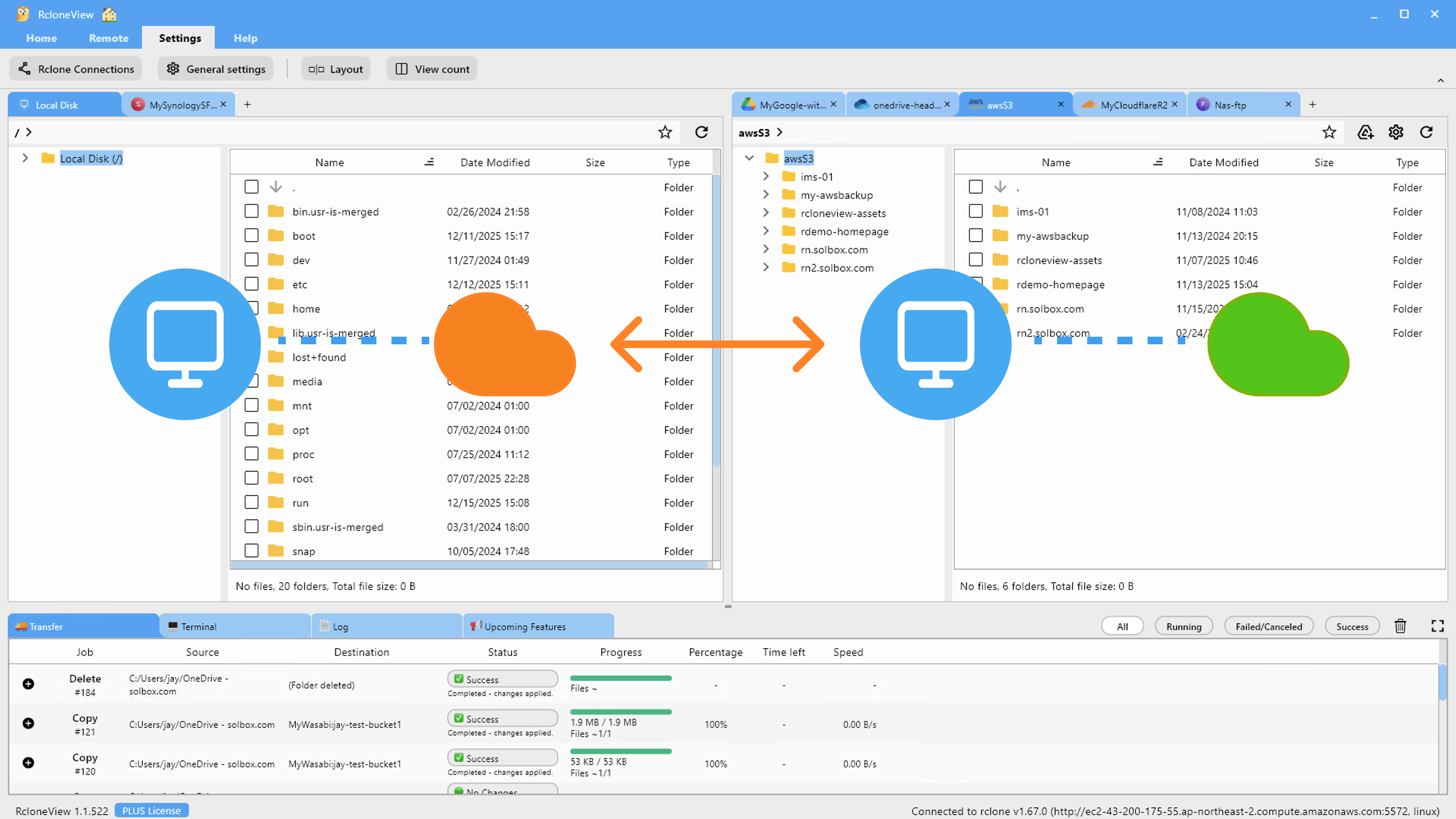
Always use Dry Run before starting a production migration. The simulation lists every file that would be copied or removed, so you can verify the scope matches your intent before committing.
Validating the Completed Migration
After the transfer finishes, use Folder Compare to validate completeness. Select the source Jottacloud folder and the Backblaze B2 destination, and the comparison view highlights any files that exist only on one side or differ in size. This catches missed files or truncated transfers that might otherwise go unnoticed in a large migration.
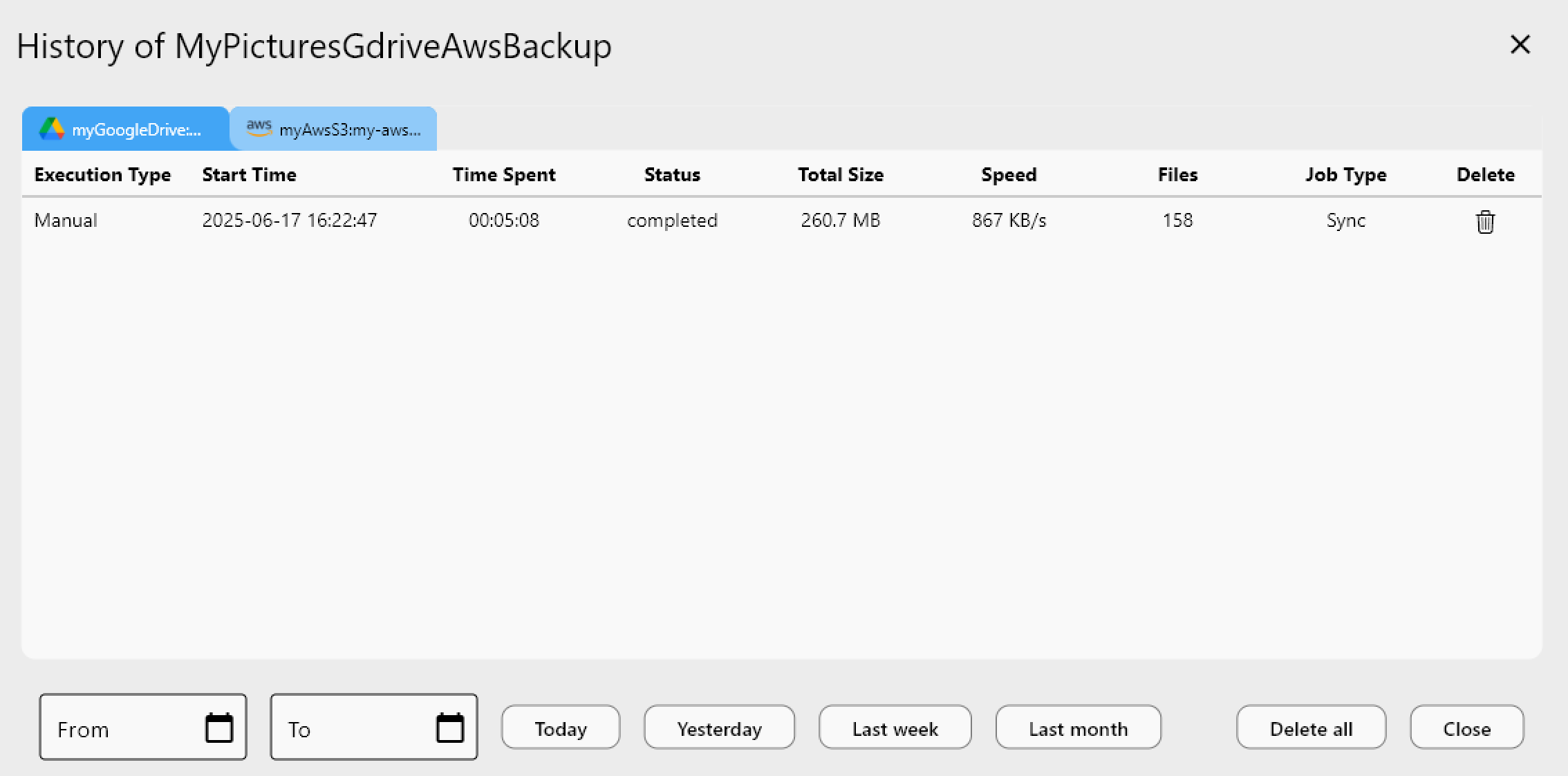
The Job History panel shows each migration run's timing, file count, total data moved, and final status. If a run was interrupted — by a network issue or system sleep — you can re-run the sync job and rclone's incremental behavior means only missing or changed files are re-transferred.
Getting Started
- Download RcloneView from rcloneview.com.
- Add Jottacloud as a remote using your Jottacloud account credentials.
- Add Backblaze B2 using your Application Key ID and Application Key.
- Run Dry Run to preview, then execute the sync to migrate files to your B2 bucket.
Migrating from Jottacloud to Backblaze B2 through RcloneView is incremental, resumable, and fully GUI-driven — no scripting required.
Related Guides:
- Manage Jottacloud Cloud Sync and Backup with RcloneView
- Backup Dropbox to Backblaze B2 with RcloneView
- Migrate Wasabi to Backblaze B2 with RcloneView
Supported Cloud Providers