Sync Seafile to Amazon S3 — Cloud Backup with RcloneView
Back up your self-hosted Seafile libraries to Amazon S3 with RcloneView — sync files across from your Seafile server to S3 buckets using a GUI, no scripts required.
Seafile is a widely-used self-hosted file sync and sharing platform that gives organizations full control over their data. Running your own Seafile server is great for privacy, but it also means you are responsible for backup. Replicating Seafile library data to Amazon S3 creates an off-site cloud backup that protects against server failures or data loss. RcloneView connects to Seafile via rclone's WebDAV support and handles the sync to S3 through its visual job management interface.
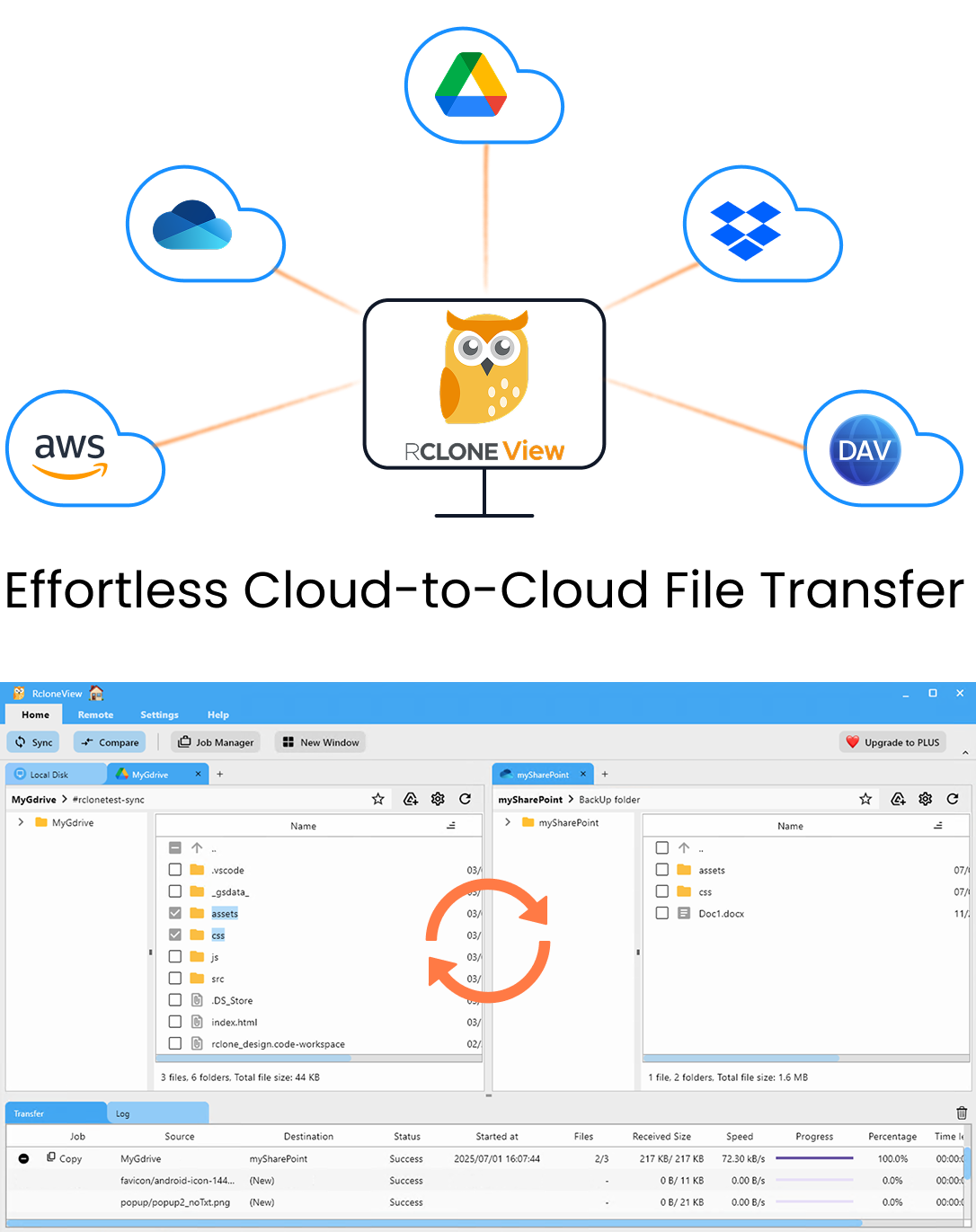
Manage & Sync All Clouds in One Place
RcloneView is a cross-platform GUI for rclone. Compare folders, transfer or sync files, and automate multi-cloud workflows with a clean, visual interface.
- One-click jobs: Copy · Sync · Compare
- Schedulers & history for reliable automation
- Works with Google Drive, OneDrive, Dropbox, S3, WebDAV, SFTP and more
Free core features. Plus automations available.
Connecting Seafile in RcloneView
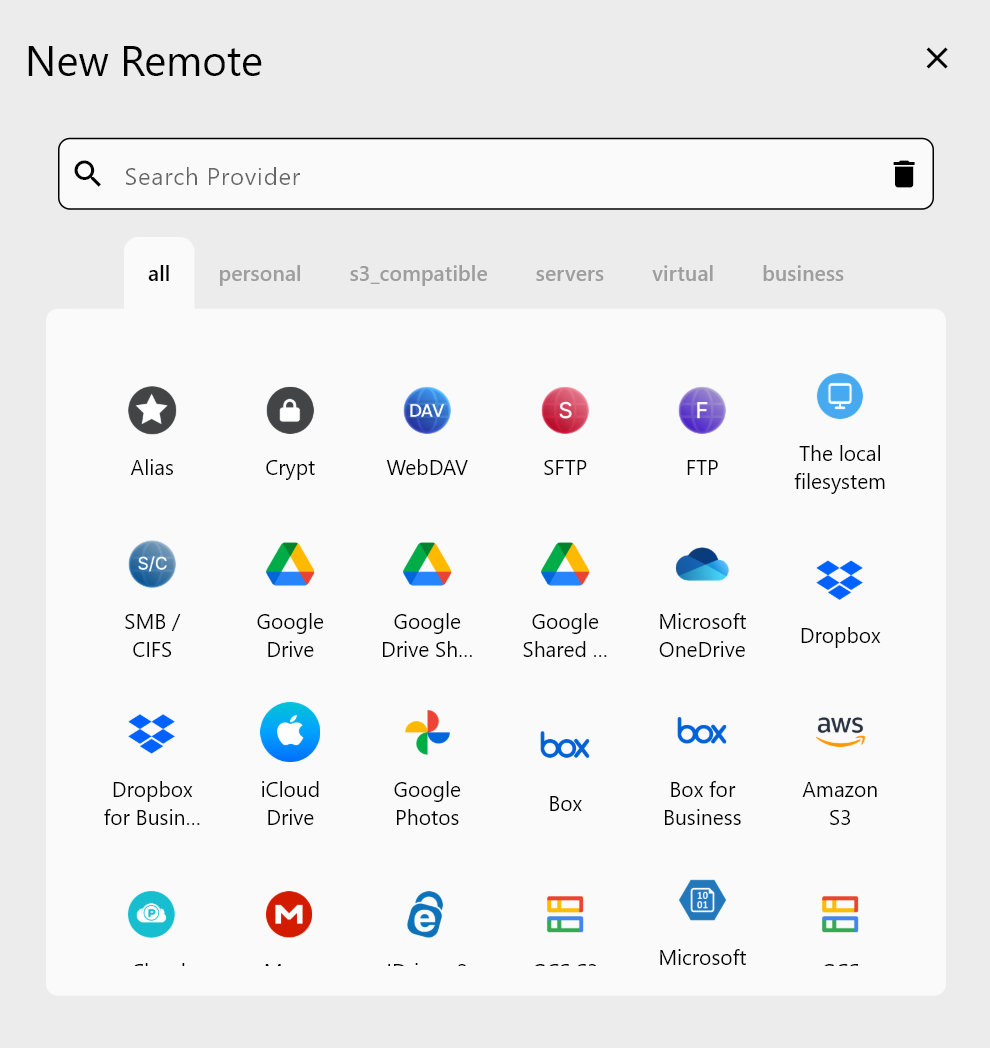
Seafile exposes its files via a WebDAV interface, which RcloneView can connect to as a WebDAV remote. From the Remote tab, click New Remote and select WebDAV. Enter your Seafile server's WebDAV URL (typically https://your-seafile-server/seafdav), your Seafile username, and password. You can also use a Seafile API token for authentication.
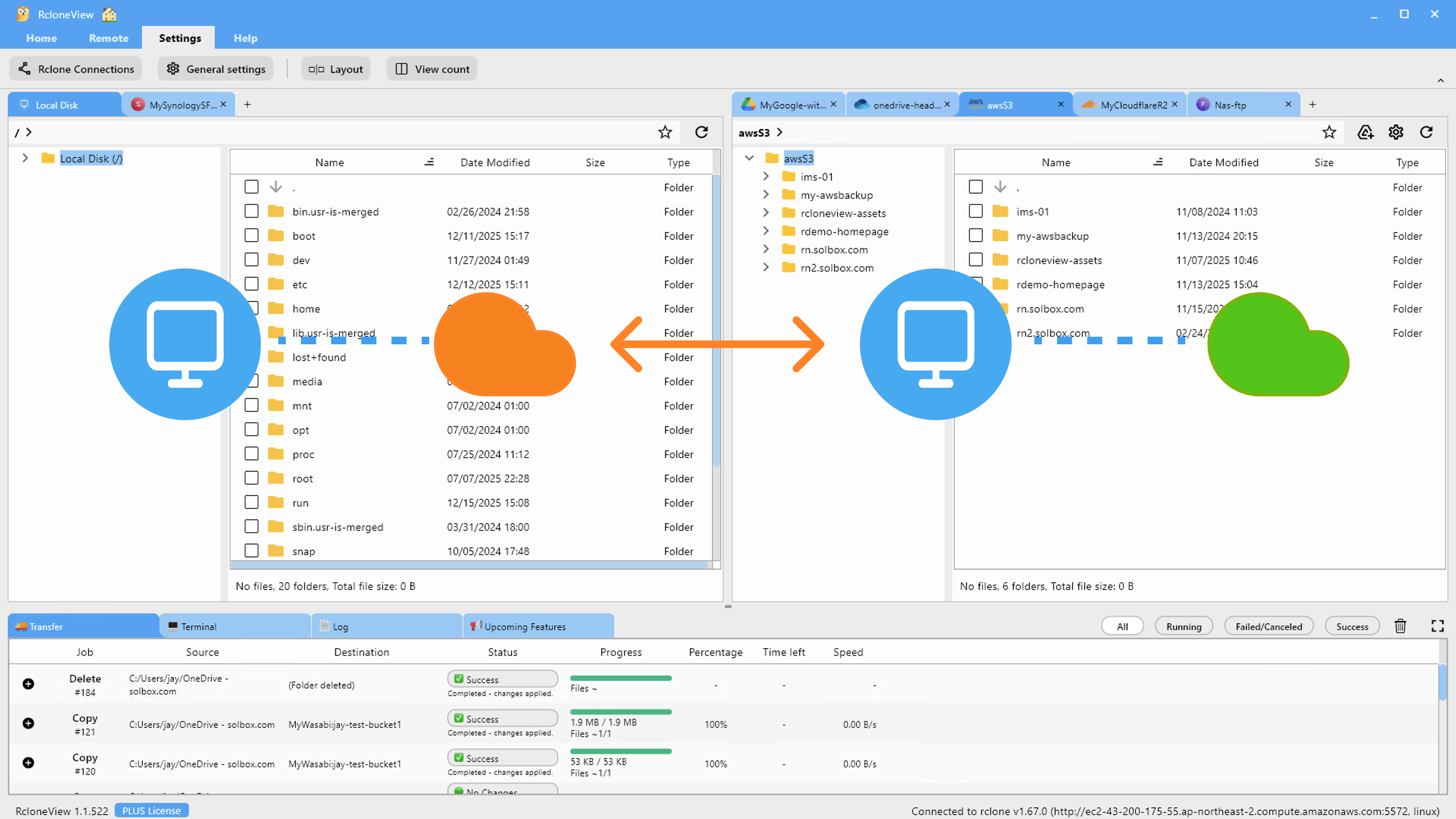
For Amazon S3, add a new remote using the Amazon S3 provider type and enter your AWS Access Key ID, Secret Access Key, and the region where your S3 bucket resides. Once both remotes are configured, you can navigate your Seafile libraries and S3 buckets side by side in RcloneView's dual-panel File Explorer.
Setting Up the Backup Sync Job
Use the Sync wizard to create a job that copies your Seafile libraries to S3. Select the Seafile WebDAV remote as the source — navigate to the specific library or folder you want to back up — and choose your S3 bucket as the destination. In the Advanced Settings step, enable checksum verification to ensure data integrity across the transfer.
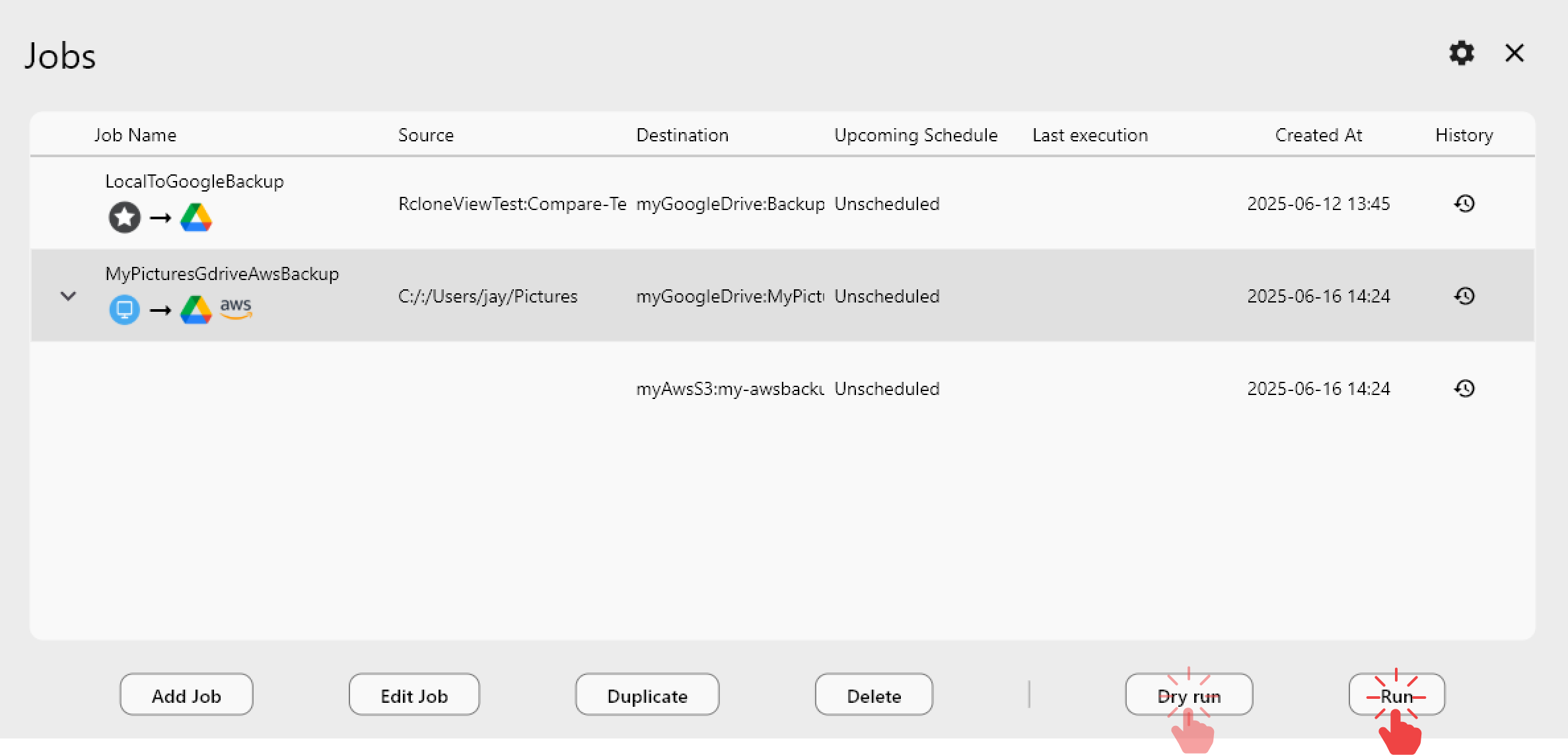
For an organization with multiple Seafile libraries for different departments, create separate sync jobs per library: one for Finance documents, one for Engineering assets, one for HR records. This granular approach lets you assign different S3 bucket policies or storage classes to each library, and makes job monitoring cleaner in the Job History panel.
Scheduled sync (PLUS license) automates recurring Seafile-to-S3 backups. Configure a nightly schedule to capture daily changes, and RcloneView's incremental sync behavior means only new or modified files are transferred on each run — not a full re-upload.
Monitoring Backup Jobs
The Transferring tab shows live status during a sync run: files being transferred and progress across the job. After each run, Job History records start time, duration, file count, total data size, and whether the job completed or encountered errors. For backup scenarios, this history serves as evidence that your Seafile data is being protected consistently.
If errors occur — such as WebDAV connection timeouts during a long sync — rclone's built-in retry logic (default: 3 retries) handles transient failures. For persistent issues, the Log tab provides timestamped error messages to help identify the root cause.
Getting Started
- Download RcloneView from rcloneview.com.
- Add a WebDAV remote pointing to your Seafile server's WebDAV endpoint.
- Add an Amazon S3 remote with your AWS credentials and region.
- Create a scheduled sync job to back up Seafile libraries to S3 on a regular basis.
Backing up Seafile to S3 through RcloneView gives self-hosted storage users an off-site cloud backup that is consistent, auditable, and GUI-driven.
Related Guides:
- Manage Seafile Self-Hosted Cloud Sync with RcloneView
- Sync Nextcloud with Google Drive and S3 using RcloneView
- Backup Nextcloud and WebDAV Storage with RcloneView
Supported Cloud Providers