Multi-Window Support — Manage Multiple Cloud Storages Side by Side in RcloneView
RcloneView's Multi-Window feature (PLUS license) opens independent application windows so you can manage different cloud storage tasks simultaneously without context-switching.
RcloneView's Explorer panel already supports 1 to 4 panels in a single window — useful for side-by-side browsing and drag-and-drop transfers. But for complex workflows involving multiple distinct tasks — monitoring a running migration in one view while browsing a separate cloud in another, or running a folder comparison while also setting up a new sync job — Multi-Window opens fully independent RcloneView windows that operate without interfering with each other. This feature is available with a PLUS license.
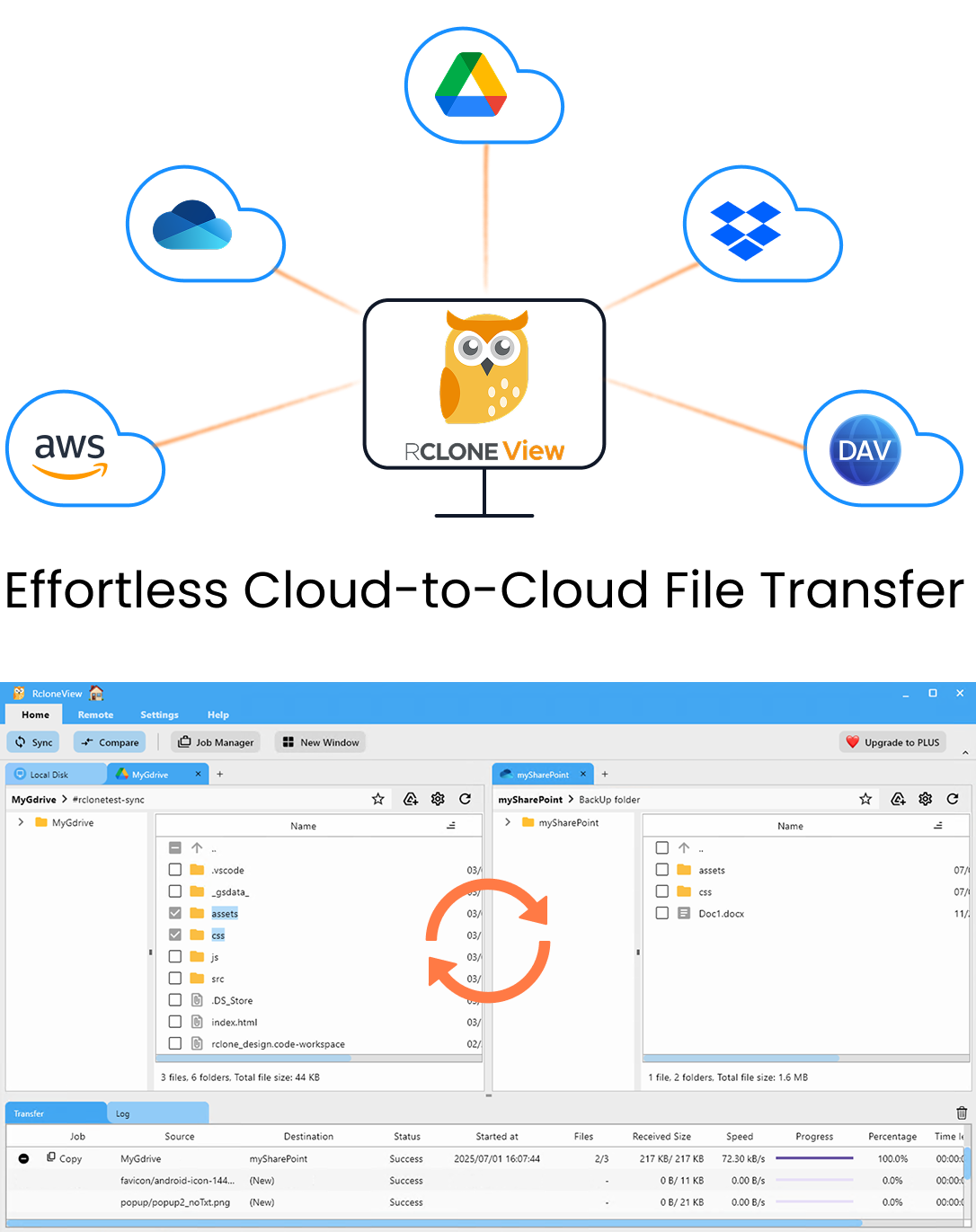
Manage & Sync All Clouds in One Place
RcloneView is a cross-platform GUI for rclone. Compare folders, transfer or sync files, and automate multi-cloud workflows with a clean, visual interface.
- One-click jobs: Copy · Sync · Compare
- Schedulers & history for reliable automation
- Works with Google Drive, OneDrive, Dropbox, S3, WebDAV, SFTP and more
Free core features. Plus automations available.
How Multi-Window Works
Each new window opened via Multi-Window is a completely independent RcloneView instance with its own Explorer panels, Transferring tab, and state. Changes in one window do not affect the others. Windows communicate through RcloneView's internal IPC mechanism, but their file browsing state and active operations are isolated.
To open a new window, click the New Window button in the Home tab. The new window opens in the same default state as the main window — you can then navigate it to a different remote or start a different job independently. Window positions and sizes are automatically saved between sessions, so your multi-window layout is preserved the next time you open RcloneView.
Practical Multi-Window Workflows
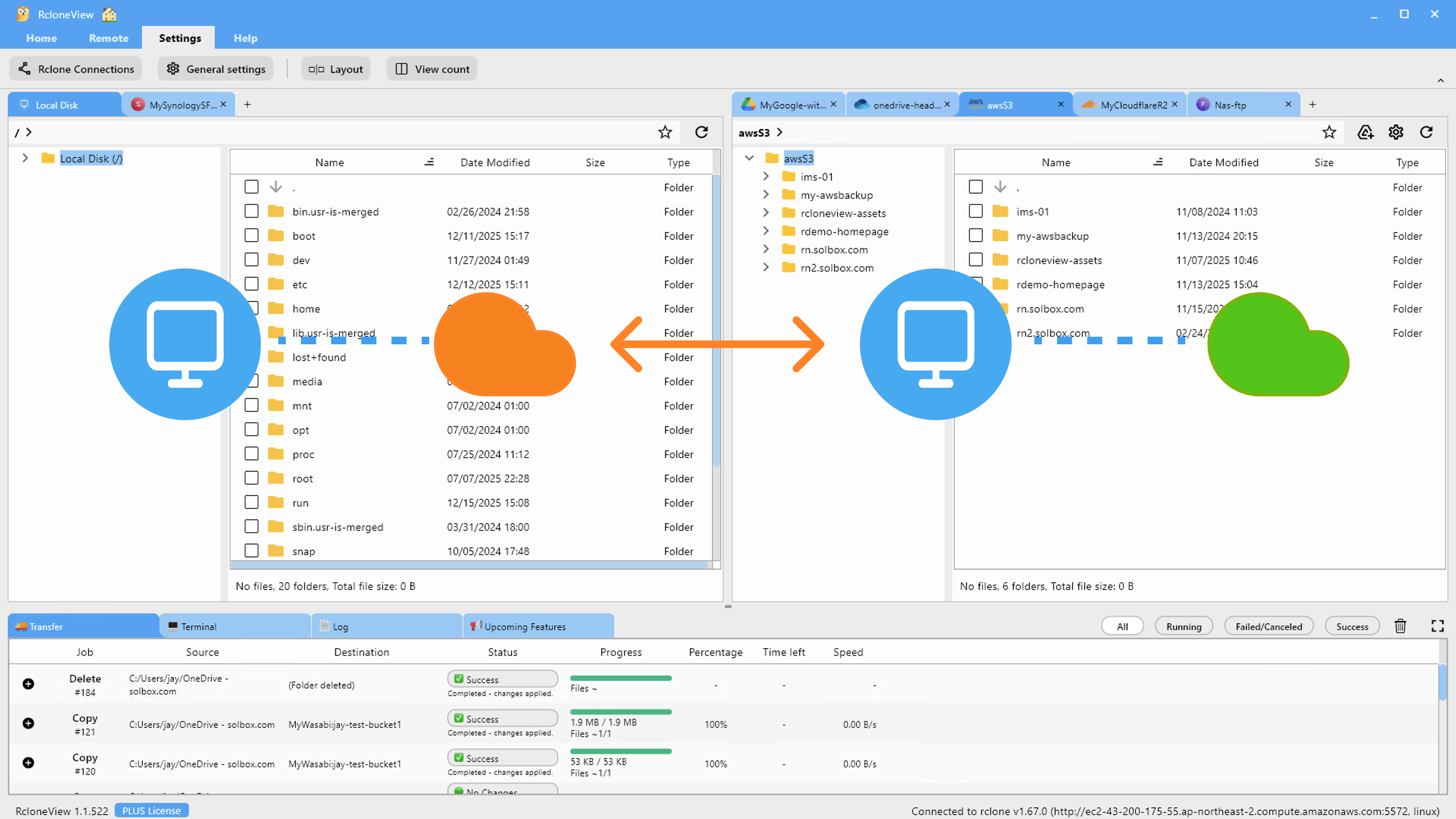
Parallel browsing across cloud providers: Open Window 1 to browse your Amazon S3 buckets while Window 2 shows your Google Drive. Drag files between windows to trigger cross-provider copies, or monitor both providers' contents simultaneously during a migration.
Job monitoring alongside file browsing: Keep Window 1 showing the Transferring tab for active job progress while Window 2 lets you browse a different cloud or set up the next job — no need to switch tabs or interrupt your monitoring view.
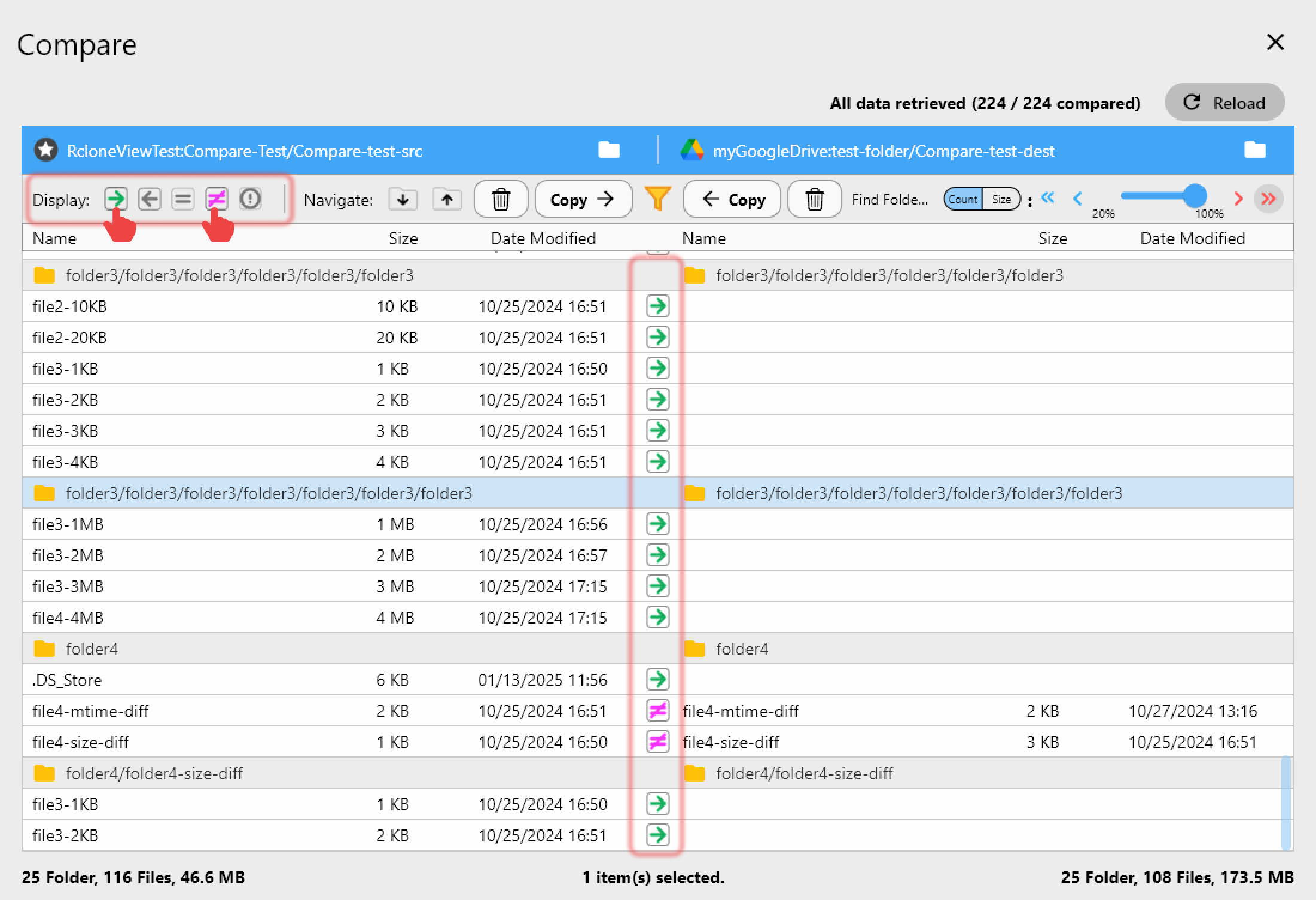
Folder comparison in a dedicated window: Run a large Folder Compare operation in Window 1 (which may take time for large cloud folders) while continuing to work with files in Window 2. The comparison runs independently without blocking your other activities.
Multi-user or multi-project workflows: Professionals managing cloud storage for multiple clients or projects can dedicate a window to each, keeping context-specific views open simultaneously rather than repeatedly navigating back and forth between remotes.
Combining Multi-Window with Panel Layout
Within each window, the panel layout (1 to 4 panels, horizontal or vertical split) is independently configurable via Settings tab > Layout / View count. A multi-window setup with 2 windows of 2 panels each effectively gives you four concurrent Explorer panels across two organized workspaces.
This combination is particularly useful for synchronization workflows: Window 1 shows source and destination panels with a sync job in progress; Window 2 shows a second source-destination pair for a different sync job. Both jobs run in parallel without sharing display state.
Getting Started
- Download RcloneView from rcloneview.com and activate a PLUS license.
- Click the New Window button in the Home tab to open an independent second window.
- Navigate each window to a different remote or task to work in parallel.
- Customize panel count per window in Settings > Layout for the most efficient layout for your workflow.
Multi-Window transforms RcloneView from a single-task file manager into a parallel workspace for cloud storage professionals managing multiple providers, projects, or ongoing operations simultaneously.
Related Guides:
- Two-Pane Explorer Productivity Tips for RcloneView
- Manage Multiple Cloud Accounts with RcloneView
- Unify All Clouds — Manage Google Drive, Dropbox, and OneDrive
Supported Cloud Providers