Migrate Backblaze B2 to Google Drive — Transfer Files with RcloneView
Transfer files from Backblaze B2 buckets directly to Google Drive with RcloneView — no intermediate local storage required, with live progress tracking and filter support.
Backblaze B2 is a capable object storage solution, but teams that rely heavily on Google Workspace may find it more practical to consolidate their working files in Google Drive for easier collaboration. Migrating years of B2 archive data to Google Drive used to require downloading everything locally first — a slow, storage-consuming process. RcloneView enables direct cloud-to-cloud transfers between B2 and Google Drive through its sync engine, routing data between the two providers without touching your local disk.
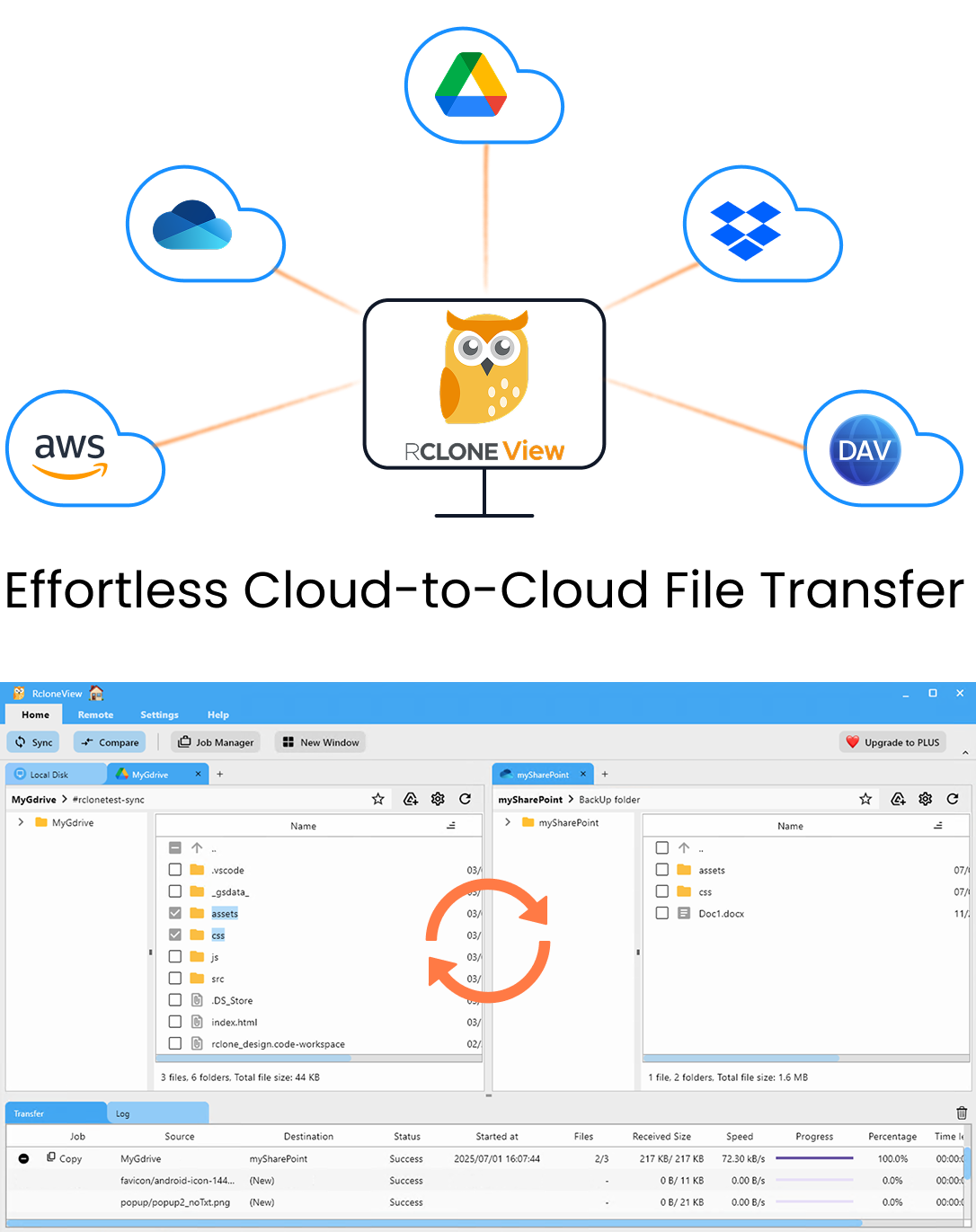
Manage & Sync All Clouds in One Place
RcloneView is a cross-platform GUI for rclone. Compare folders, transfer or sync files, and automate multi-cloud workflows with a clean, visual interface.
- One-click jobs: Copy · Sync · Compare
- Schedulers & history for reliable automation
- Works with Google Drive, OneDrive, Dropbox, S3, WebDAV, SFTP and more
Free core features. Plus automations available.
Setting Up Both Remotes
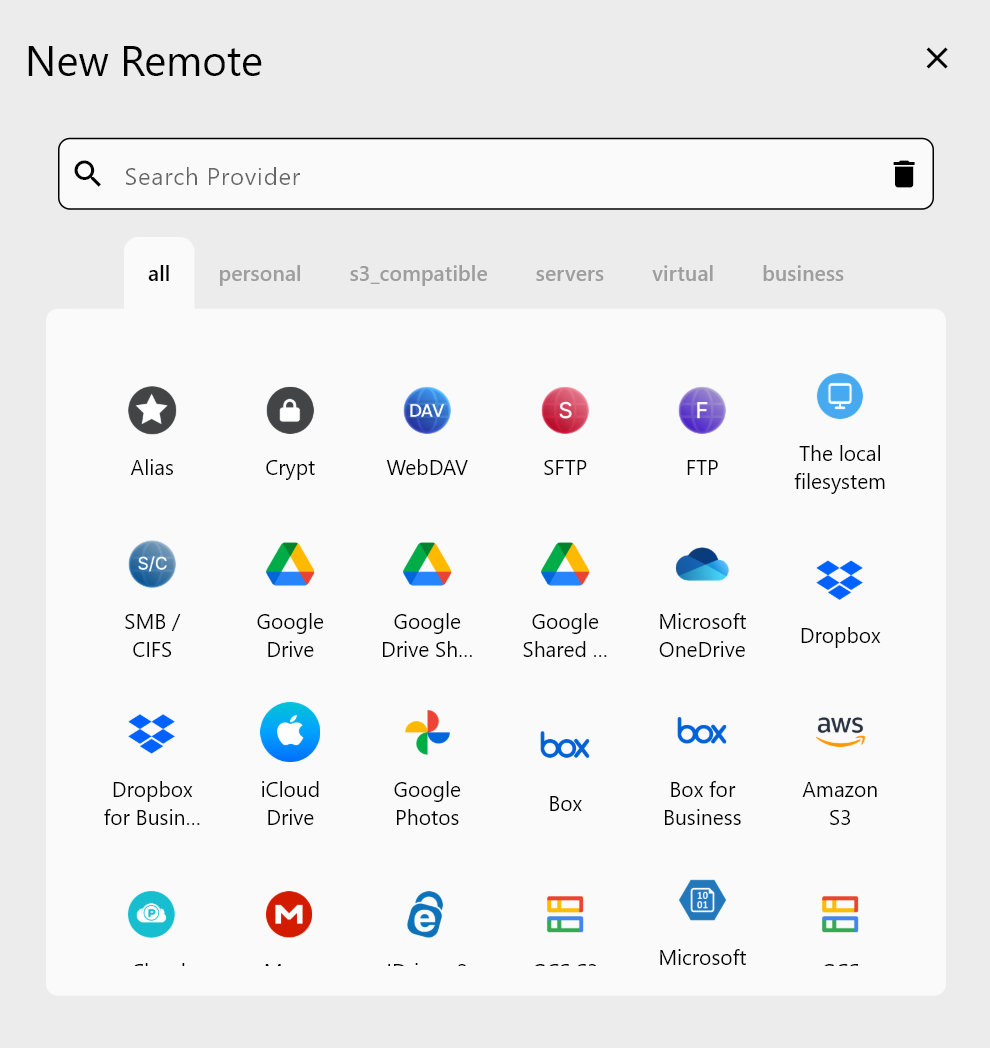
Before migrating, add both Backblaze B2 and Google Drive as remotes in RcloneView. For Backblaze B2, go to the Remote tab, click New Remote, and select Backblaze B2. Enter your Application Key ID and Application Key — both generated from your Backblaze account under App Keys. For Google Drive, select Google Drive from the provider list; a browser window opens for OAuth authentication. Sign in with your Google account and grant access.
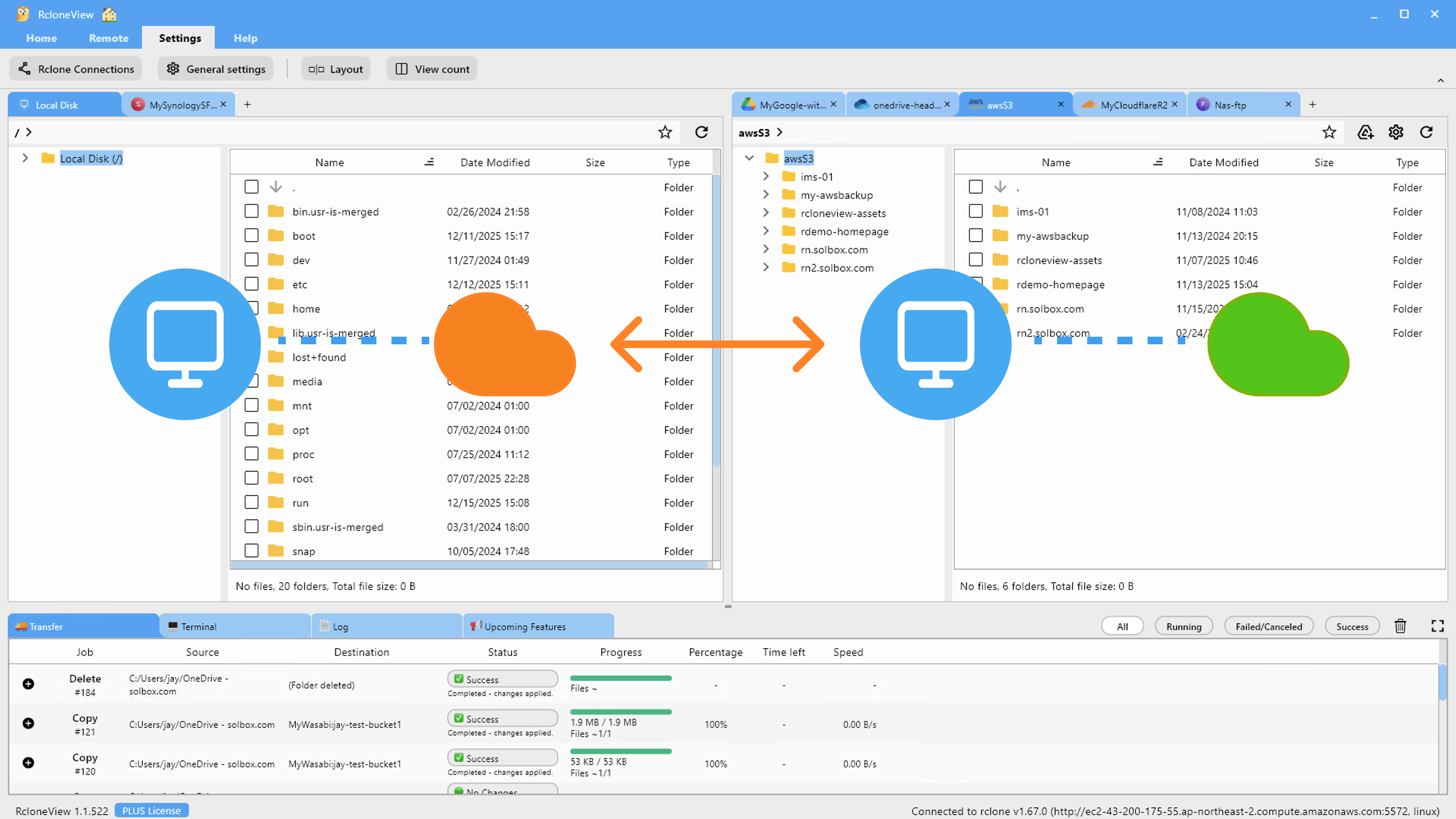
Once both remotes are configured, you can open them side by side in RcloneView's dual-panel File Explorer. Browse your B2 buckets on one side and your Google Drive folders on the other, giving you a visual reference for the migration structure you want to set up.
Running the Migration
With both remotes connected, use the Sync wizard to configure the transfer. Select your Backblaze B2 bucket (or a specific path within it) as the source and your Google Drive destination folder. In the Advanced Settings step, checksum verification ensures each file transferred correctly — important for large archives where silent data corruption can go undetected.
The Filtering step is useful for large B2 buckets: use file-age filters to migrate only files older than a certain date, exclude specific extensions (like temporary .tmp files), or limit the maximum file size to stage the migration in chunks. This is particularly helpful when migrating a design agency's 3TB of project archives — filter by file type and folder depth to control what moves in each batch.
Before committing the full migration, run Dry Run mode to preview exactly which files will be copied. The simulation shows the complete list of planned operations without making any changes — a critical safety step when migrating production data.
Monitoring and Validating the Transfer
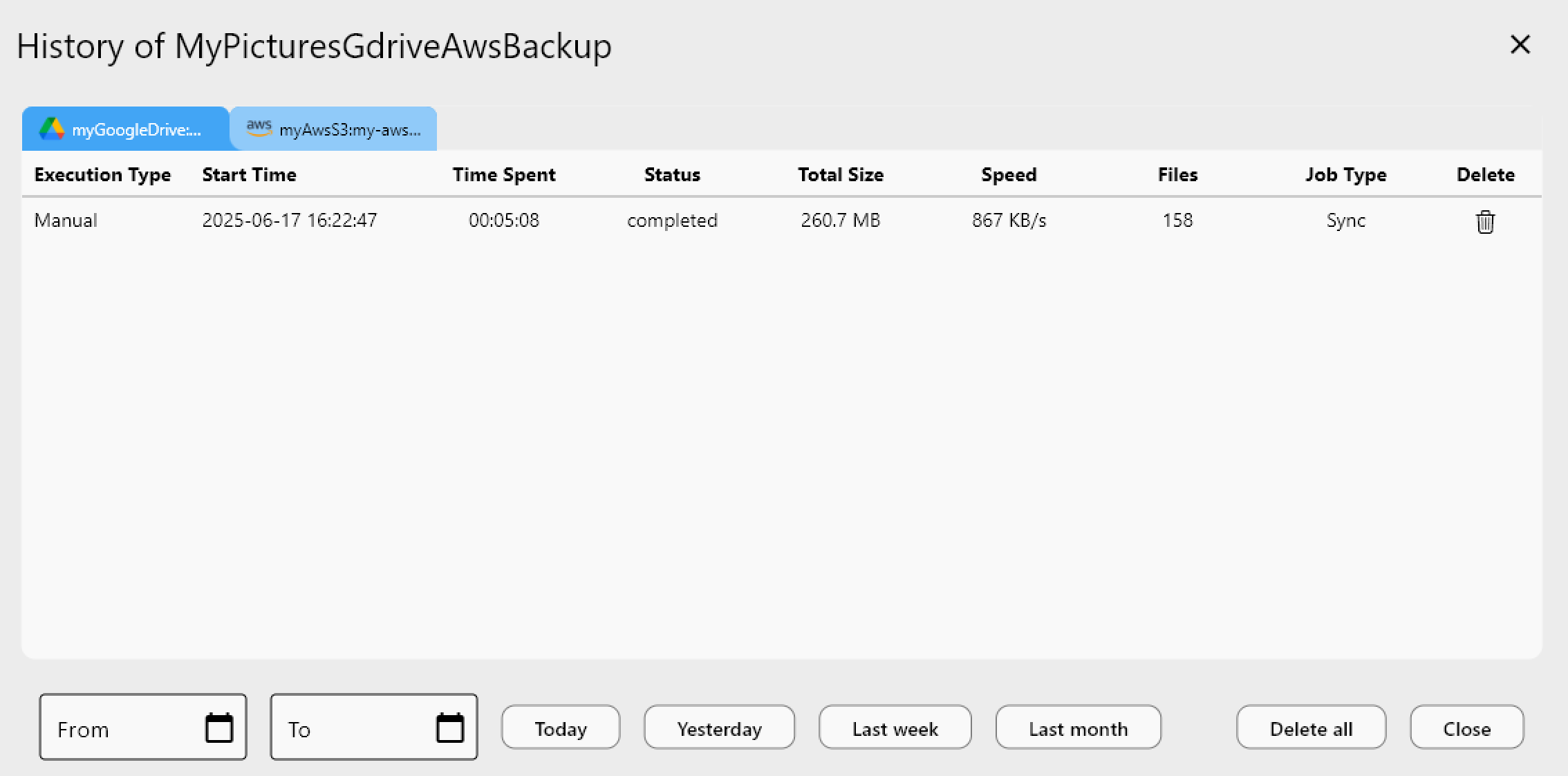
The Transferring tab at the bottom of RcloneView shows live job progress: file count, transfer status, and any errors encountered. For large migrations that run over multiple hours, Job History records each execution with start time, duration, total data moved, and final status.
After the transfer completes, use Folder Compare to validate that Google Drive now contains everything from the B2 source. The comparison highlights any files that exist only on one side or have size differences, making it straightforward to identify and re-transfer anything that didn't complete successfully.
Getting Started
- Download RcloneView from rcloneview.com.
- Add Backblaze B2 using your Application Key ID and Application Key.
- Add Google Drive via the OAuth browser authentication flow.
- Use the Sync wizard with Dry Run to preview the migration before running the full transfer.
Direct cloud-to-cloud migration eliminates the bottleneck of local intermediary storage and keeps your B2-to-Google Drive transfer running at provider-side throughput.
Related Guides:
- Migrate Backblaze B2 to Amazon S3 with RcloneView
- Manage Google Drive Cloud Sync and Backup with RcloneView
- Backup Dropbox to Backblaze B2 Affordable Storage with RcloneView
Supported Cloud Providers