Migrate Box to Google Drive with RcloneView

· 5 min read
Tayson
Senior Engineer

Organizations switching from Box to Google Workspace need a reliable way to move years of files without data loss. RcloneView transfers your entire Box folder structure to Google Drive — preserving paths, maintaining file integrity, and giving you live progress updates throughout.

Box is a capable enterprise file platform, but many teams consolidating around Google Workspace want their files in Google Drive — where Docs, Sheets, and Slides live natively. Migrating manually is impractical at any meaningful scale. RcloneView connects both Box (via OAuth) and Google Drive (via OAuth) and copies files directly between them with checksum verification and resumable transfers.

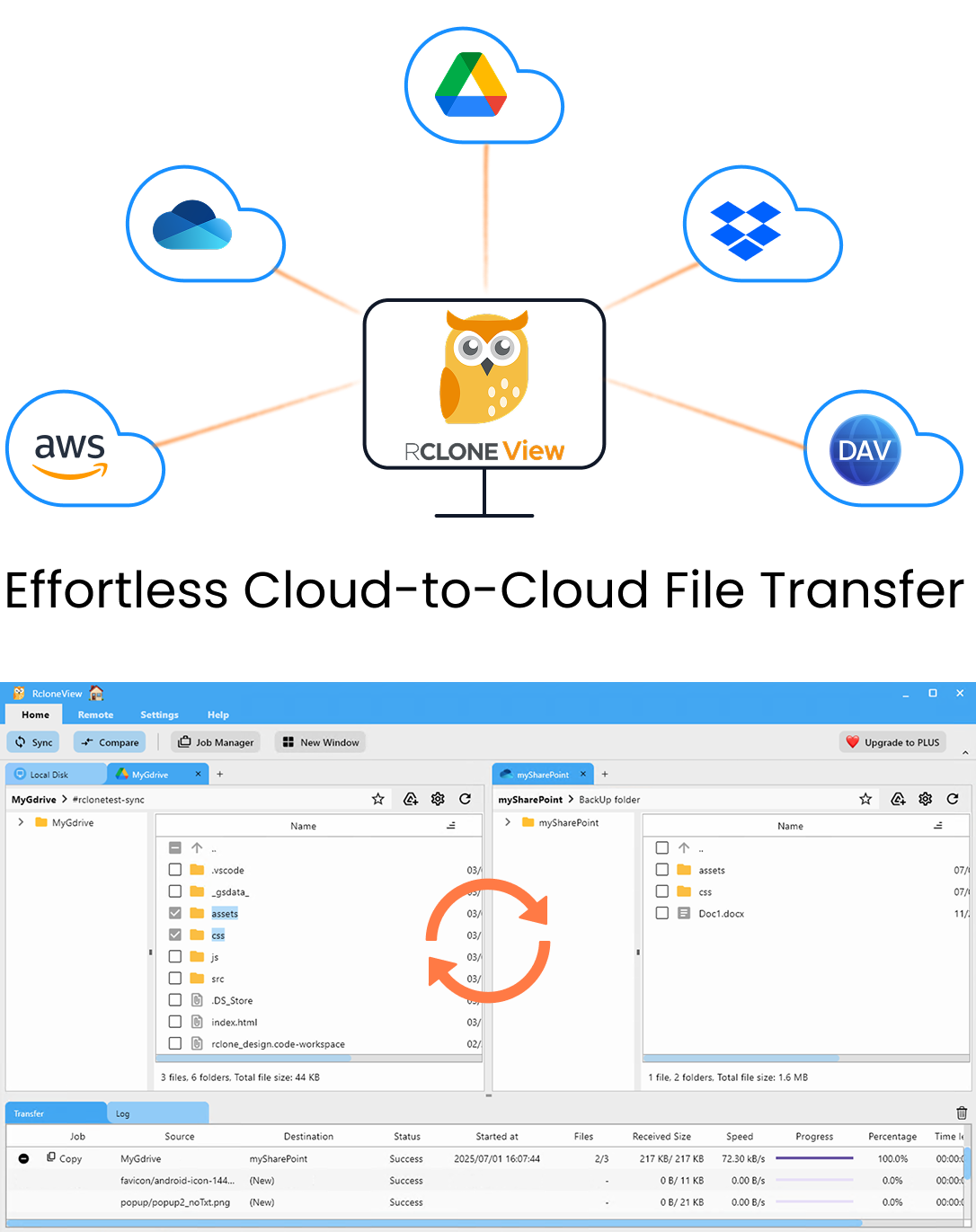
RcloneView app preview

Manage & Sync All Clouds in One Place

RcloneView is a cross-platform GUI for rclone. Compare folders, transfer or sync files, and automate multi-cloud workflows with a clean, visual interface.

  • One-click jobs: Copy · Sync · Compare
  • Schedulers & history for reliable automation
  • Works with Google Drive, OneDrive, Dropbox, S3, WebDAV, SFTP and more
WindowsmacOSLinux
Get Started Free →

Free core features. Plus automations available.

Migration Planning

Before starting, inventory what you're migrating:

  • Box size — check Box Admin Console for total storage usage
  • Shared folders — collaborator permissions won't transfer (Google Drive uses different sharing)
  • File types — most file types transfer without conversion; Box Notes require manual handling
  • Collaborators — notify stakeholders of new Google Drive paths before cutover

Step 1 — Connect Box to RcloneView

Connect Box to RcloneView
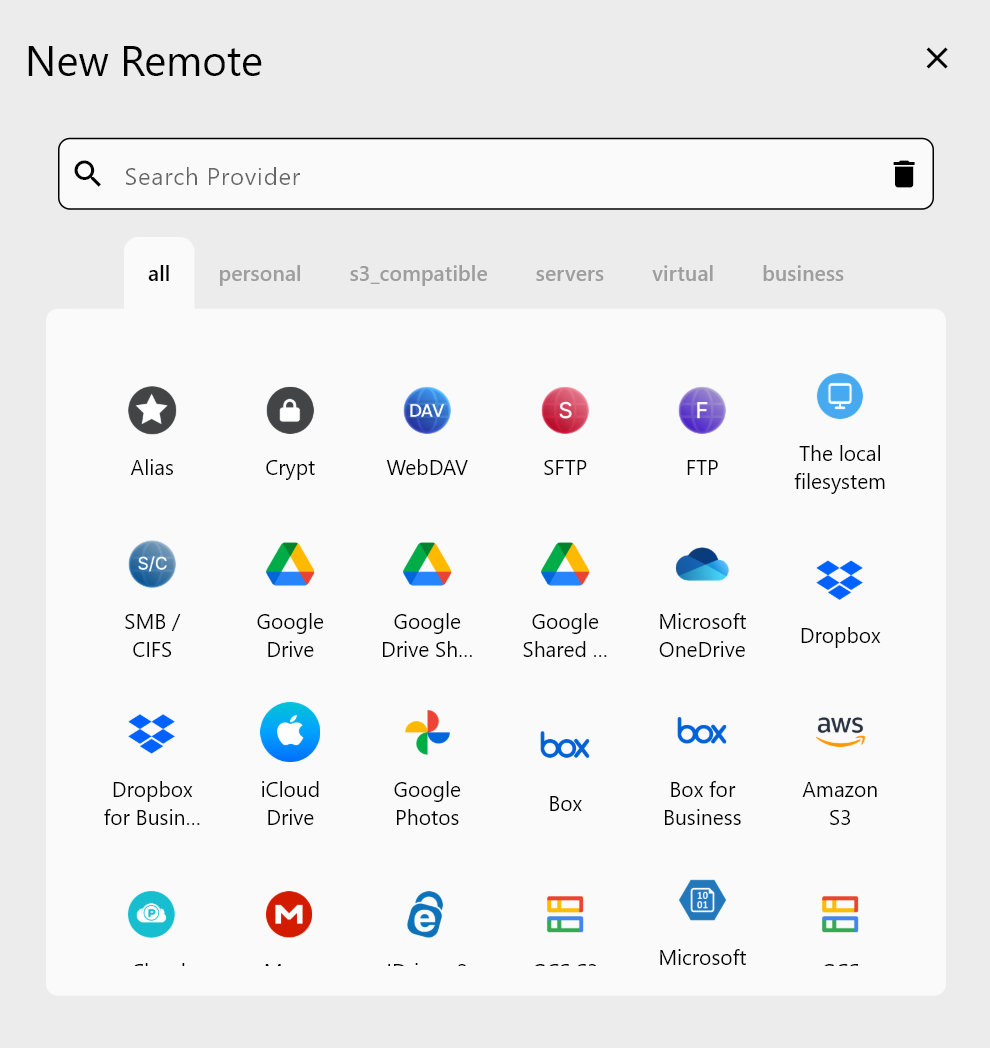
  1. Open RcloneView and click New Remote.
  2. Select Box as the remote type.
  3. Click Authorize — a browser window opens for OAuth login to Box.
  4. Log in and approve access.
  5. Name the remote box-old and save.

Step 2 — Connect Google Drive to RcloneView

  1. Click New Remote again.
  2. Select Google Drive.
  3. Click Authorize — a browser window opens for Google OAuth.
  4. Log in to the target Google account and grant access.
  5. Choose your scope (My Drive, a specific Team Drive, or a Shared Drive).
  6. Name the remote gdrive-new and save.

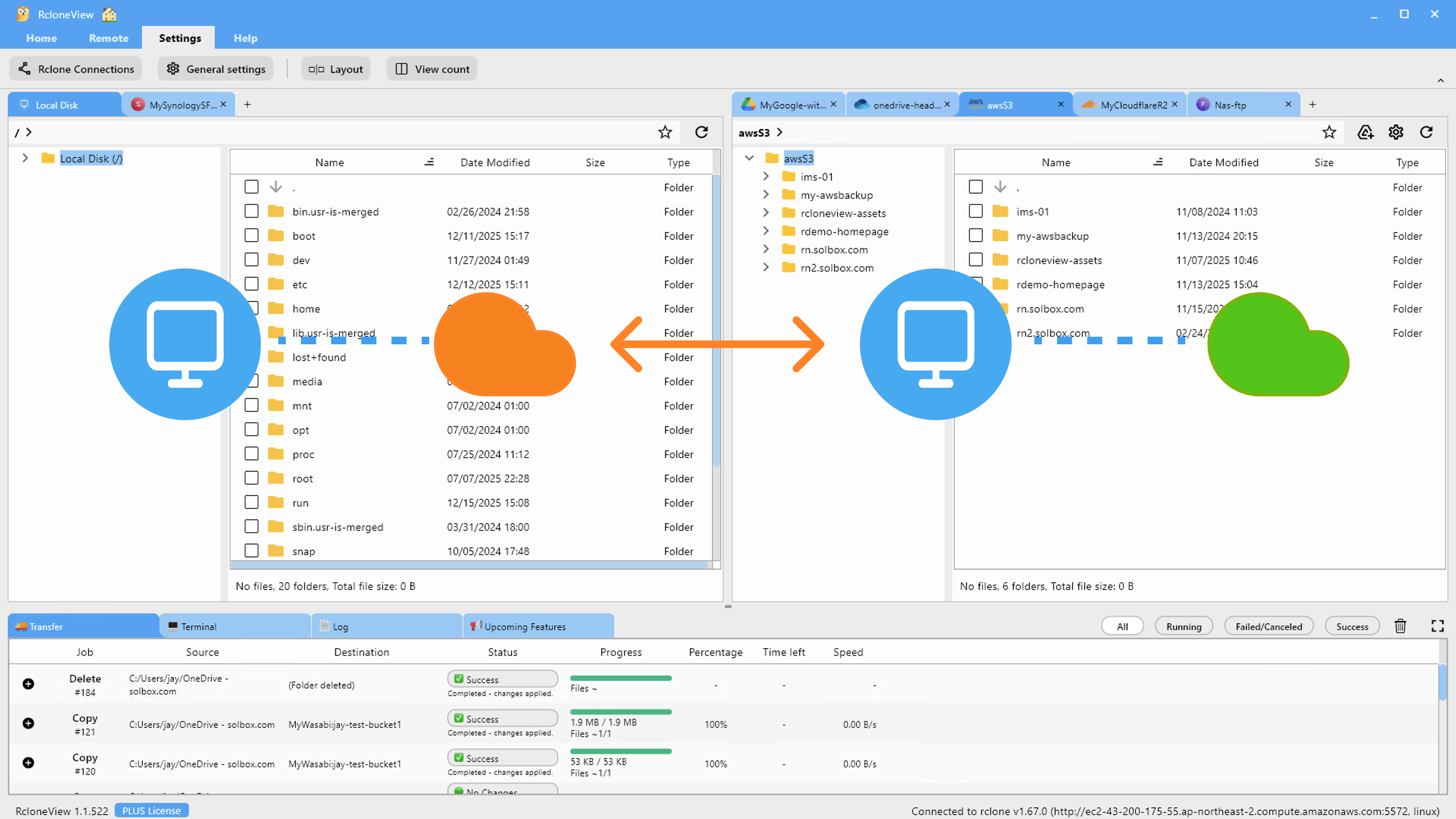
Both remotes now appear in RcloneView's dual-pane interface.

Step 3 — Explore and Map Folder Paths

Navigate your Box structure in the left panel and your Google Drive in the right panel. Decide where the Box content should land in Google Drive. Common mapping patterns:

Box PathGoogle Drive Path
box-old:/All Files/gdrive-new:/Box Migration/
box-old:/Marketing/gdrive-new:/Marketing/
box-old:/Projects/gdrive-new:/Projects/

Creating a top-level Box Migration folder in Google Drive is recommended for the initial transfer — it keeps migrated data organized and separate from existing Drive content.

Step 4 — Run the Migration

  1. Open Jobs in RcloneView.
  2. Set Source to your Box path (e.g., box-old:/All Files/).
  3. Set Destination to your Google Drive path (e.g., gdrive-new:/Box Migration/).
  4. Select Copy mode — files are copied without deleting Box.
  5. Enable Checksum verification for data integrity.
  6. Click Run.
Box to Google Drive migration in progress

RcloneView shows real-time progress: files transferred, transfer speed, and estimated time remaining.

Step 5 — Handle the Google Drive API Rate Limits

Google Drive limits the rate at which files can be uploaded. For large Box libraries (thousands of files):

  • Reduce concurrent transfers to 2–3 to avoid hitting rate limits.
  • Run overnight — larger jobs benefit from 8+ hours of uninterrupted transfer.
  • Use bandwidth throttling — limit upload speed if Box API rate limits kick in.

If you see 429 Too Many Requests errors, RcloneView retries automatically with exponential backoff.

Step 6 — Verify the Migration

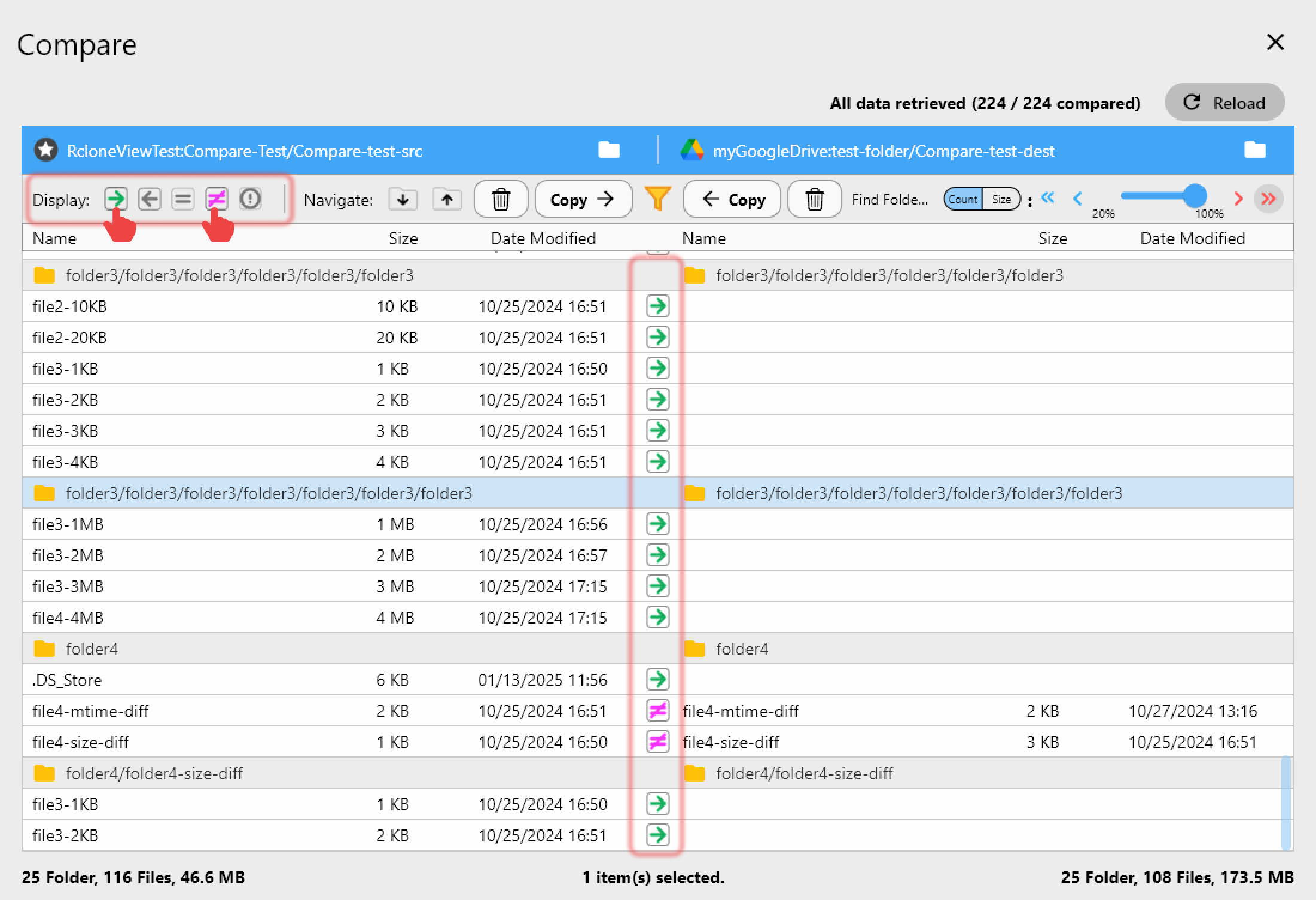
After the job completes, use Folder Comparison to verify that every Box file is in Google Drive:

Verify Box to Google Drive migration

Files appearing only on the Box side need to be re-transferred. Re-run the job — rclone skips files already present in Google Drive and only copies missing ones.

Step 7 — Migrate Collaborator Access

Rclone (and RcloneView) transfers file content but not sharing permissions. After the migration:

  1. In Google Drive, share migrated folders with the appropriate team members.
  2. For Shared Drives (Team Drives), add members to the drive — all files inherit access.
  3. Update any Box links in emails, wikis, or ticketing systems to point to the new Google Drive paths.

Step 8 — Decommission Box

Once all files are verified in Google Drive:

  1. Export Box's audit logs for compliance archiving.
  2. Notify the Box admin to deactivate accounts.
  3. Cancel the Box subscription.

Getting Started

  1. Download RcloneView from rcloneview.com.
  2. Connect Box and Google Drive using their respective OAuth flows in RcloneView.
  3. Map your folder structure and create a destination folder in Google Drive.
  4. Copy, verify, then cut over — a phased approach prevents data loss.

Box to Google Drive in a few jobs. No migration service, no scripting, no specialist required.


Related Guides:

Supported Cloud Providers
Local Files
WebDAV
FTP
SFTP
HTTP
SMB / CIFS
Google Drive
Google Photos
Google Cloud Storage
OneDrive
Dropbox
Box
MS Azure Blob
MS File Storage
S3 Compatible
Amazon S3
pCloud
Wasabi
Mega
Backblaze B2
Cloudflare R2
Alibaba OSS
Ceph
Swift (OpenStack)
IBM Cloud Object Storage
Oracle Cloud Object Storage
IDrive e2
MinIO
Storj
DigitalOcean Spaces