RcloneView Slack 遠端控制
Slack 遠端控制功能讓您可以接收 RcloneView 的工作通知,並直接從 Slack 控制工作——不需要坐在電腦前。
本教學涵蓋以下內容:
- 建立 Slack 應用程式(使用 App Manifest)
- 取得所需的權杖(App Token 與 Bot Token)
- 找到您的 Slack 會員 ID
- 在 RcloneView 中啟用 Slack 遠端控制
- 使用 Slack 指令列出、啟動、停止工作並查詢狀態
什麼是 Slack 遠端控制?
Slack 遠端控制是 RcloneView 內建的功能,可讓您:
- 即時接收工作開始、完成及發生錯誤時的通知
- 列出已註冊的工作
- 遠端啟動工作
- 停止正在執行的工作
- 依需求查詢工作進度與狀態
只要 RcloneView 持續執行,您就能僅靠手機上的 Slack 應用程式管理您的雲端工作。
需求
- 已安裝並執行中的 RcloneView(桌面版或 Headless 版)
- 一個 Slack 帳號與工作區
- 網際網路連線
步驟 1:建立 Slack 應用程式(App Manifest)
為了最快速且最準確地完成設定,我們使用「App Manifest」方式來建立您的機器人。
1-1 開啟 Slack API 儀表板
- 前往 Slack API 儀表板。
- 點擊 Create New App 按鈕。
1-2 使用 Manifest 建立
- 選擇 From an app manifest 選項。
- 選擇您要安裝此應用程式的 Workspace。
- 選擇 JSON 分頁,並貼上以下設定程式碼:
{
    "display_information": {
        "name": "RcloneView",
        "description": "Effortlessly browse, organize, transfer files across your cloud storages.",
        "background_color": "#3f2f3f"
    },
    "features": {
        "bot_user": {
            "display_name": "RcloneView",
            "always_online": false
        },
        "slash_commands": [
            {
                "command": "/help",
                "description": "Show all commands",
                "should_escape": false
            },
            {
                "command": "/joblist",
                "description": "List jobs",
                "should_escape": false
            },
            {
                "command": "/start",
                "description": "Starts a job (Enter number or name)",
                "usage_hint": "<#number> or <jobName>",
                "should_escape": false
            },
            {
                "command": "/stop",
                "description": "Stop a running job by JobId",
                "usage_hint": "<JobId>",
                "should_escape": false
            },
            {
                "command": "/jobstatus",
                "description": "Check status by JobId",
                "usage_hint": "<JobId>",
                "should_escape": false
            }
        ]
    },
    "oauth_config": {
        "scopes": {
            "bot": [
                "commands",
                "chat:write",
                "chat:write.public",
                "im:write",
                "app_mentions:read",
                "files:write"
            ]
        }
    },
    "settings": {
        "interactivity": {
            "is_enabled": true
        },
        "org_deploy_enabled": false,
        "socket_mode_enabled": true,
        "token_rotation_enabled": false
    }
}
- 點擊 Next,接著點擊 Create 完成設定。
步驟 2:取得並儲存權杖
RcloneView 需要兩種類型的權杖。請將這些權杖視為密碼般妥善保管。
2-1 取得 App Token(用於 Socket Mode)
- 點擊左側選單中的 Basic Information。
- 在 App-Level Tokens 區塊下,點擊 Generate Token and Scopes。
- 將權杖命名為
RcloneView,加入connections:write範圍,然後產生權杖。 - 儲存以
xapp-開頭的權杖。
2-2 取得 Bot Token
- 點擊左側選單中的 Install App。
- 點擊 Install to Workspace,再點擊 Allow。
- 複製以
xoxb-開頭的 Bot User OAuth Token。
步驟 3:啟用 Messages 分頁
- 點擊左側選單中的 App Home。
- 開啟
Messages Tab - 勾選
Allow users to send Slash commands and messages from the messages tab
這將允許您直接向機器人傳送斜線指令。
步驟 4:找到您的 Slack 會員 ID
機器人需要您獨一無二的 ID,才能知道要將通知傳送給哪位使用者。
- 開啟 Slack,點擊您的個人頭像,並選擇 Profile。
- 點擊 More(···) 按鈕並選擇 Copy member ID。
- 儲存該 ID(例如:
U1234567890)。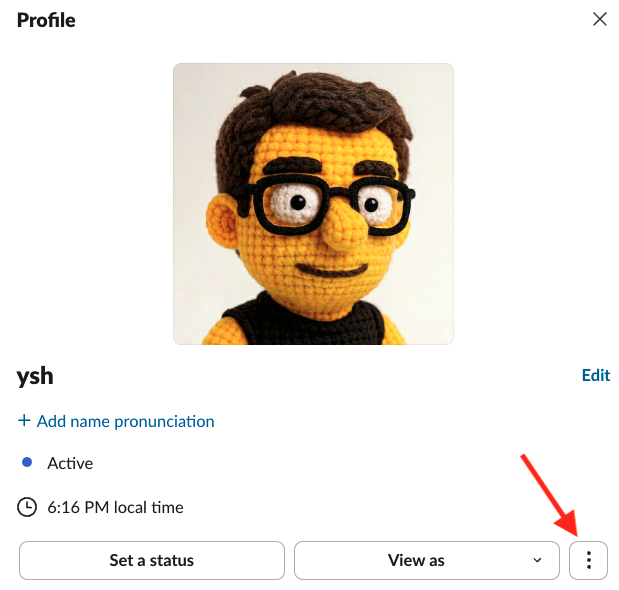
步驟 5:在 RcloneView 中啟用 Slack 遠端控制
5-1 開啟設定
- 啟動 RcloneView。
- 前往 Settings -> Interfaces & Notifications。
5-2 輸入憑證
- 開啟 Slack Remote Control 開關。
- 輸入您的權杖與 ID:
- Slack App Token:
xapp-... - Slack Bot Token:
xoxb-... - My Member ID:
U...
5-3 傳送測試訊息
點擊 Send Test Message。若成功,您將在手機上收到訊息。
步驟 6:Slack 指令(工作控制)
在任何已安裝機器人的聊天室中輸入以下指令。
/help
顯示所有可用指令。
/joblist
列出目前所選連線的工作清單。
/start <jobName>
依名稱啟動特定工作。
/start #<number>(建議使用)
使用最近一次 /joblist 結果中的索引編號啟動工作(例如:/start #1)。
/stop <JobId>
停止正在執行的工作。
/jobstatus <JobId>
查詢特定工作的即時進度與統計資訊。
自動工作通知
啟用後,RcloneView 會自動針對以下情況傳送通知:
- 工作已開始
- 工作已成功完成
- 工作發生錯誤而失敗
安全性注意事項
- 只有來自已設定 會員 ID 的指令才會被處理。
- 請妥善保管您的 App Token 與 Bot Token,不要外洩。
- 若您需要暫停遠端控制功能,只需在設定中關閉開關即可。
總結
Slack 遠端控制功能讓管理長時間執行的雲端工作變得更有效率:
- 無論身在何處都能進行遠端工作管理
- 透過通知取得即時狀態更新
- 無需電腦,即可透過手機立即控制
立即完成一次設定,享受更聰明的雲端自動化環境!