Cloud Storage for Museums and Archives — Digital Preservation with RcloneView

Digitized collections deserve more than a single backup — RcloneView keeps archival masters verified and mirrored across independent cloud providers.
A museum digitization project doesn't end when a scan hits a hard drive. High-resolution TIFFs of paintings, oral history recordings, and scanned manuscript pages need to survive for decades, which means at least one geographically separate copy and a way to prove, later, that the files haven't quietly degraded. Archives and small museum IT teams rarely have budget for a dedicated digital asset management platform, so RcloneView fills that role instead — a desktop GUI for pushing preservation masters to cloud storage, verifying integrity, and keeping working copies in sync without hand-rolled scripts.
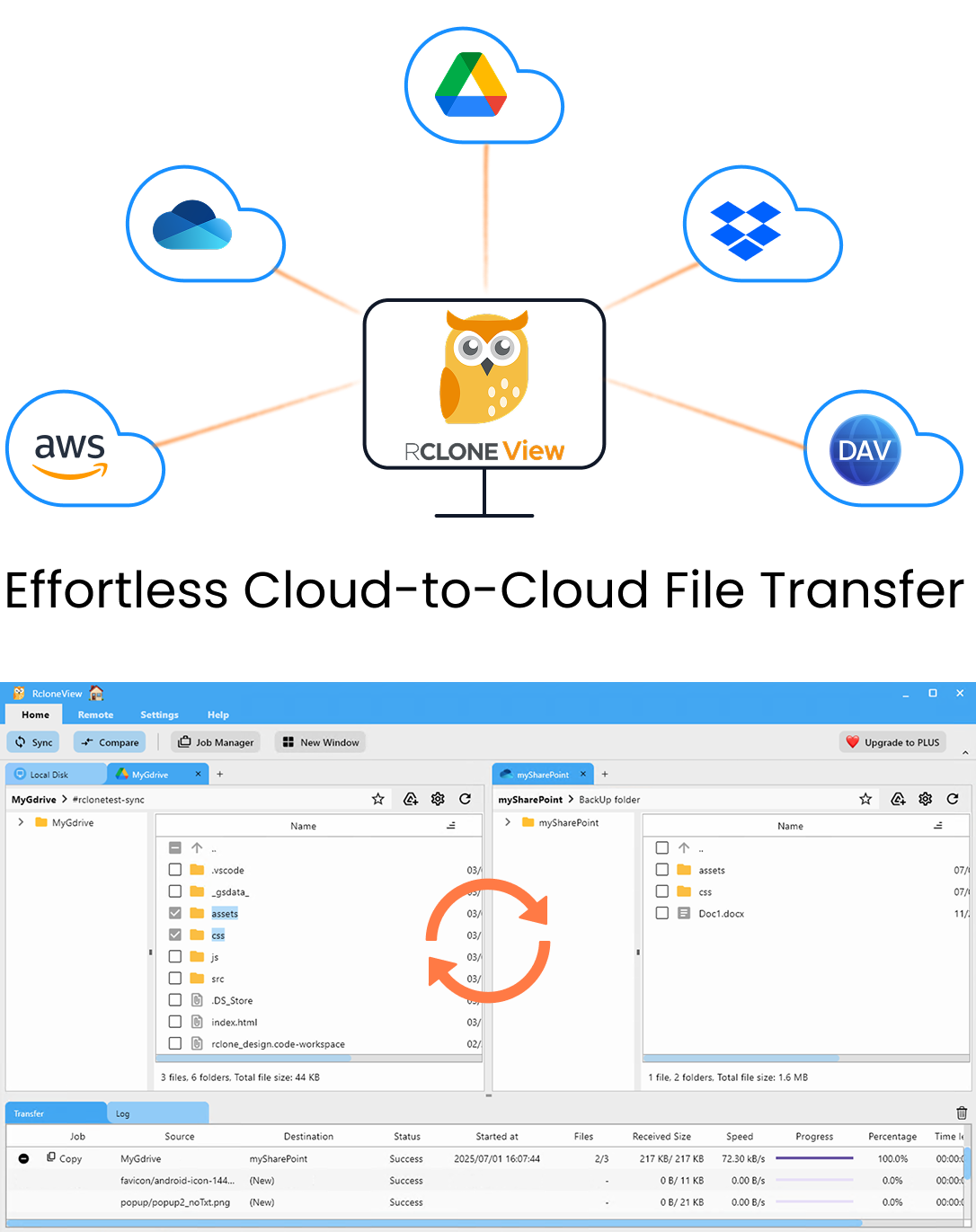
Manage & Sync All Clouds in One Place
RcloneView is a cross-platform GUI for rclone. Compare folders, transfer or sync files, and automate multi-cloud workflows with a clean, visual interface.
- One-click jobs: Copy · Sync · Compare
- Schedulers & history for reliable automation
- Works with Google Drive, OneDrive, Dropbox, S3, WebDAV, SFTP and more
Free core features. Plus automations available.
Storing Archival Masters Across Independent Providers
The standard preservation practice is to keep at least two copies of a master file on different storage systems, ideally with different providers so a single vendor outage or account issue can't take out both. RcloneView makes that practical for a small archive team: connect Amazon S3 or Backblaze B2 as a cold-storage target for masters, and a second provider like Google Drive or Wasabi as an independent mirror, then run a 1:N sync job that pushes new digitization batches to both destinations from one source folder. Connect S3, Azure, or Backblaze B2 with full read/write on the FREE license, so a two-provider preservation strategy doesn't require paying for anything beyond the storage itself.
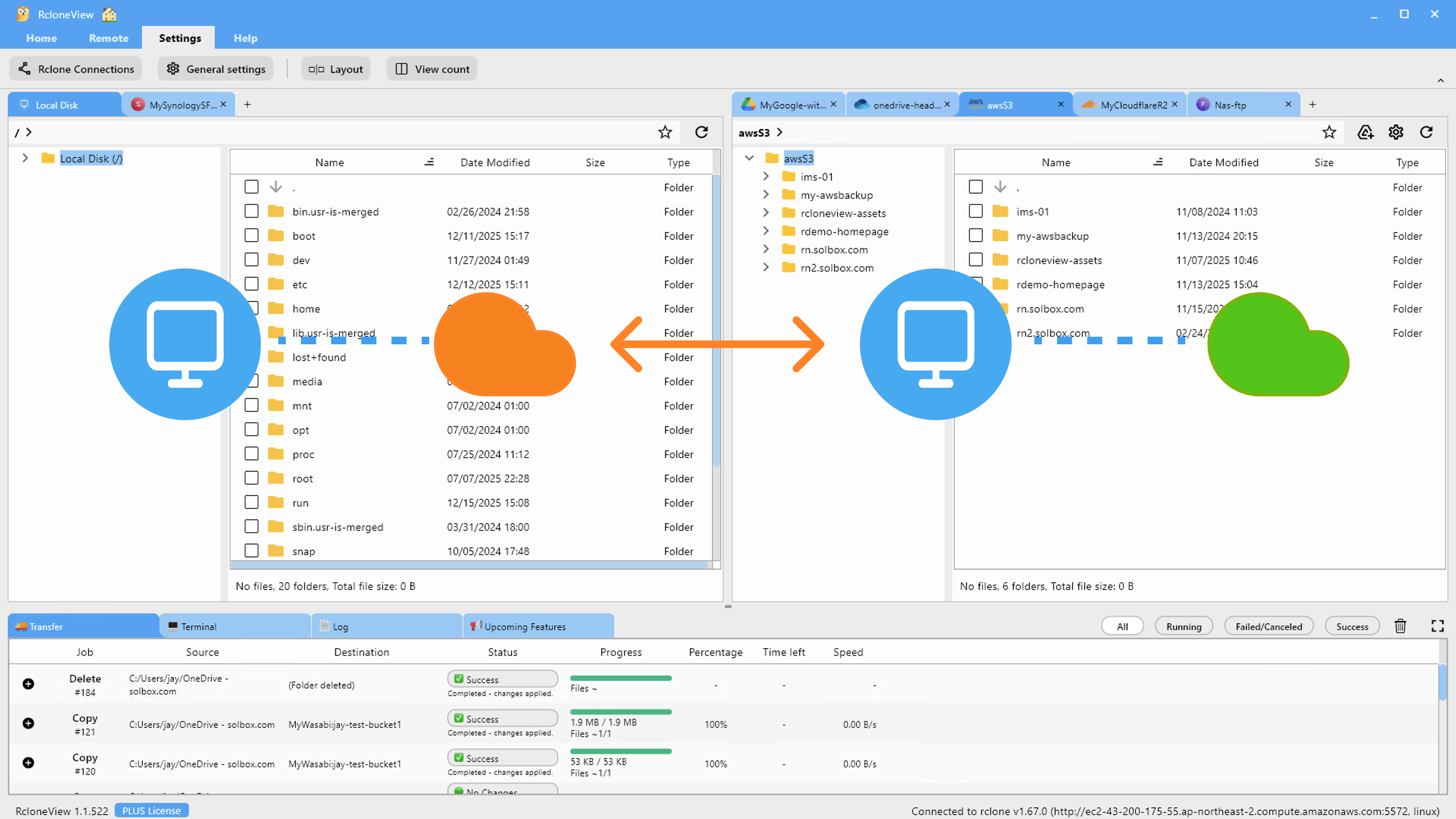
Enabling checksum comparison in the sync job's Advanced Settings means files are verified by hash and size rather than just a timestamp match — important when a scanning workstation's clock drifts or a file gets re-saved with the same modified date but different content.
Verifying Integrity Without a Command Line
Bit rot and silent corruption are the quiet threat to any long-term archive. RcloneView's Folder Compare tool lets an archivist point two panels at the same collection on different remotes — say, the primary S3 bucket and the Backblaze mirror — and see file-by-file differences by size and hash. The "Show different files" filter surfaces exactly which items drifted out of sync, so a quarterly integrity check becomes a five-minute visual review instead of parsing checksum logs.
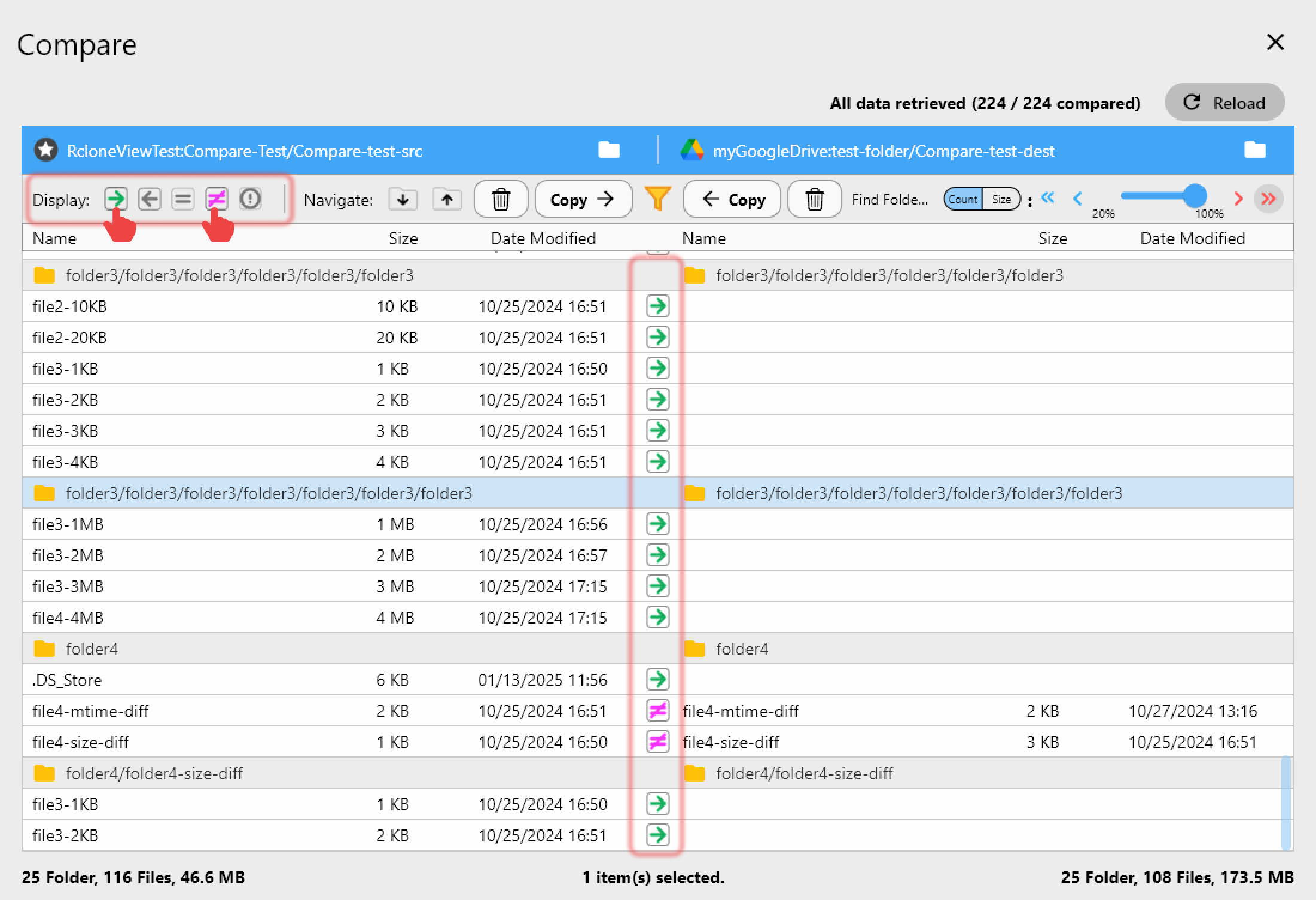
For a first pass on a new digitization batch, Dry Run previews exactly which files would be copied or flagged before anything actually transfers — useful when a single manuscript folder can run into hundreds of gigabytes and a mistake is expensive to redo.
Scheduling Ingest From Scanning Workstations
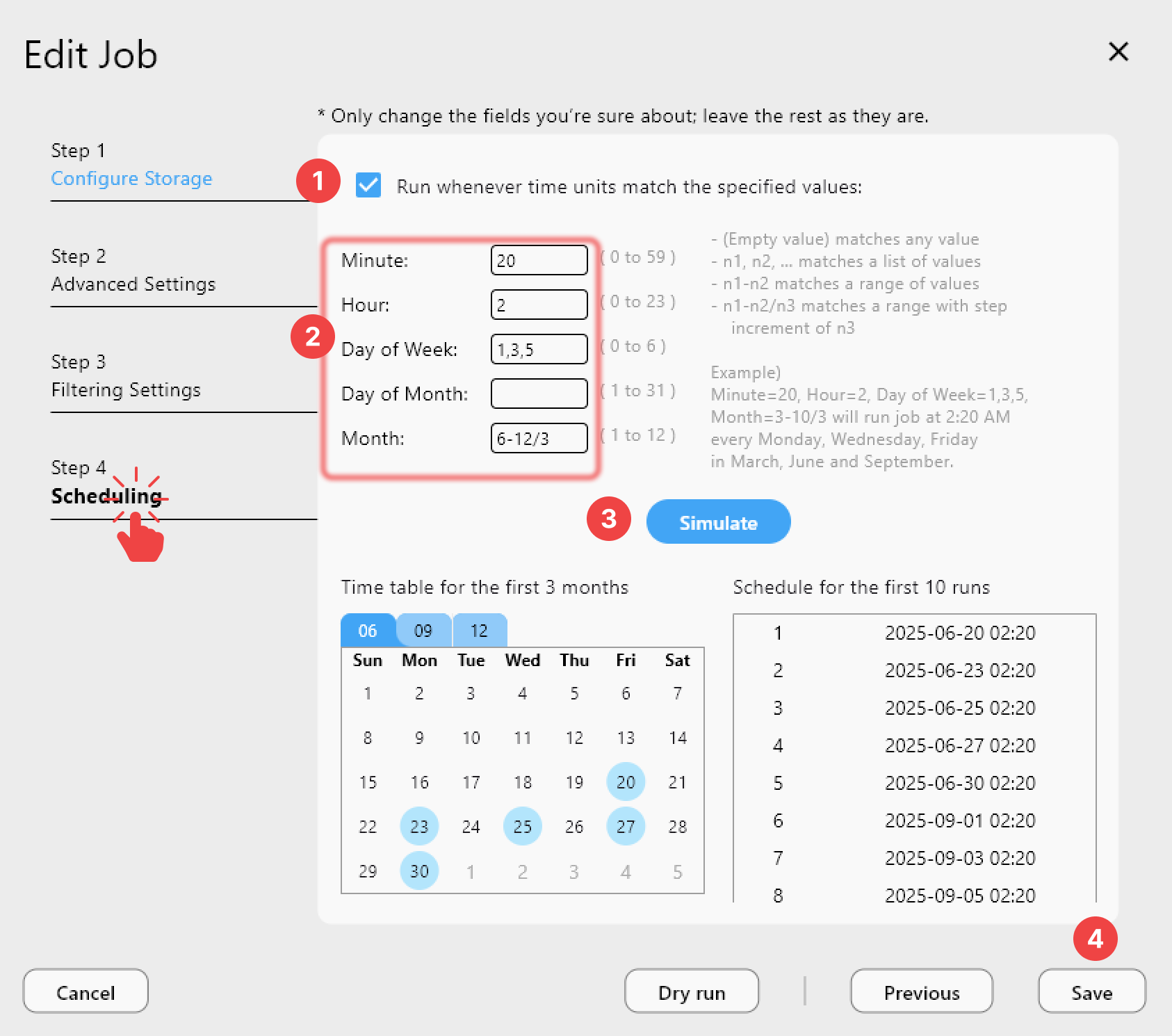
Digitization work happens in bursts — a batch of slides scanned one week, an audio reel transferred the next. Rather than remembering to manually upload after each session, a PLUS-licensed archive team can set a crontab-style schedule so new files in a local ingest folder sync to cloud storage automatically overnight, with Job History keeping a record of exactly what transferred and when for accession logs.
Getting Started
- Download RcloneView from rcloneview.com.
- Connect your primary archival storage remote (S3, Backblaze B2, or similar) plus a second provider for redundancy.
- Set up a 1:N sync job with checksum verification enabled for your digitization ingest folder.
- Use Folder Compare on a regular schedule to catch drift between your primary and mirror copies.
A digitization budget spent on scanning is only half the job — RcloneView handles the quieter half of making sure those files are still readable a decade from now.
Related Guides:
- Checksum-Verified Cloud Migrations with RcloneView (Drive, Dropbox, S3, R2)
- How to Upload and Manage Internet Archive Collections Using RcloneView
- Cloud Storage for Researchers — Manage Datasets, Publications, and Lab Data with RcloneView
Supported Cloud Providers