Mount
Mount cloud storage as a local drive in 3 minutes
See how RcloneView turns Google Drive, OneDrive, Dropbox, S3 and 70+ other providers into a native drive in File Explorer, Finder or your Linux file manager — no command line.
- Pick any connected remote and mount it in a few clicks
- Mount on Windows, macOS or Linux — to a drive letter or any folder you choose
- Open and save files on demand, without a full sync
The demo player couldn’t load. Use “Open in new tab” instead.
Watch next
See all demos →
Step-by-step guide
How to mount Google Drive as a local drive
The same 18 steps as the interactive demo, with screenshots — skim it, or jump into the demo at any step.
-
1Try this step ↗
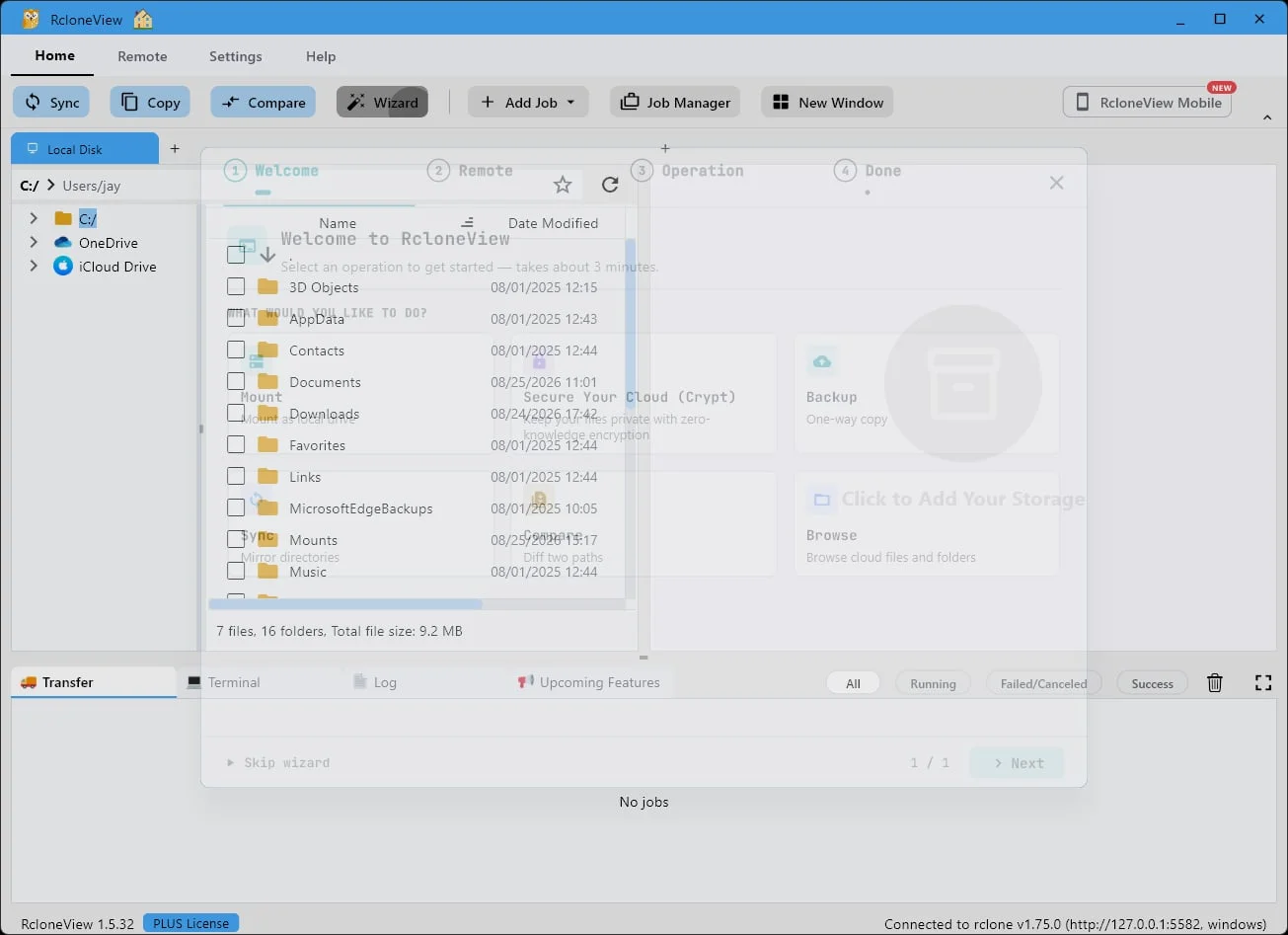
Start with Wizard
Open RcloneView and click Wizard. It walks you through the entire setup, one step at a time.
-
2Try this step ↗
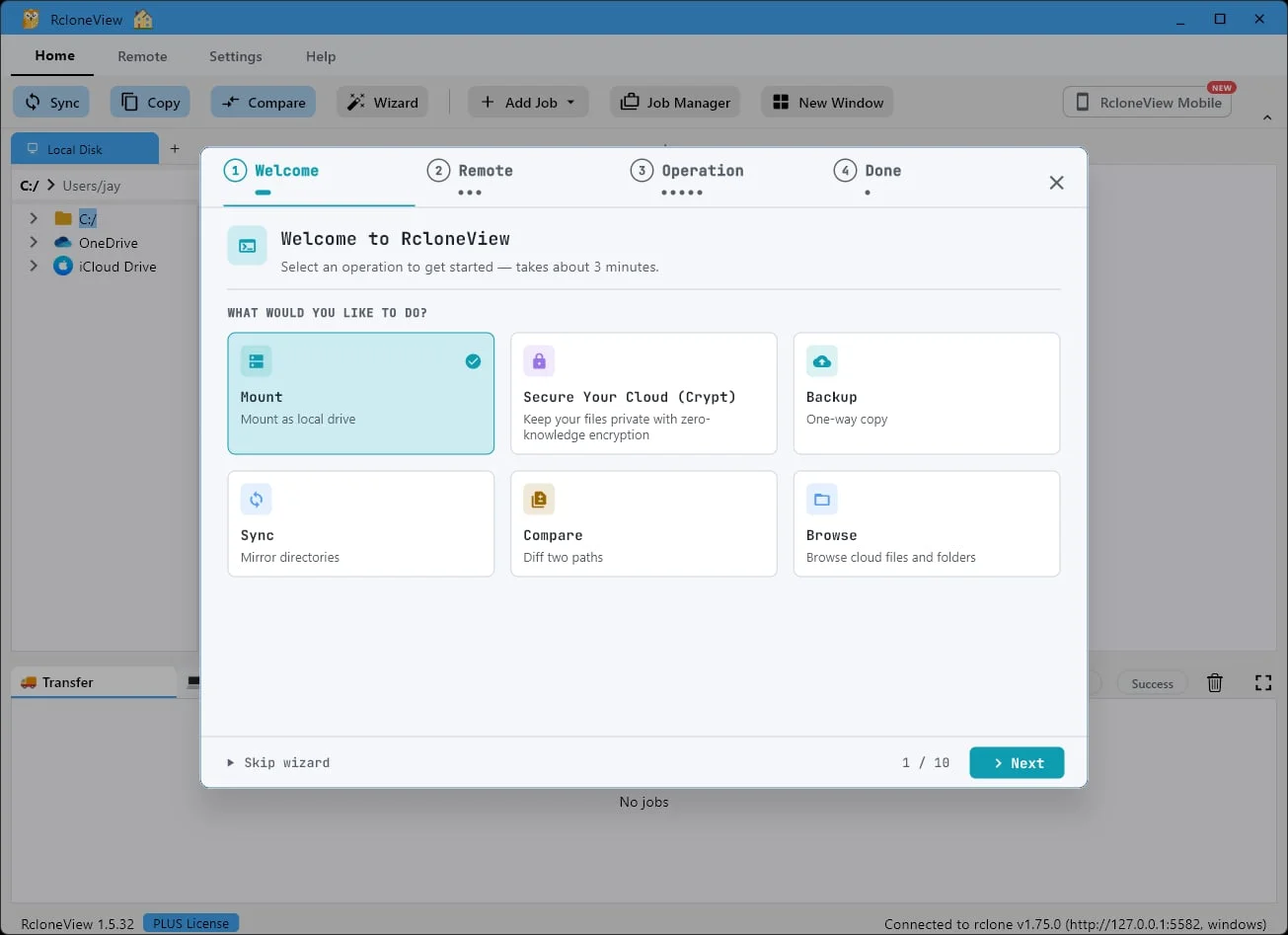
Choose Mount
your cloud becomes a local drive
This is what makes your cloud storage show up as an ordinary drive on your computer.
-
3Try this step ↗
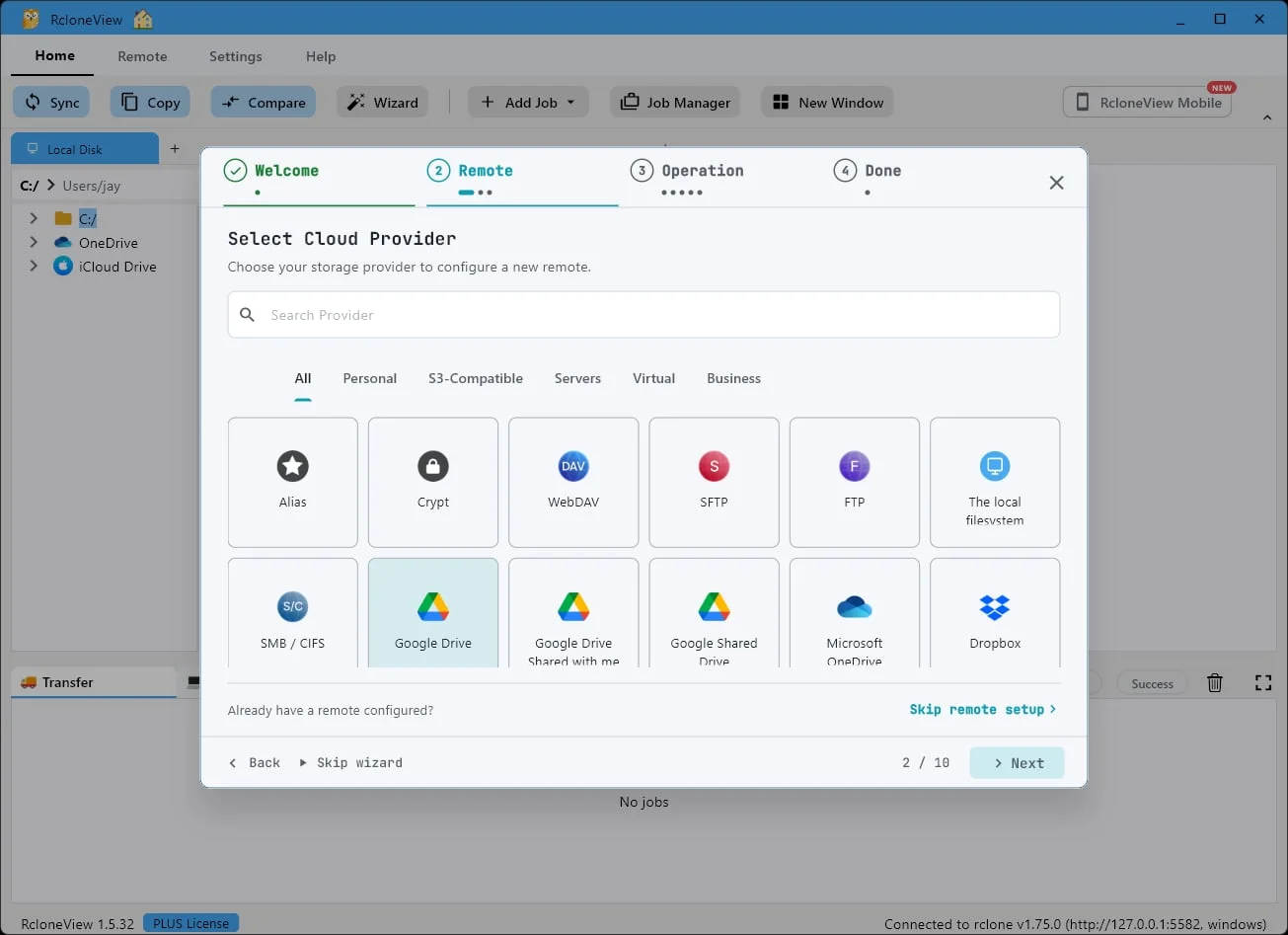
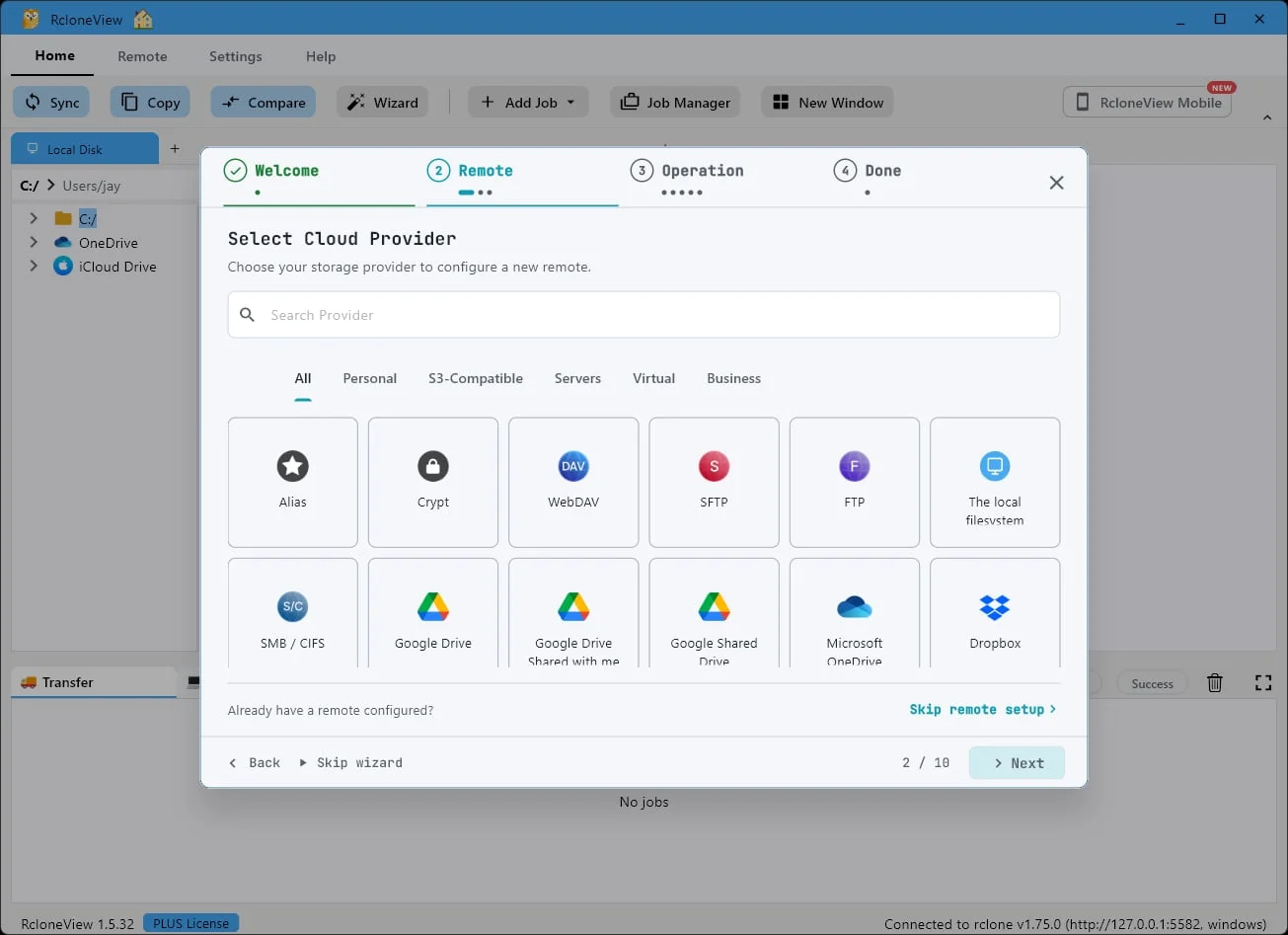
Pick your provider
we’ll use Google Drive
Pick your cloud provider. We'll use Google Drive here, but RcloneView supports more than forty of them.
-
-
-
6Try this step ↗
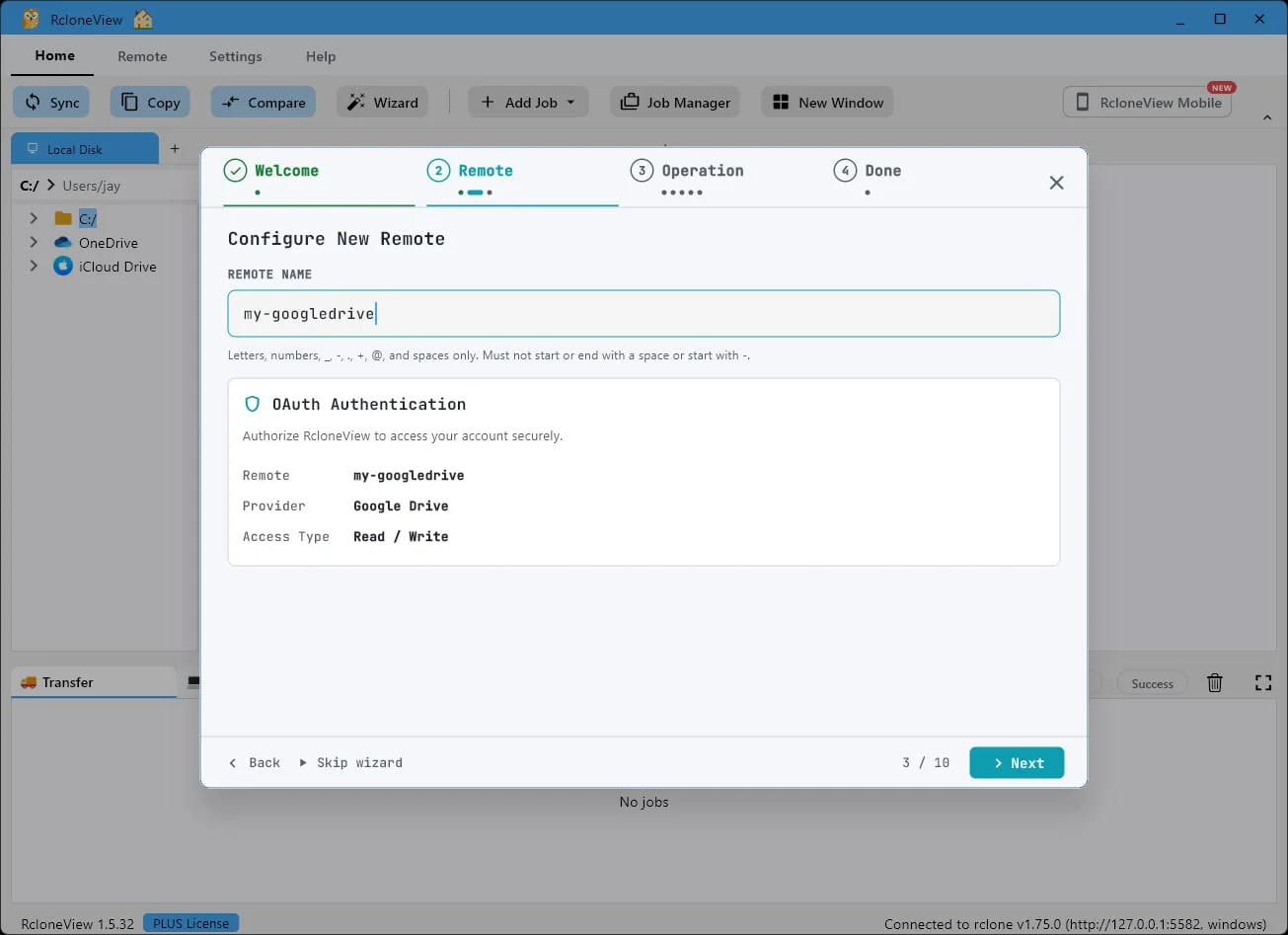
Type any name
e.g.
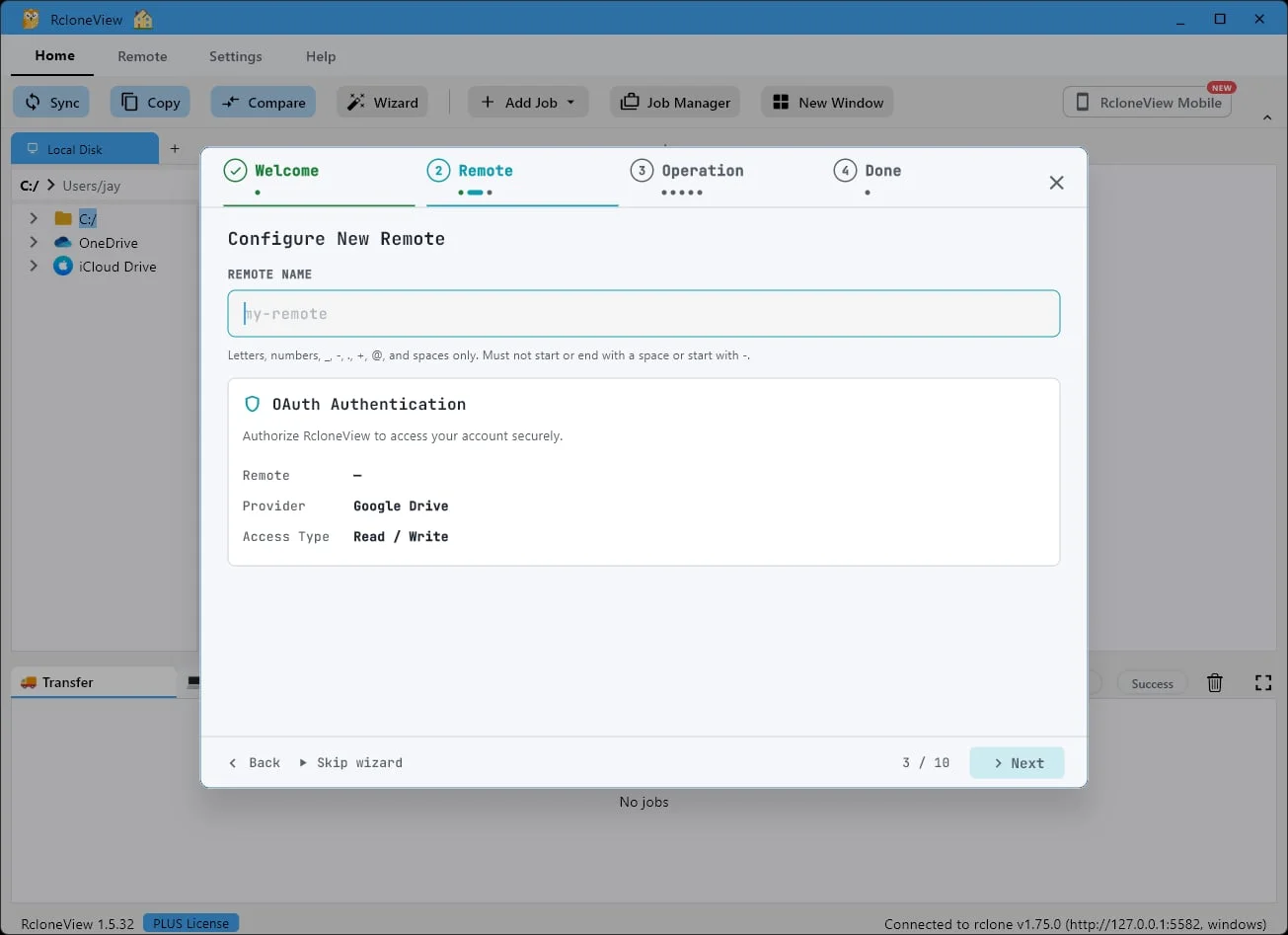
my-googledriveWe'll call ours my-googledrive. This name identifies the remote everywhere inside RcloneView.
-
7Try this step ↗
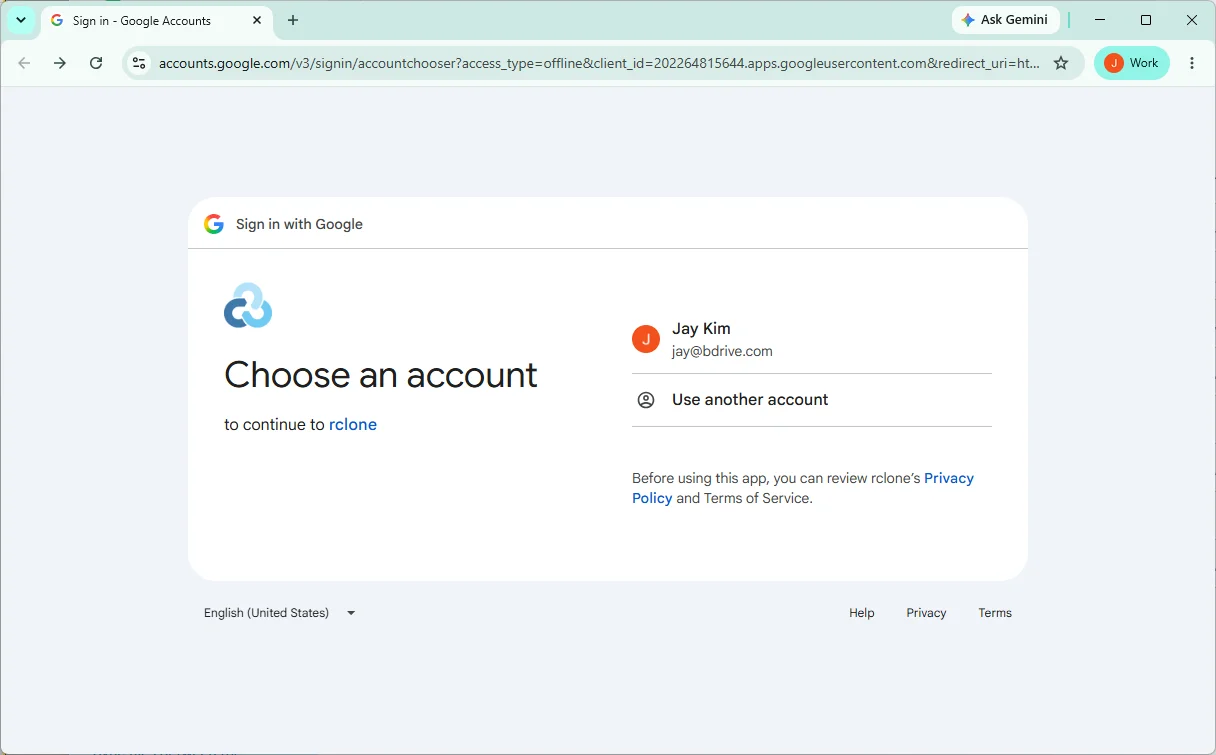
Sign in and approve access
RcloneView never sees your password
Sign in with Google and approve access. Your password goes to Google, never to RcloneView.
-
8Try this step ↗
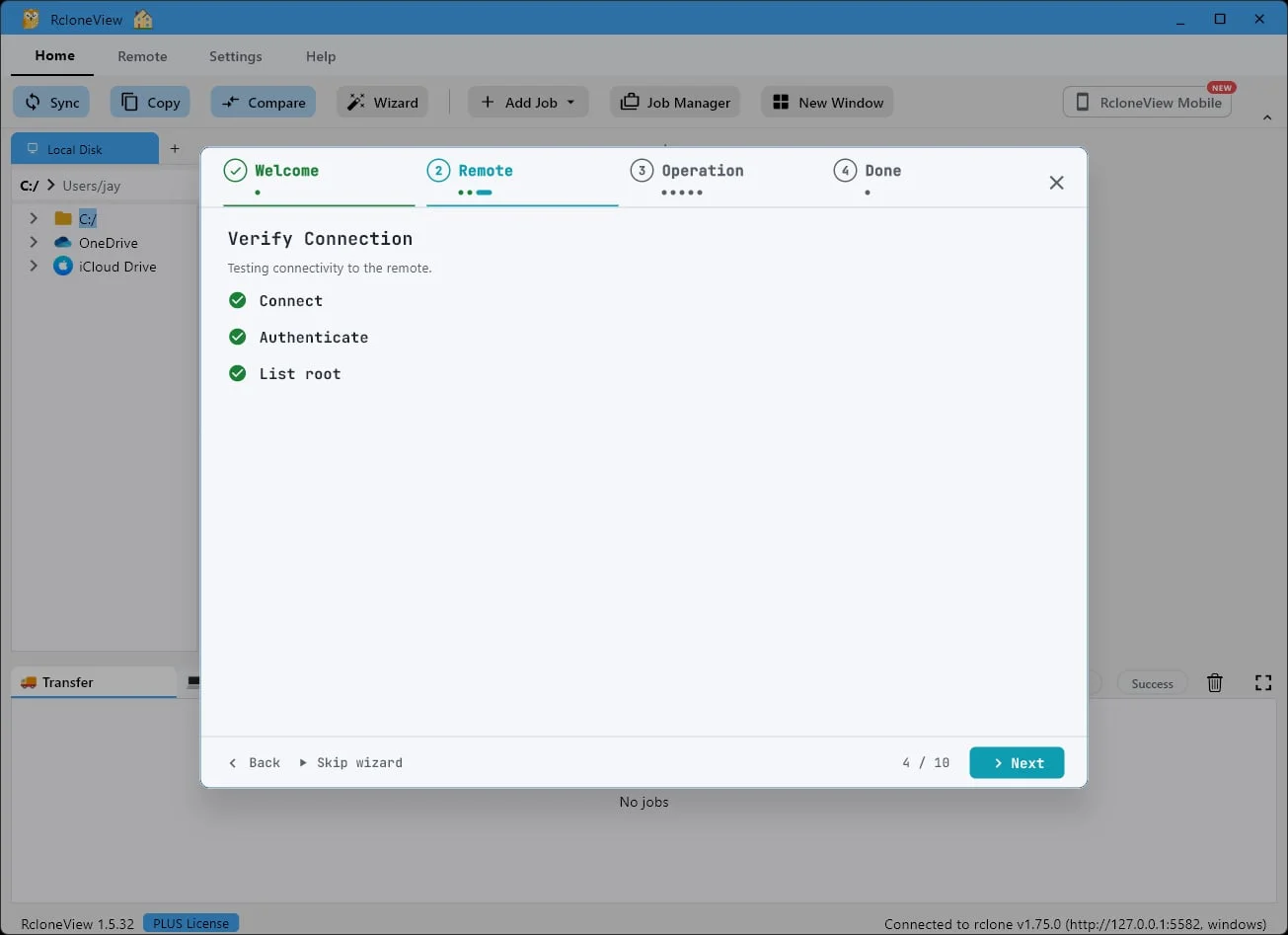
All checks passed
click
NextrcloneView tests the connection for you. — all green.
-
9Try this step ↗
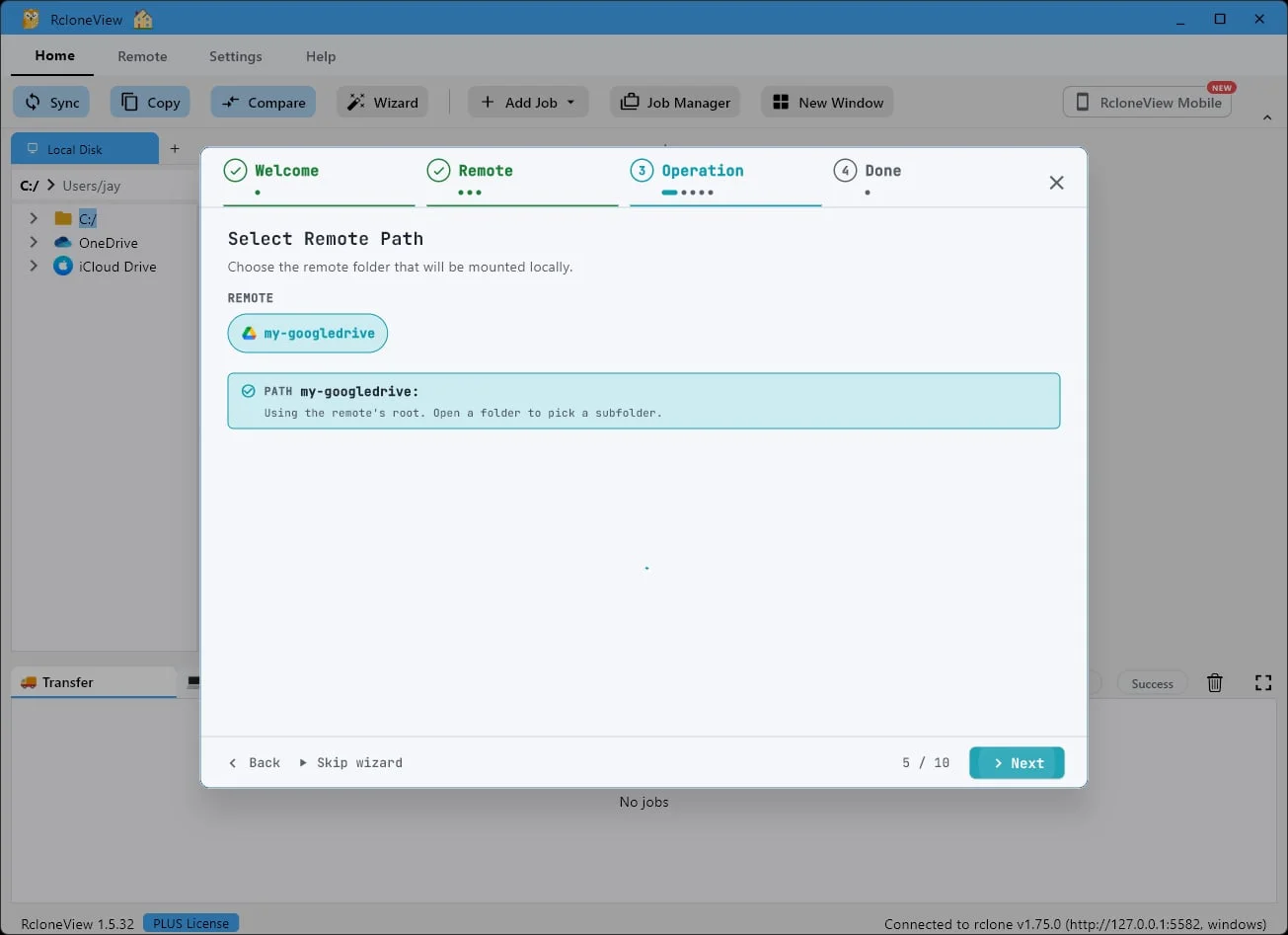
Root folder is fine (or select a subfolder)
click
NextThe remote's root folder is selected by default — or drill into any subfolder you like.
-
10Try this step ↗
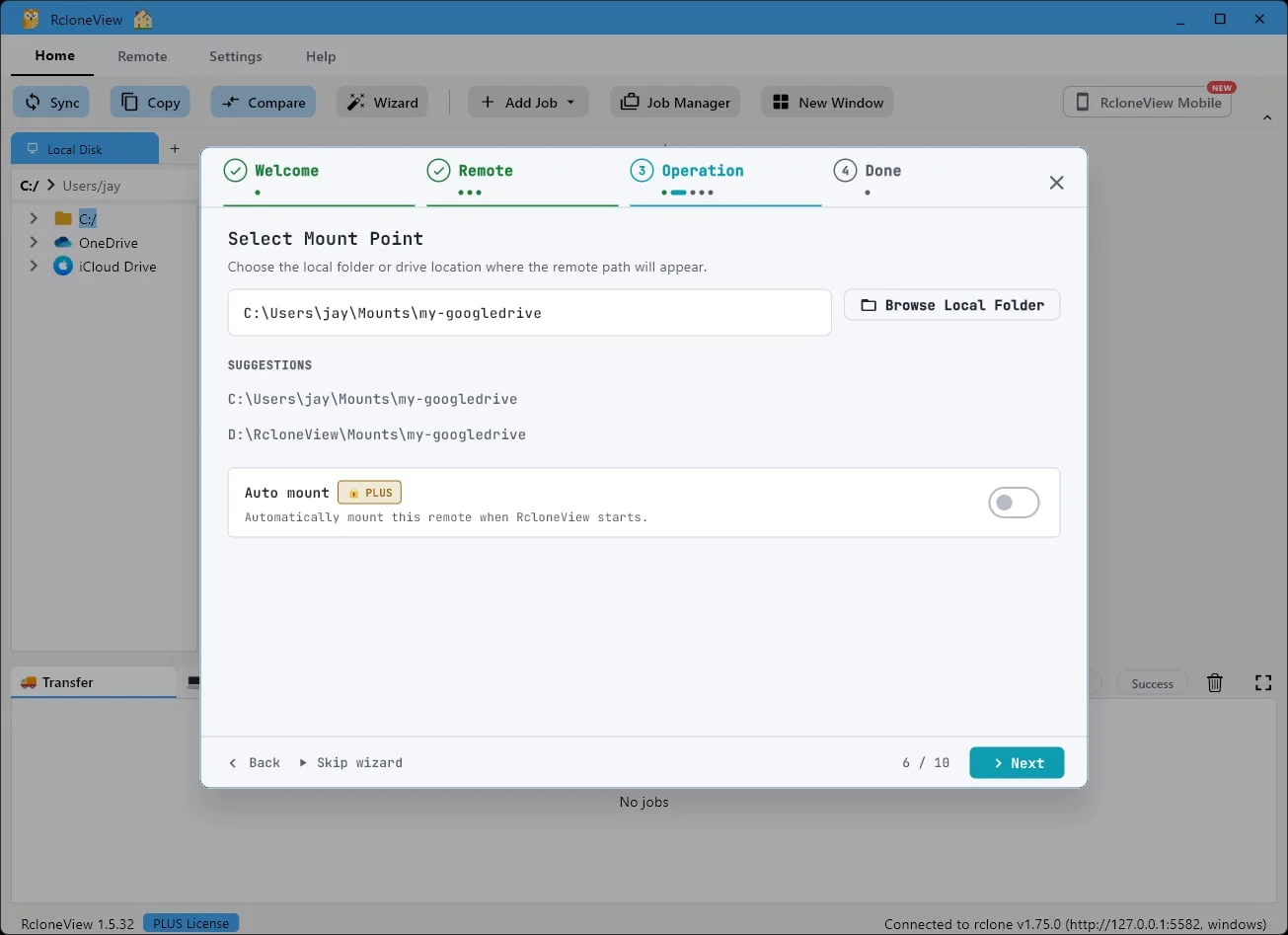
Pick the suggested path
this is where the drive appears
Choose where the drive appears on your PC. The suggested path is fine — just check that the folder exists, or the mount can fail.
-
11Try this step ↗
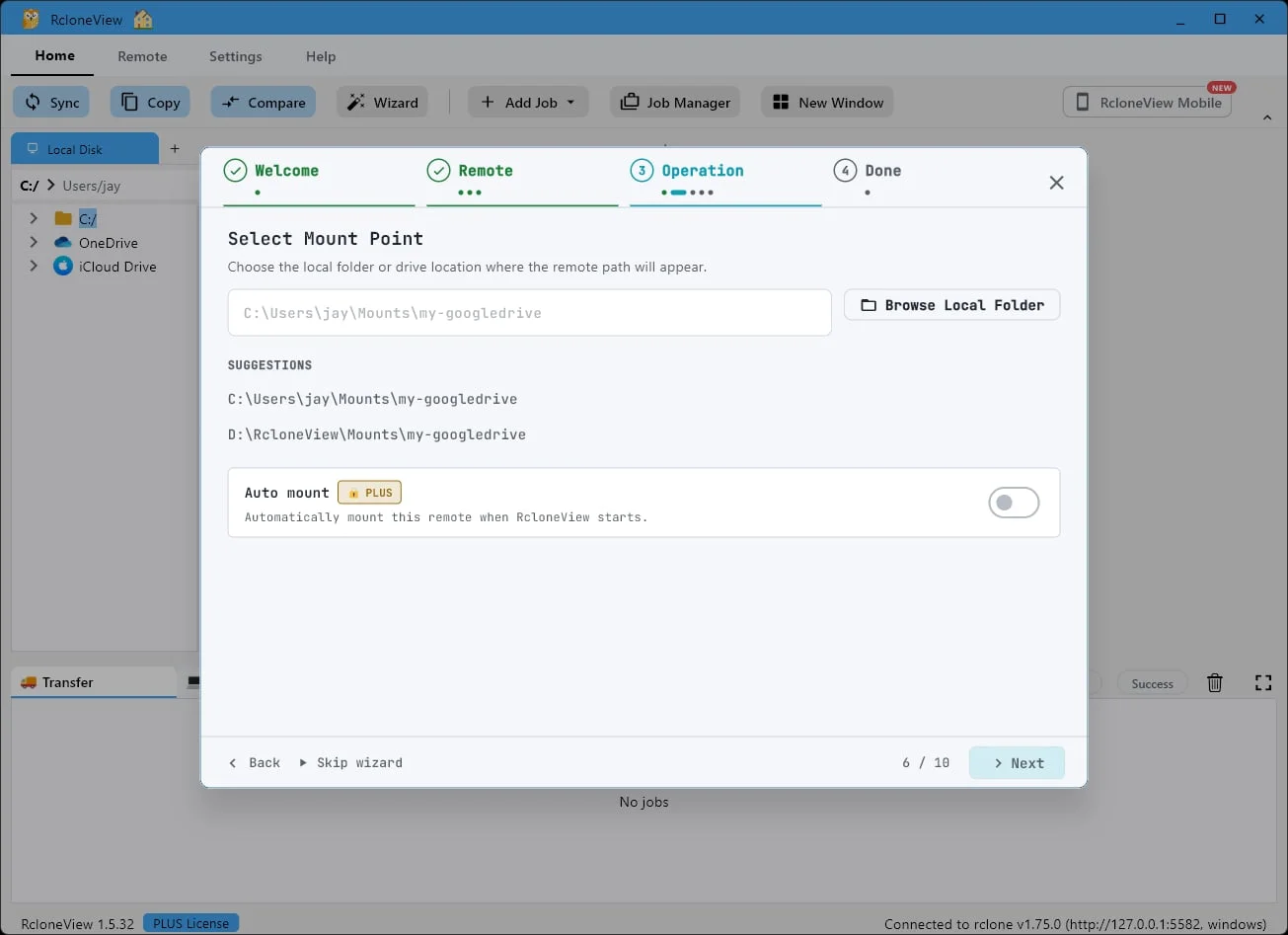
Auto mount remounts on every launch Plus
click
NextAuto mount can bring this drive back every time RcloneView starts. Then click Next.
-
12Try this step ↗
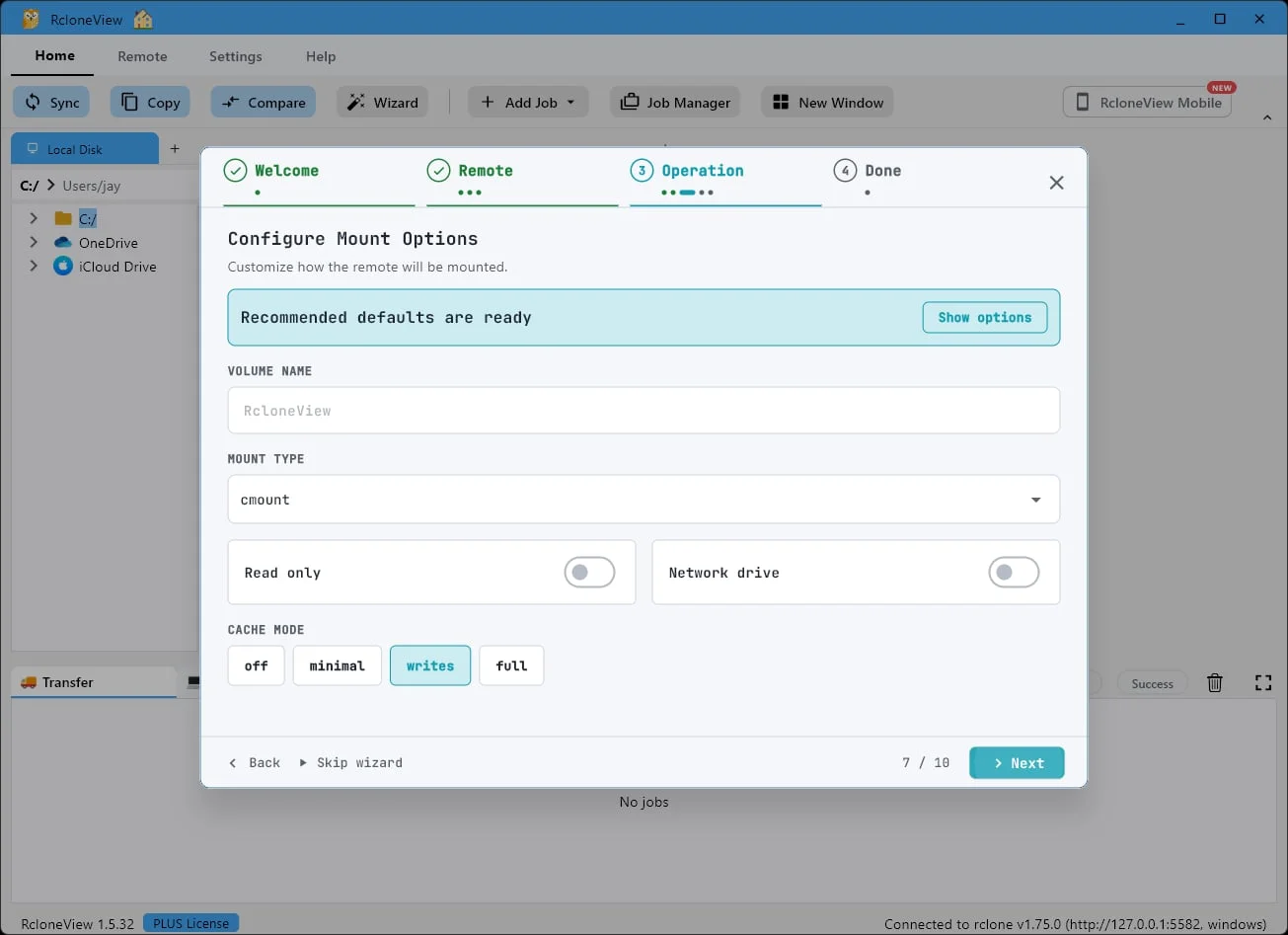
Defaults are ready no tuning needed
click
NextMount type, cache mode, permissions — all pre-tuned with recommended defaults. Just click Next.
-
13Try this step ↗
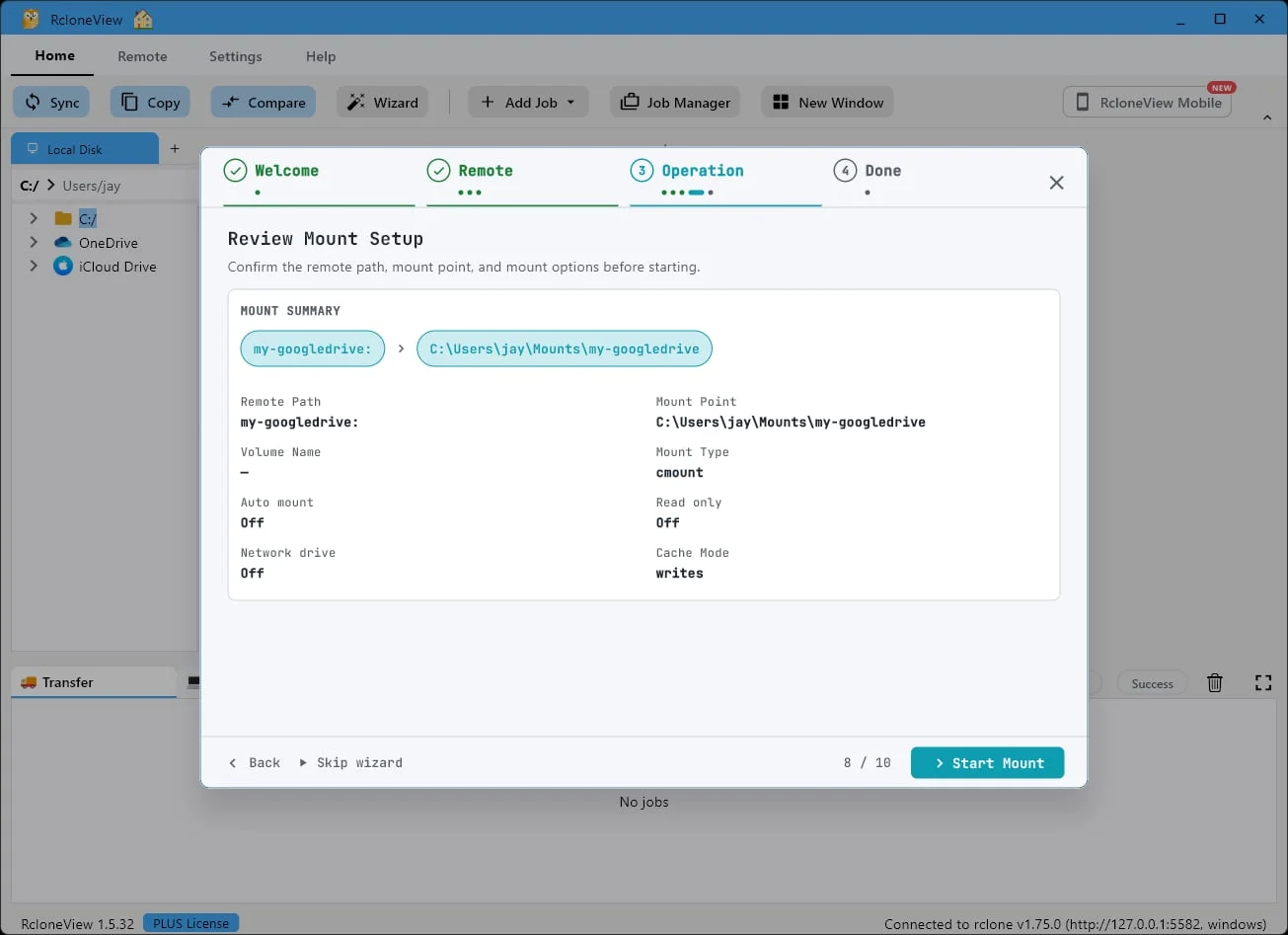
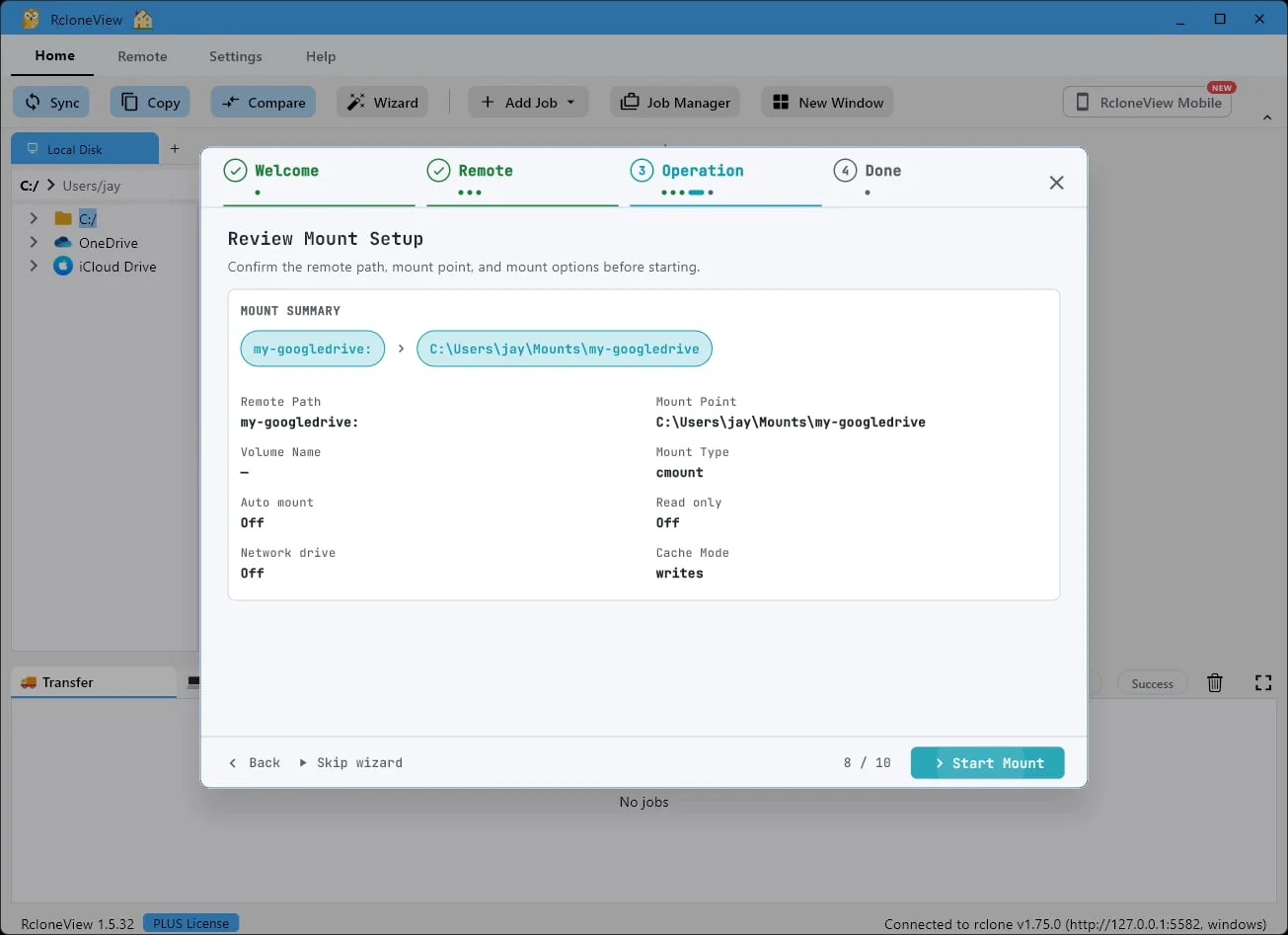
One last look
remote path, mount point
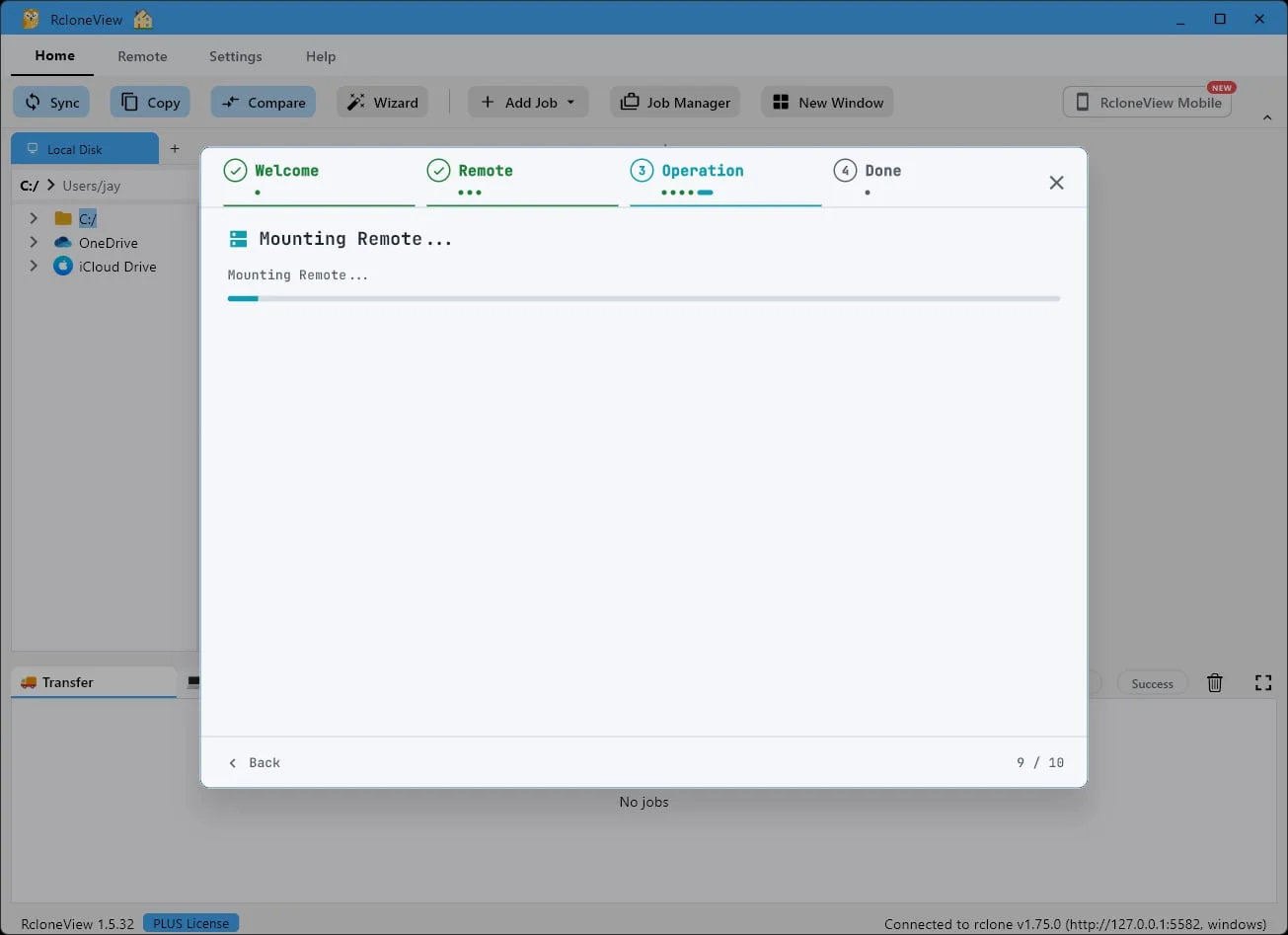
Here's the whole setup at a glance — remote path, mount point, and options.
-
-
-
16Try this step ↗
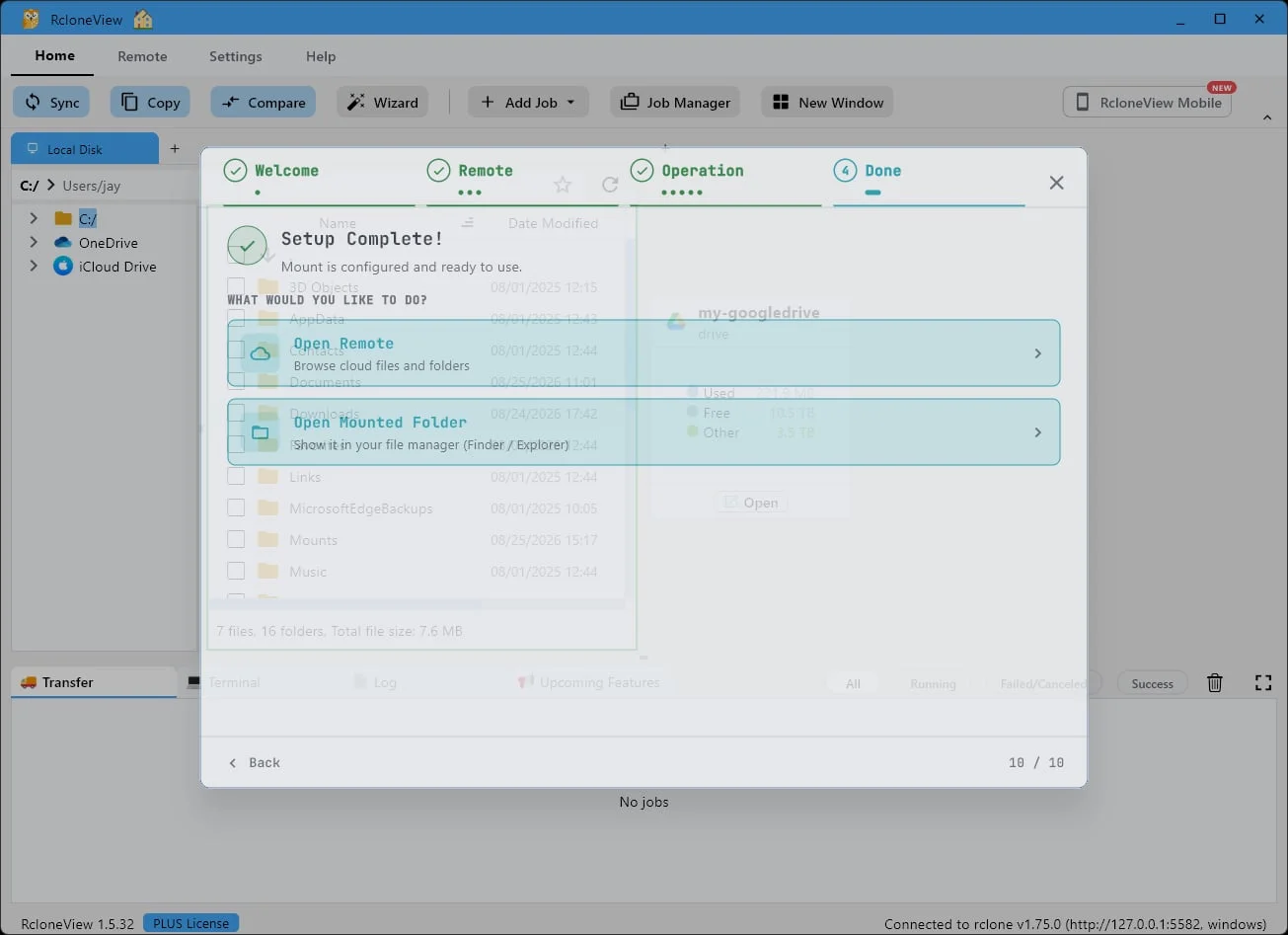
Click on "Open Mounted Folder" to show it in your file manager (Explorer / Finder)".
Setup complete. Open the mounted folder to see it in Explorer or Finder.
-
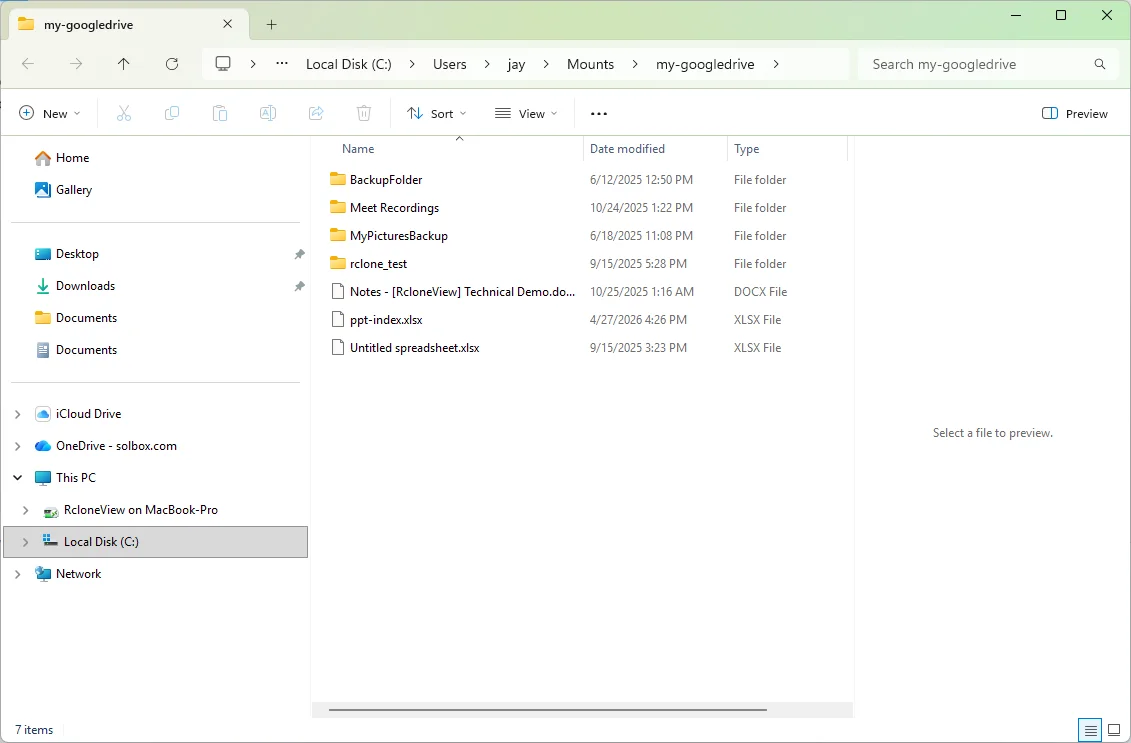
17Try this step ↗
You can now find your Google Drive as a local drive in Windows Explorer.
And there it is. Your Google Drive, behaving like any other drive in Windows Explorer.
-
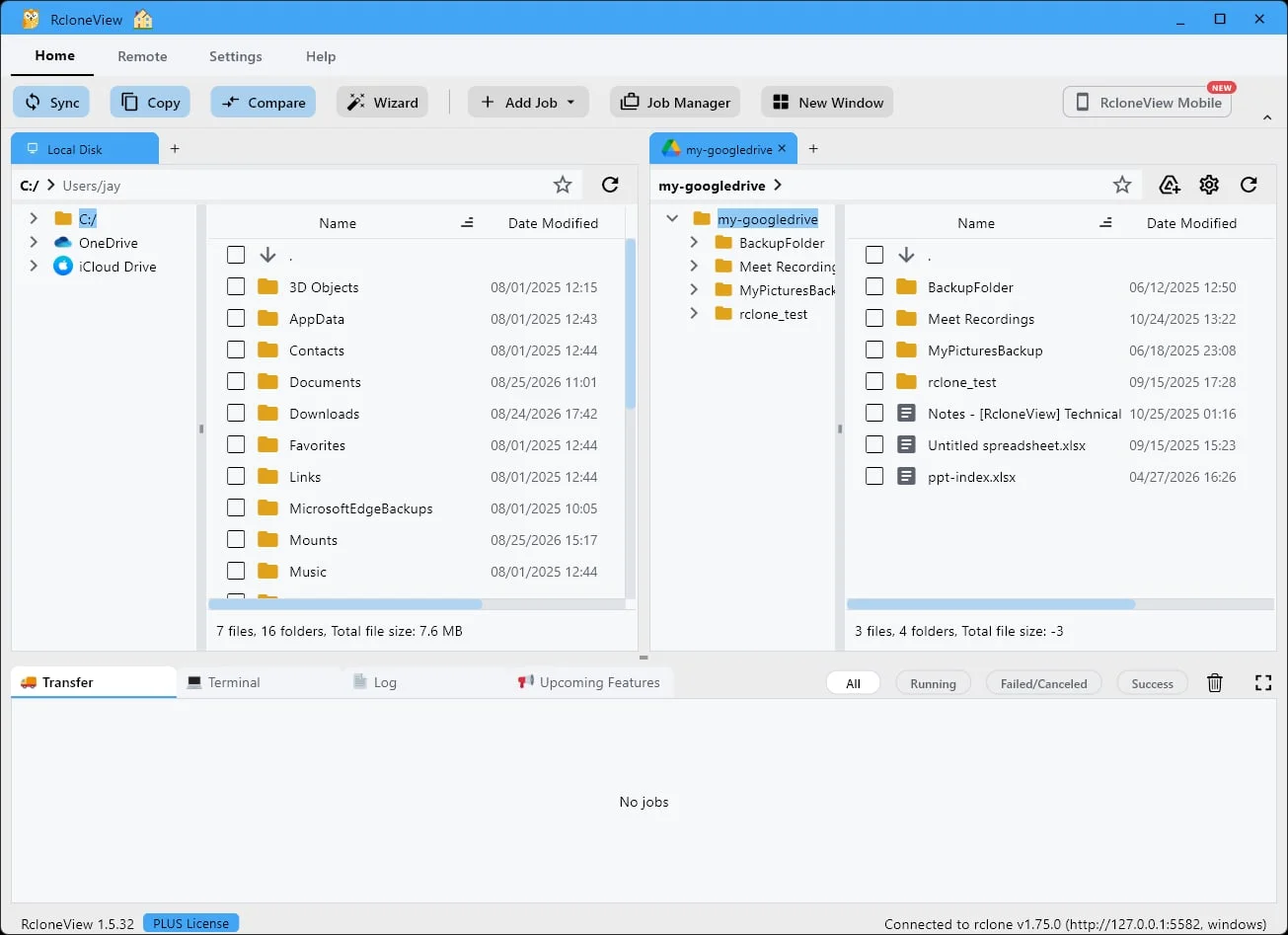
18Try this step ↗
You can also browse your Google Drive remote in RcloneView.
You can also browse the same remote inside RcloneView — local files and cloud, side by side.
-
Ready to try it yourself?Free for Windows, macOS and Linux.Get RcloneView Free