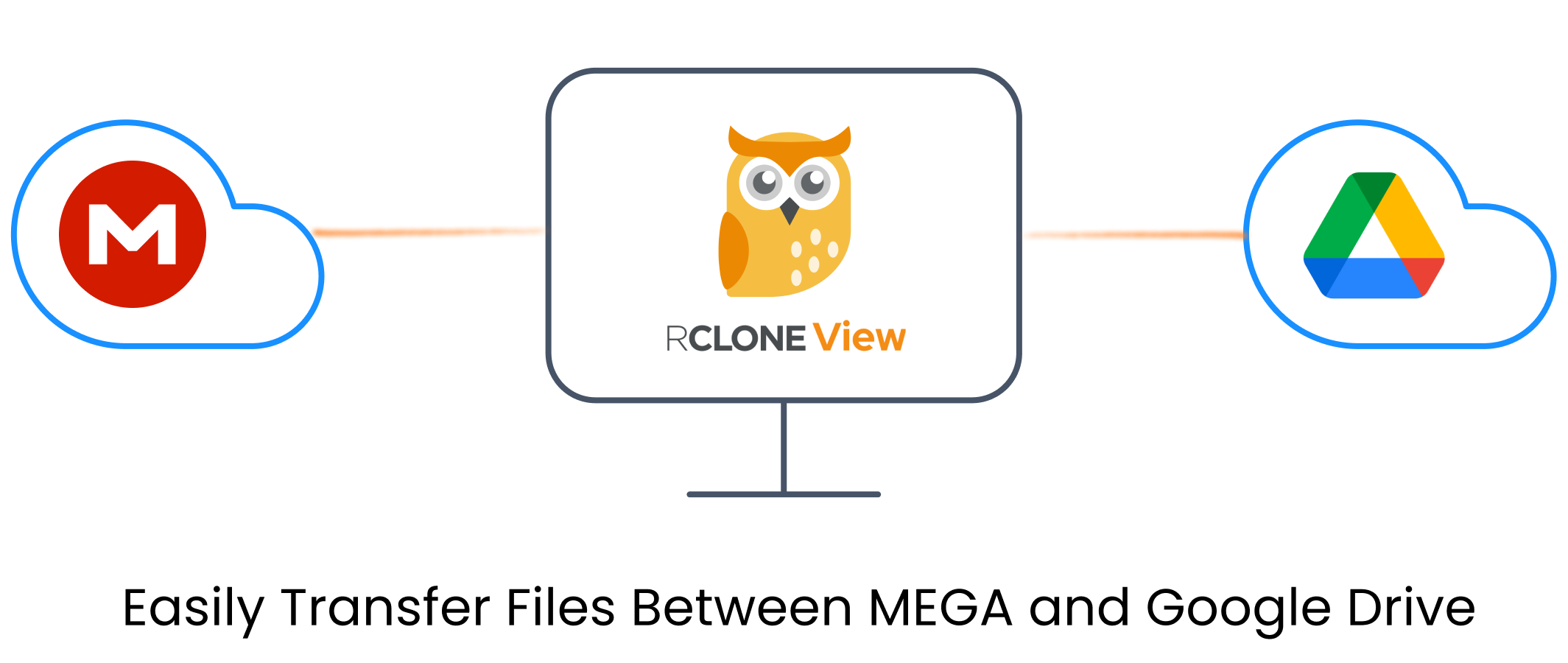
Transfer Files Between MEGA and Google Drive
Cloud storage platforms like MEGA and Google Drive each offer unique strengths. MEGA is known for its end-to-end encryption and generous free storage, while Google Drive integrates seamlessly with Google Workspace and is widely used for both personal and business needs. However, managing files across both services can be challenging—especially when you need to migrate or sync large amounts of data.
Whether you're switching platforms or need to synchronize files across them, RcloneView lets you transfer files between MEGA and Google Drive easily—without any command-line usage.
Why Use RcloneView for Multi-Cloud Transfers?
RcloneView streamlines complex cloud transfers by offering:
- Direct username/password authentication for MEGA (no OAuth required)
- Secure OAuth integration for Google Drive
- Drag-and-drop file transfers between clouds
- Folder comparison tools for safe, selective migration
- Sync and schedule recurring transfers and backups
- Dry-run preview, filters, and advanced transfer options
- Background transfer monitoring with progress logs
🔄 Transfer Files: MEGA ↔ Google Drive
Step 1: Connect Your Cloud Remotes
- Launch RcloneView, and click
+ New Remotefrom the Remote tab. - In the
Providertab, search and select MEGA. - In the
Optionstab, enter your MEGA username (email) and password. - Repeat the process for Google Drive using web browser based OAuth login.
👉 Learn more:
Step 2: Open Both Remotes in the Explorer Pane
- Go to the Browse tab in the Explorer pane.
- In one pane, click the plus icon
+and select your MEGA remote. - In the other pane, click the
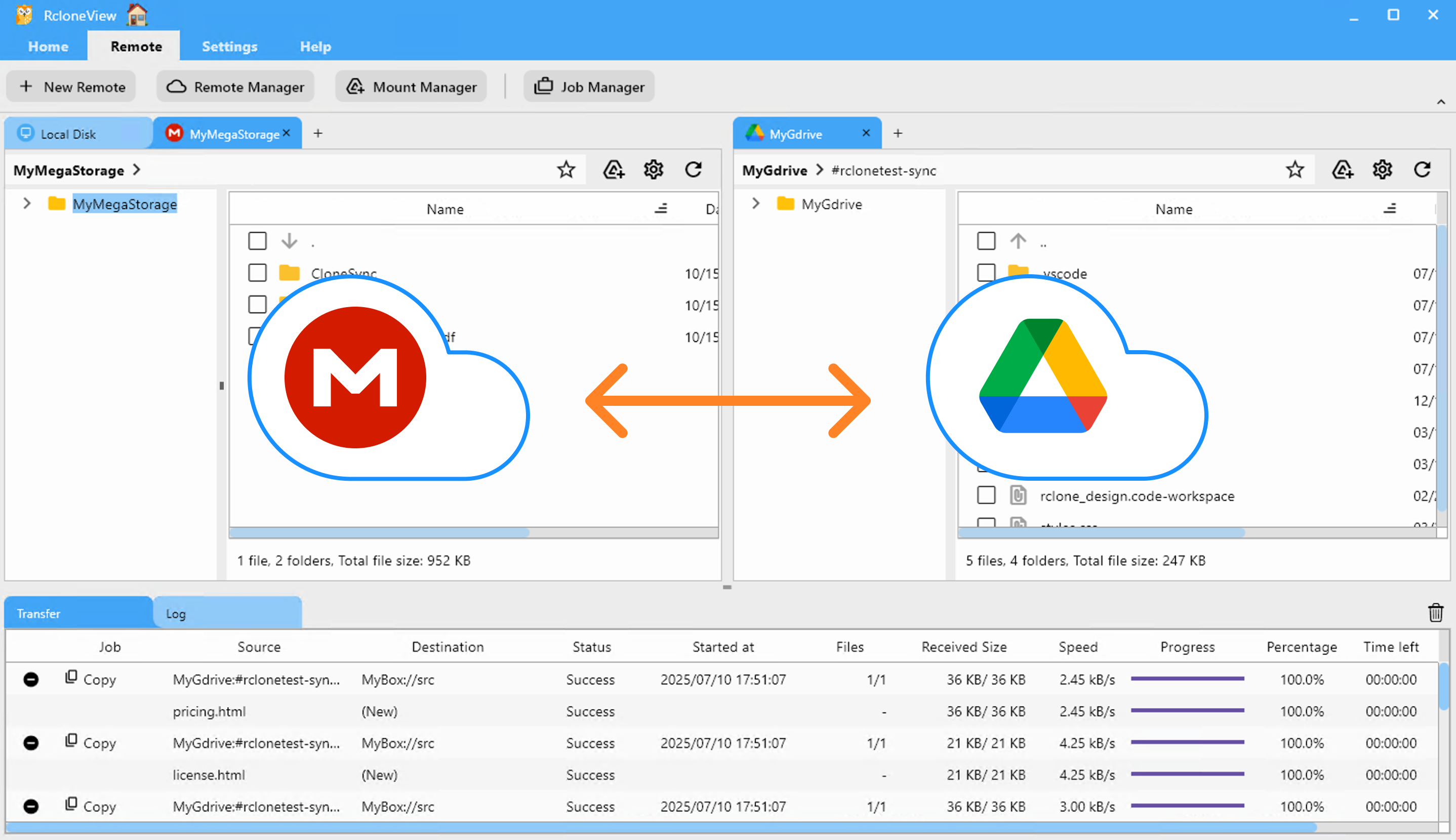
+and choose your Google Drive remote. - Both remotes will appear side-by-side, enabling easy drag, copy, or sync between them.
📌 4 Methods for File Transfers
RcloneView offers several flexible ways to move or sync data between MEGA and Google Drive:
🖱️ Method 1: Drag & Drop Between Explorer Panes
- In the Browse tab, open both MEGA and Google Drive remotes side-by-side.
- Select the desired files or folders from MEGA.
- Drag and drop them into the Google Drive pane (or vice versa).
- RcloneView begins transferring and logs progress under
Transfertab.
👉 More details: Browse & Manage Remote Storage
🔍 Method 2: Compare Folder Contents, Copy, or Delete
- In both Explorer panes, navigate to and select the folders you want to compare (left: MEGA, right: Google Drive).
- Click the
Comparebutton in the main menu. - RcloneView highlights:
- Files only present on one side
- Files with the same name but different sizes
- Identical files
- Select files to transfer or delete.
- To transfer files left→right, click
Copy →. To transfer right→left, use← Copy. To remove a file, clickDelete. - Progress and summary updates appear in the status bar.
Visual comparison helps prevent errors and ensures you only move what you intend.
👉 Learn more: Compare Folder Contents
🔁 Method 3: Use Sync or Job
- In the Explorer pane, select the MEGA folder and the Google Drive folder you want to synchronize.
- Click the
Syncbutton in thehomemenu. - Choose sync options (one-way or two-way), preview actions, and confirm.
- RcloneView runs the sync and displays progress in the
transferlog tab.
- For repeated or scheduled transfers:
- Click
Save to Jobsin the Sync modal, or openJob Manager→Add Job. - Configure source, destination, and options.
- Save and run manually or set a schedule.
- Click
👉 Learn more:
⏰ Method 4: Schedule Automatic Sync Job
- In the Explorer pane, select the MEGA and Google Drive folders you want to keep in sync.
- Open
Job Managerfrom theHomeorRemotemenu, then clickAdd Job. - Confirm your source and destination.
- Use the schedule editor to set when the job should run. Preview your schedule before saving.
- Save and enable the scheduled job.
RcloneView will run the sync at your specified times. Check execution details and logs in Job History and receive notifications upon completion.
👉 Learn more: Job Scheduling and Execution
✅ Summary
RcloneView helps you transfer and sync files between MEGA and Google Drive securely and easily. No more downloading and re-uploading manually.
Try it today and take control of your multi-cloud data.
🔗 Related Guides
- How to Add Google Drive Remote
- Browse & Manage Remote Storage
- Compare Folder Contents
- Synchronize Remote Storages
- Create Sync Jobs
- Execute & Manage Jobs
- Job Scheduling and Execution
Supported Cloud Providers