Sync Google Drive to Amazon S3 — Automated Cloud Backup with RcloneView

Backing up Google Drive to Amazon S3 creates an independent copy of your data on separate cloud infrastructure — RcloneView turns this into a set-and-forget workflow.
Google Drive is excellent for collaboration, but relying on it as your only copy of critical files is a risk most teams shouldn't take. Amazon S3 provides durable, affordable object storage that complements Google Drive as an independent backup destination. With RcloneView's GUI-driven job system, a content team managing 200 GB of shared project files can establish automated cloud-to-cloud backups in minutes — no rclone commands required.
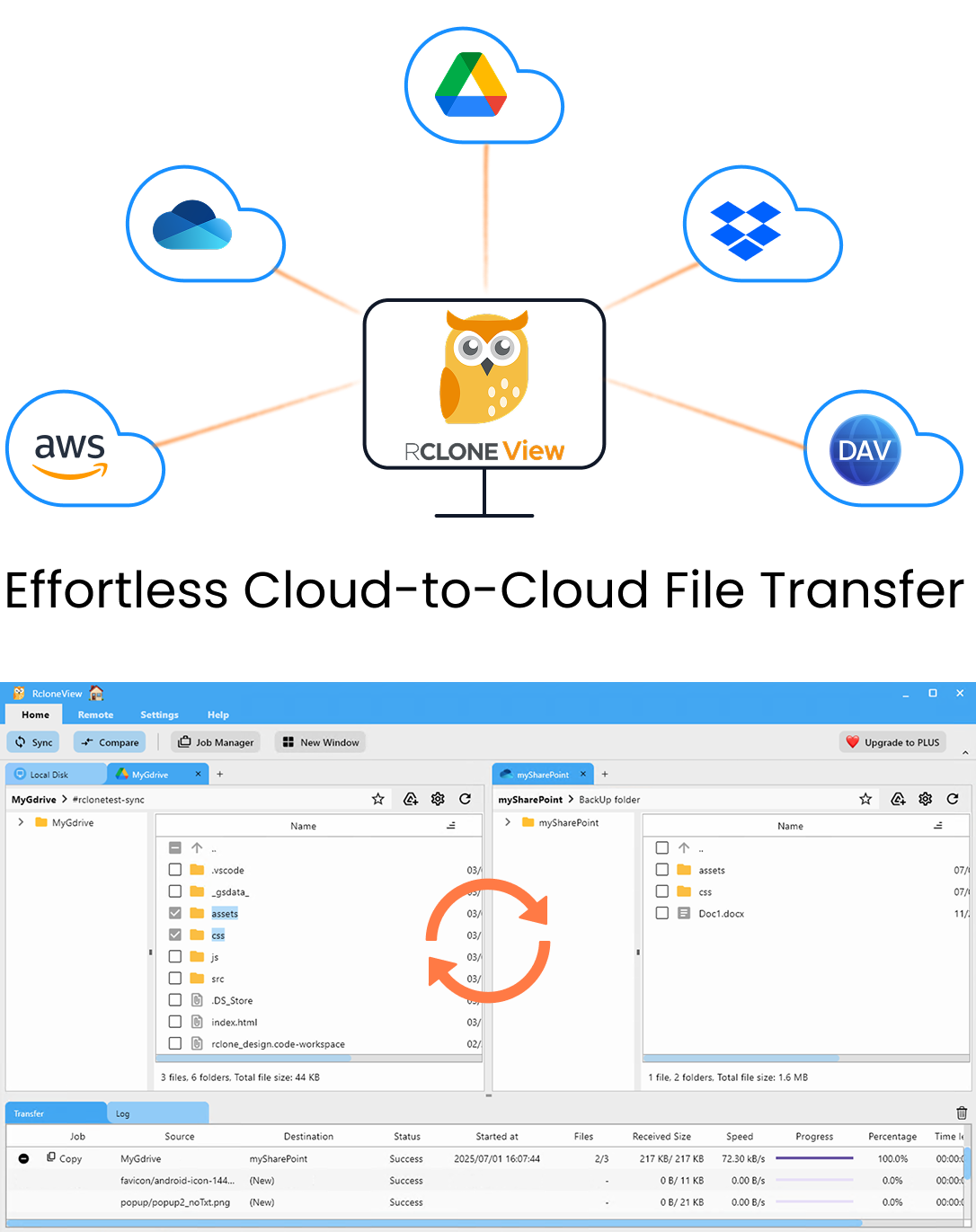
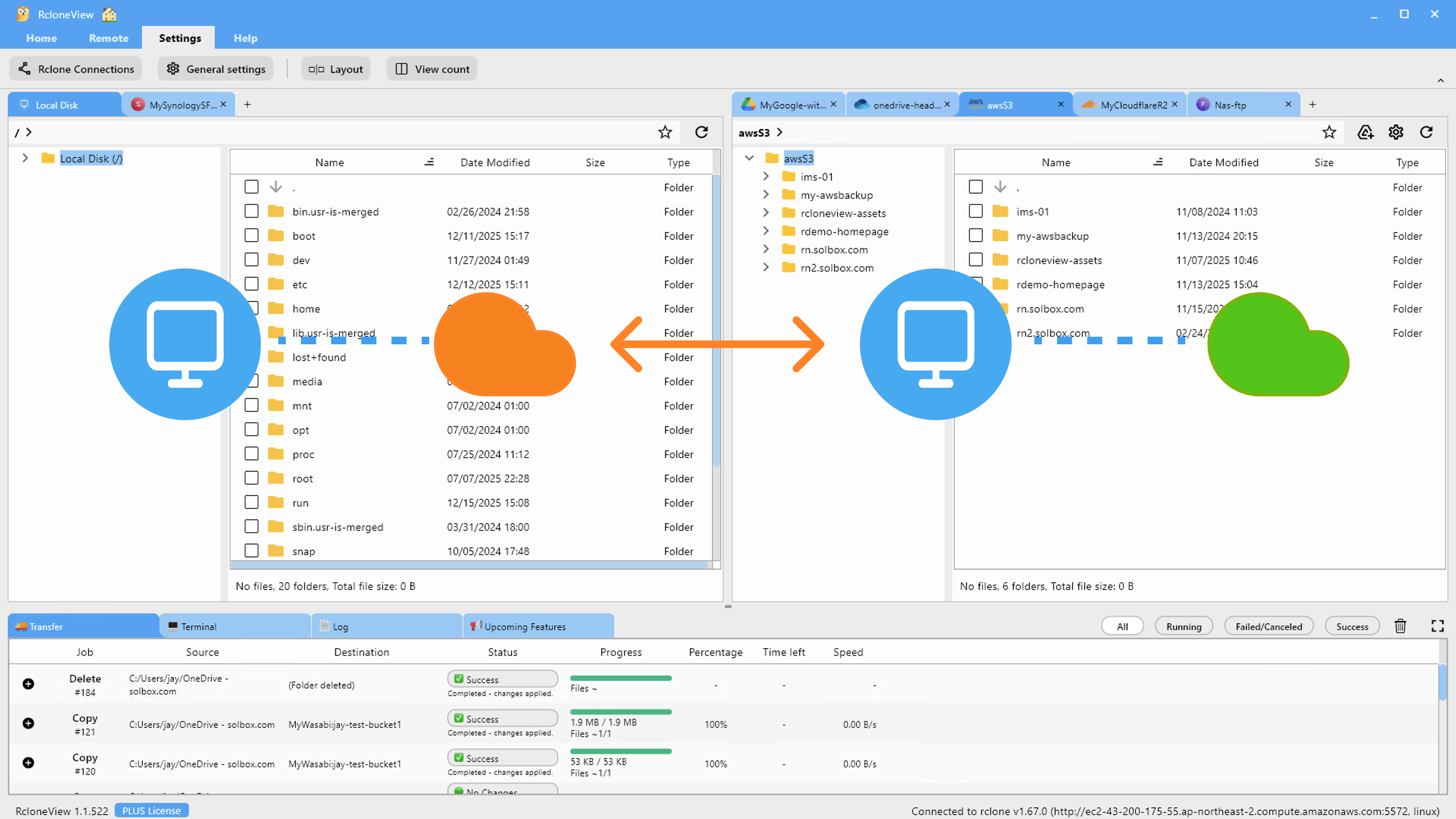
Manage & Sync All Clouds in One Place
RcloneView is a cross-platform GUI for rclone. Compare folders, transfer or sync files, and automate multi-cloud workflows with a clean, visual interface.
- One-click jobs: Copy · Sync · Compare
- Schedulers & history for reliable automation
- Works with Google Drive, OneDrive, Dropbox, S3, WebDAV, SFTP and more
Free core features. Plus automations available.
Setting Up Google Drive and Amazon S3 in RcloneView
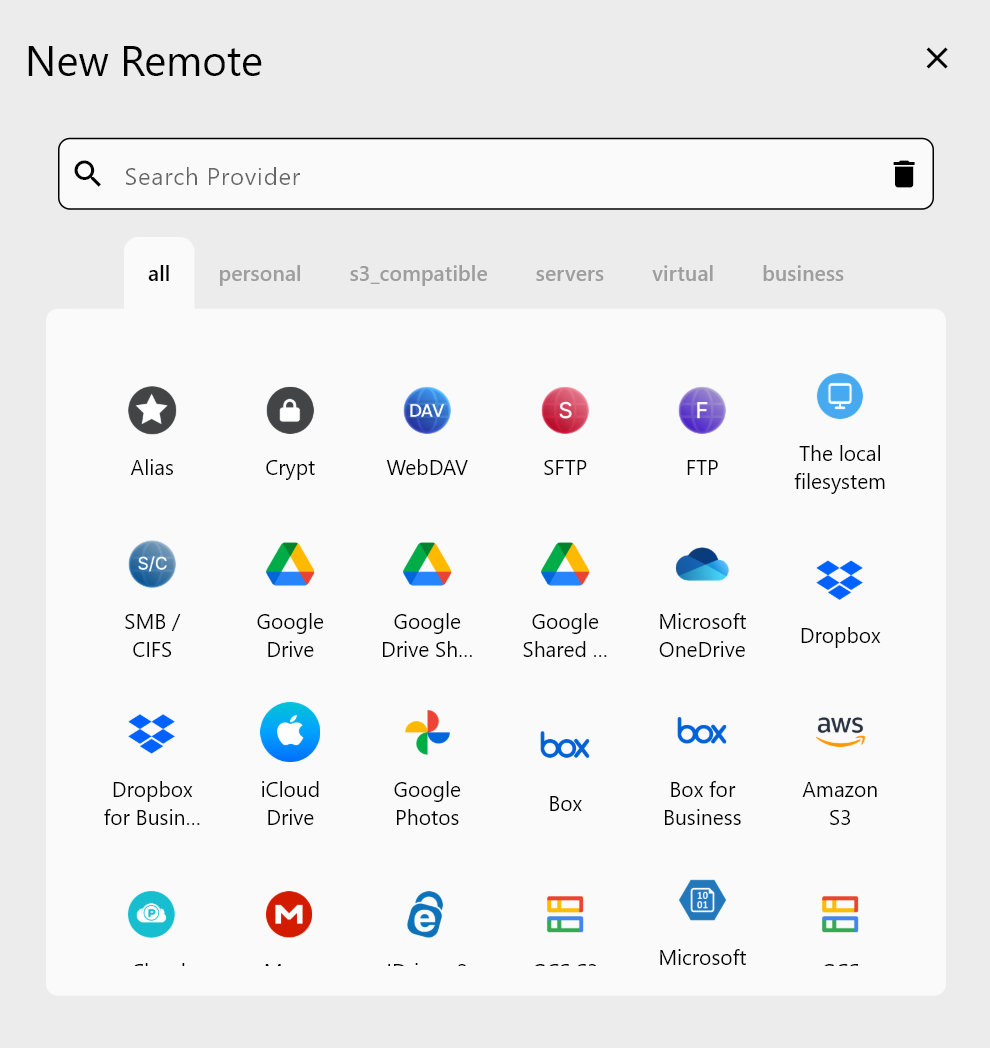
Both remotes need to be configured before creating the sync job. In RcloneView, click Remote tab > New Remote. For Google Drive, select it from the provider list — a browser window opens for OAuth authentication. Sign in and grant access; the remote is saved automatically with no API keys to manage manually.
For Amazon S3, select Amazon S3 as the provider, then enter your Access Key ID, Secret Access Key, and the Region of your S3 bucket (e.g., us-east-1). RcloneView stores all credentials securely in encrypted local storage. Once both remotes are saved, each appears as a tab in the explorer panels, ready to browse.
Configuring the Cloud-to-Cloud Sync Job
Click Home tab > Sync to open the job wizard. Set Google Drive — or a specific subfolder like My Drive/Projects — as the source, and an S3 bucket prefix (e.g., my-backup-bucket/google-drive/) as the destination. Name the job something descriptive, such as gdrive-to-s3-daily.
In Advanced Settings, enable checksum verification to compare files by hash rather than size alone — this catches files that share the same size but have different content due to partial overwrites. Set the concurrent transfer count to match your network capacity; 4–8 transfers suits most broadband connections without triggering Google Drive rate limits.
The Filtering step provides precise control over what syncs: exclude large video files if you only need document backups, or limit to files modified within the last 90 days using the Max File Age field.
Running and Monitoring the Transfer
Before the first full sync, use the built-in Dry Run to preview exactly which files will be copied or deleted on the destination. This is especially valuable on initial setup when the S3 bucket is empty and you want to confirm the job configuration before committing gigabytes of data.
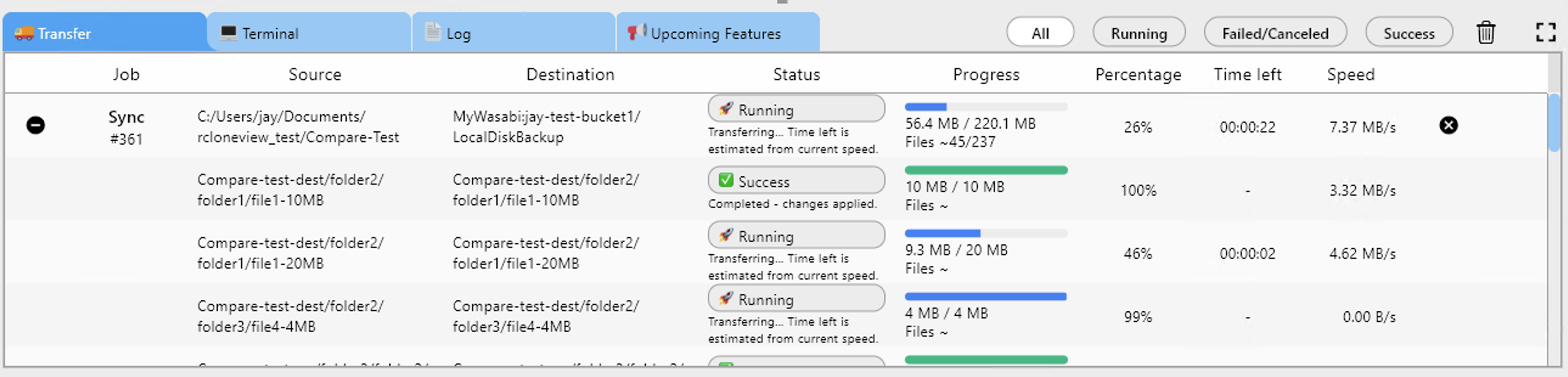
Click Run when ready. The Transferring tab at the bottom of RcloneView shows live progress: speed, file count, and percentage complete. For large Google Drive libraries with tens of thousands of files, the initial sync may take several hours — subsequent runs transfer only changed files and complete much faster.
Scheduling Daily Automated Backups
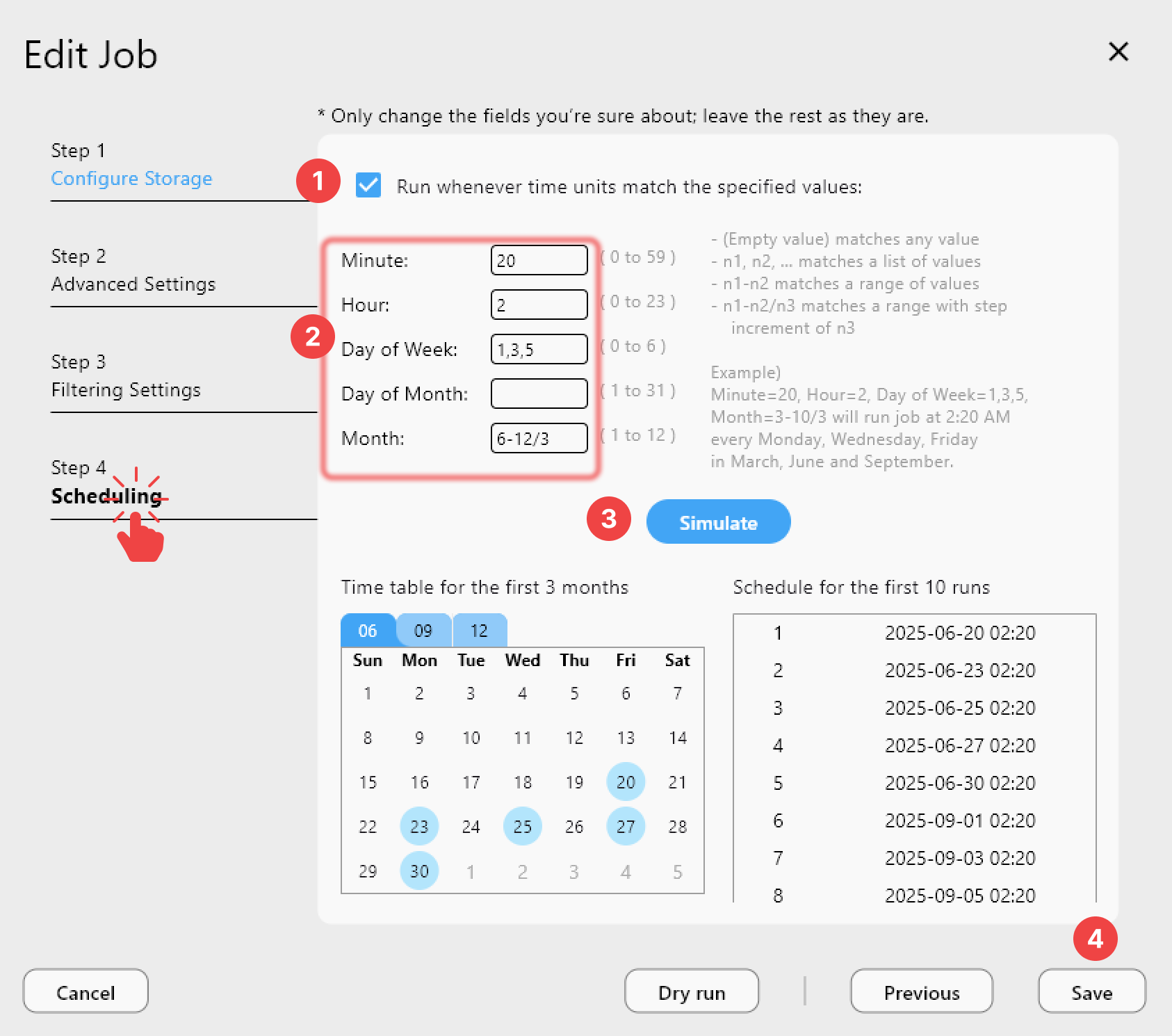
With a PLUS license, open the job in Job Manager and add a schedule using the cron-style interface — for example, daily at 1 AM. The Simulate Schedule tool previews the next ten execution times so you can confirm the backup fires at the right moment. Once saved, the backup runs automatically whether or not the RcloneView window is open.
After every run, Job History records duration, transfer speed, file count, and completion status, giving you a clear audit trail of every Google Drive backup pushed to S3.
Getting Started
- Download RcloneView from rcloneview.com.
- Add a Google Drive remote via OAuth login under Remote tab > New Remote.
- Add an Amazon S3 remote with your AWS Access Key ID, Secret Key, and bucket region.
- Create a sync job: source = Google Drive folder, destination = S3 bucket prefix, then run or schedule it.
Your Google Drive data is now independently backed up on AWS infrastructure — protected against accidental deletion, account suspension, or service outages on either platform.
Related Guides:
- Incremental Backup: Google Drive to Amazon S3 with RcloneView
- Mount Amazon S3 Buckets as Local Drives with RcloneView
- Automate Daily Cloud Backups with RcloneView
Supported Cloud Providers