RcloneView on Kali Linux — Cloud Storage Sync and Backup

Get a graphical multi-cloud file manager running on Kali Linux to sync engagement data, forensic images, and client deliverables without touching the CLI.
Kali Linux is a Debian-based distribution built for penetration testing and digital forensics, and security teams working on Kali often need to move large evidence sets, packet captures, or client reports between local storage and cloud accounts. RcloneView brings a graphical file manager to that workflow, letting you browse, sync, and mount cloud storage from the same desktop where you run your other tools. Because Kali ships a full Xfce desktop with X11, it meets the display requirements RcloneView needs to run.
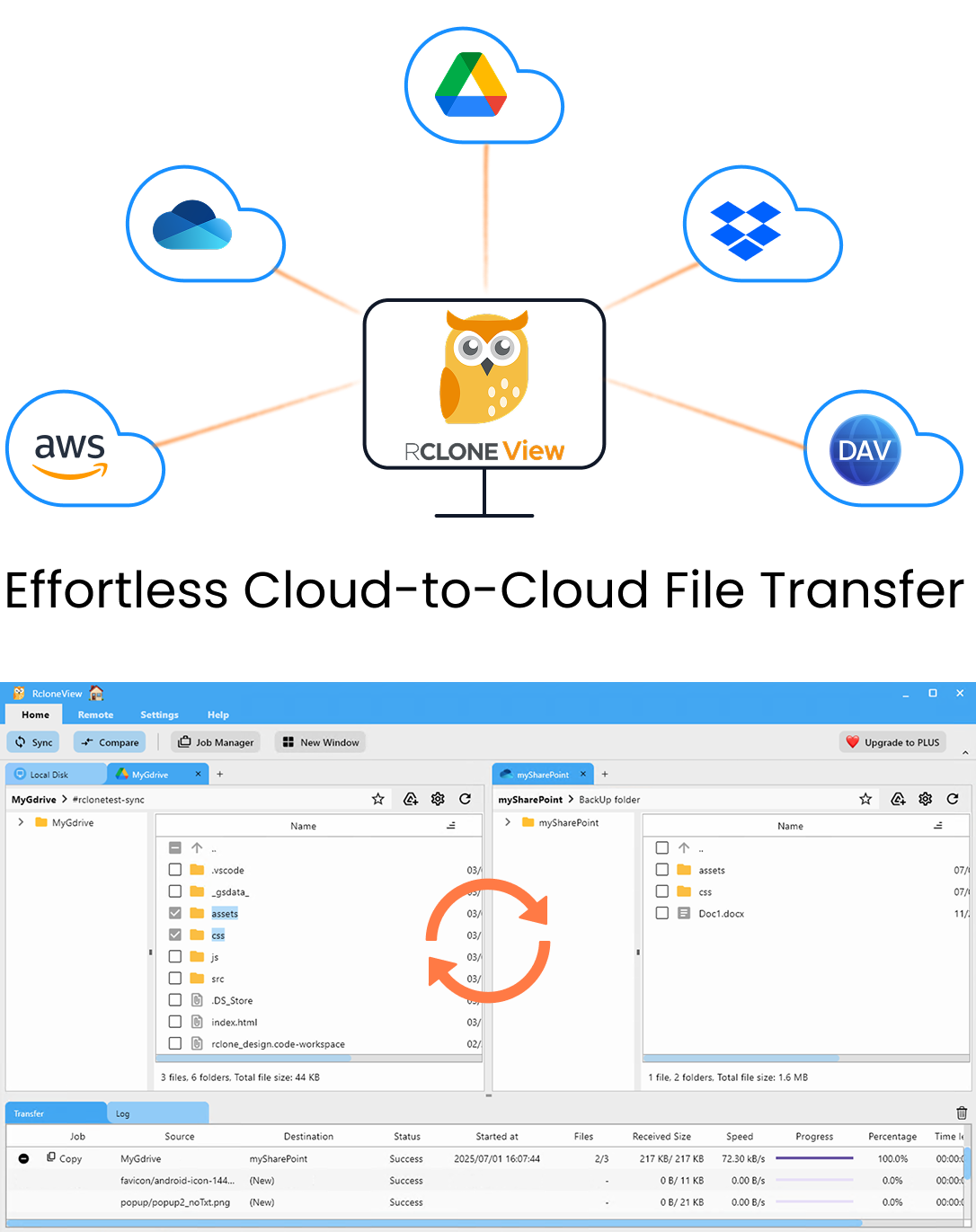
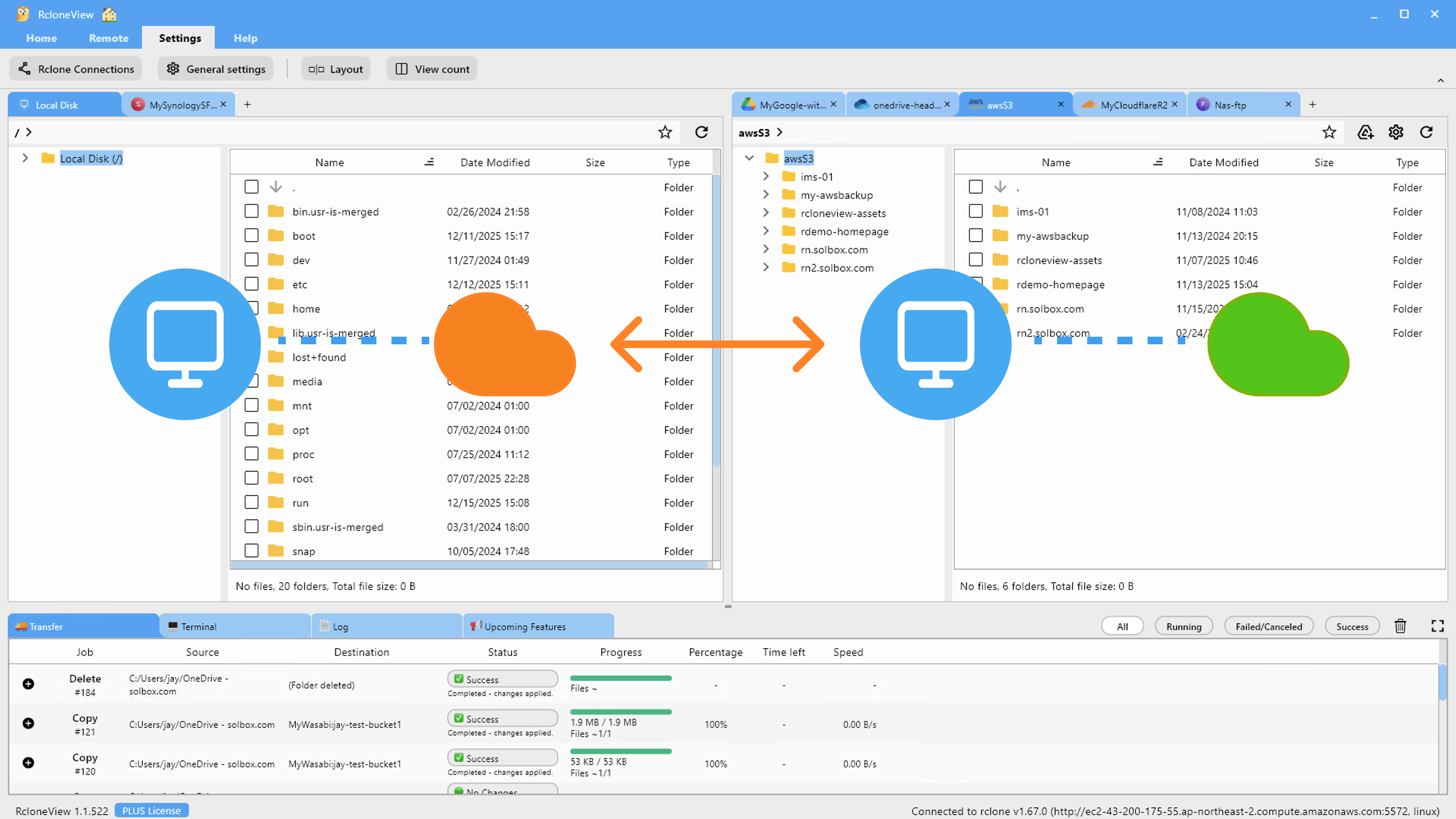
Manage & Sync All Clouds in One Place
RcloneView is a cross-platform GUI for rclone. Compare folders, transfer or sync files, and automate multi-cloud workflows with a clean, visual interface.
- One-click jobs: Copy · Sync · Compare
- Schedulers & history for reliable automation
- Works with Google Drive, OneDrive, Dropbox, S3, WebDAV, SFTP and more
Free core features. Plus automations available.
Installing RcloneView on Kali Linux
Since Kali is built on Debian, the official .deb package from rcloneview.com installs the same way it would on Debian or Ubuntu — download the rclone_view-{version}-linux-{arch}.deb file and install it with dpkg -i, resolving any missing dependencies with apt --fix-broken install. Kali provides x86_64 builds directly, and the .AppImage format is a good fallback if you prefer not to install a package system-wide, since it runs directly without installation.
RcloneView is a Flutter-based GUI application, not a command-line tool, so it requires the graphical Xfce/X11 session Kali runs by default — it will not launch on a headless SSH connection without X11 forwarding or a remote desktop session. It also depends on GTK+3 and an AppIndicator library for its system tray icon, both of which are present in a standard Kali desktop install.
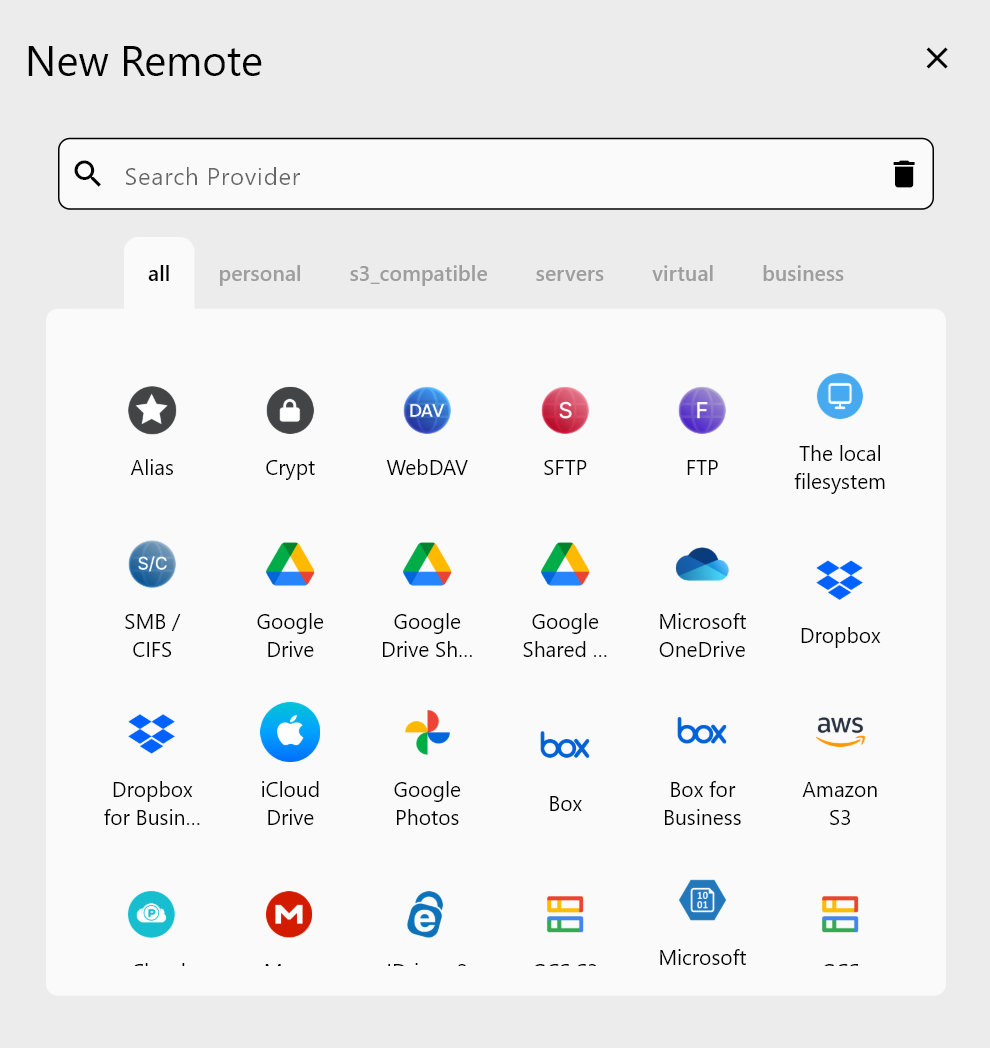
Connecting Cloud Storage for Engagement Data
Once installed, add remotes through the New Remote wizard in the Remote tab. Amazon S3, Cloudflare R2, and Backblaze B2 work well for storing large forensic disk images and packet captures, using access key and secret credential entry, while Google Drive, OneDrive, or Box handle client-facing report delivery through OAuth browser login. RcloneView's sync and Folder Compare features are available on the FREE license, so you can push captured evidence to cloud storage and verify it landed intact without paying for an upgrade.
Syncing and Verifying Evidence Backups
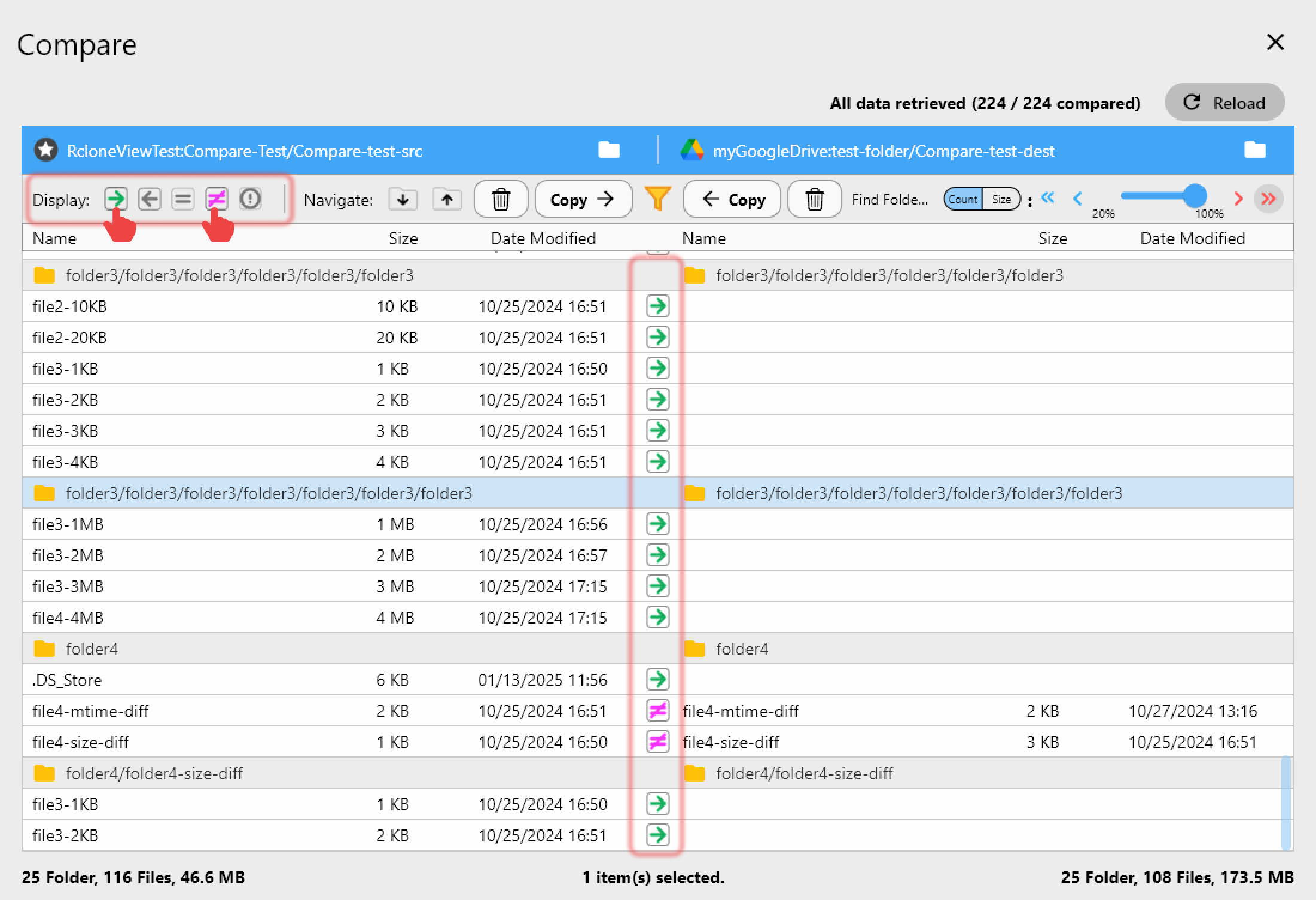
For chain-of-custody workflows, run a Dry Run before any sync job to preview exactly which files will be copied or deleted, then use Folder Compare to verify the source and destination match afterward. The comparison view flags files by size difference and shows same-file matches side by side, which is useful when you need to confirm a forensic image transferred without corruption. Enable checksum comparison in the sync job's Advanced Settings step for stronger integrity verification than a size-only check.
Mounting Cloud Storage During an Engagement
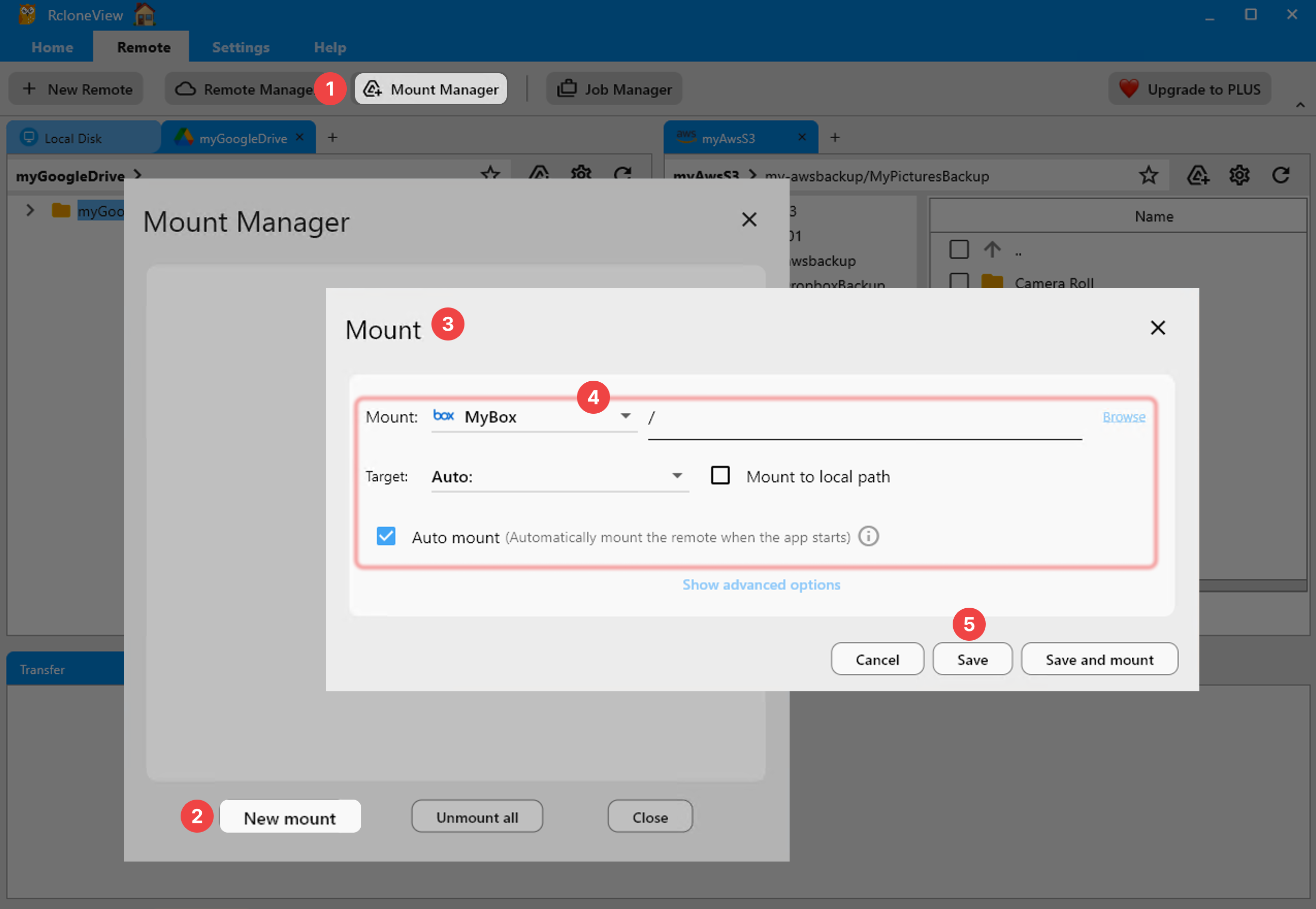
You can also mount a cloud remote as a local drive using the Mount Manager, which relies on FUSE and the nfsmount method on Linux — make sure fuse3 is installed. This lets you open cloud-hosted case files directly in your other Kali tools without a manual download step first, with the option to mount read-only when you want to prevent accidental writes to shared evidence.
Getting Started
- Download RcloneView from rcloneview.com — grab the
.debor.AppImagebuild forx86_64. - Install with
dpkg -i(or make the AppImage executable and run it directly). - Add your cloud remotes through the New Remote wizard, using OAuth login or credential entry depending on the provider.
- Run a Dry Run, then a real sync job, and verify results with Folder Compare.
Keeping evidence and client deliverables organized across local disks and cloud storage becomes far less error-prone with a GUI you can visually verify before every transfer.
Related Guides:
- Install RcloneView on Ubuntu / Debian Linux
- RcloneView on Debian Linux — Cloud Storage Sync and Backup
- Cloud Storage for Cybersecurity Companies with RcloneView
Supported Cloud Providers